
Responses
Manage responses with ease
Manage user and assistant messages with inline actions for copying, editing, branching, organizing, and deleting conversation content.
Copy to clipboard
Copy the response to your clipboard for easy sharing and pasting.
How to Copy Text to the clipboard
Long Press Copy Button
In any conversation, long-press the copy button on a message.
Select Format
Choose and copy the desired copy method from the options.
Paste into desired location
The copied text is now in your clipboard and can be pasted into text editors.
Set Default Behavior
Msty Studio remembers your last selected copy method (Markdown, HTML, or Formatted Text) and uses it as the default the next time you click the copy button.
Supported Copy Methods
- Markdown
- HTML
- Formatted Text
Bookmark message
Bookmark the message for easy access later. Bookmarked messages are saved in the Bookmarks section located at the top of the window.
Regenerate message
Regenerate the message to get a new response from the model. This is useful if you want to see different variations of the same prompt. Or, if you change the model and want to regenerate a response using the newly selected model.
Continue generation
Continue the generation of the message if it was cut off or if you want to expand on the response. This is useful for longer responses that may have been truncated.
Enable Context Shield
The Context Shield removes the prior conversation context from continued conversation. Its primary function is to create a barrier, stopping all previous conversation content from influencing or getting involved in your new inputs.
Generate Context Summary
After activating the Context Shield, click the shield icon. This will open a dropdown menu with two options: Remove Context Shield and Generate Context Summary. Select Generate Context Summary to create a summary of your conversation one response at a time.
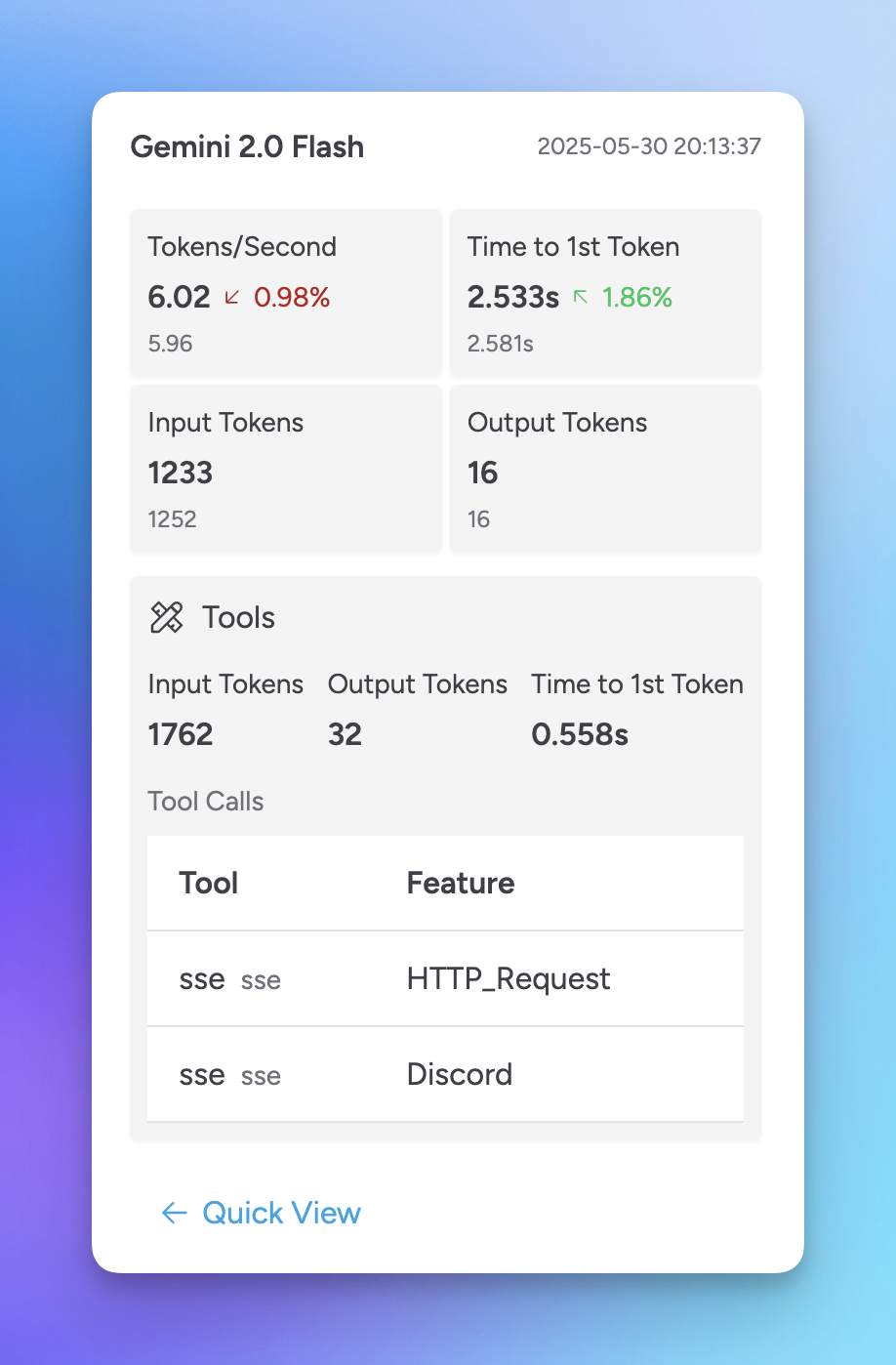
Response Metrics
Provides estimated input and output tokens used and latency metrics. If utilizing Tools, provides additional metrics for tool usage including which specific tools were utilized.
Use as Prompt in New Split
Open the message's additional-actions menu and select Use as Prompt in New Split to create a new unsynced split with that message as its initial prompt.
This is useful when you want to test a message with another model without copying the entire conversation path.
Edit as Branch
Open the message's additional-actions menu and select Edit as Branch.
Edit the message and save it to create an alternative conversation branch without overwriting the original path. Use Branch Explorer to label, navigate, and compare branches.
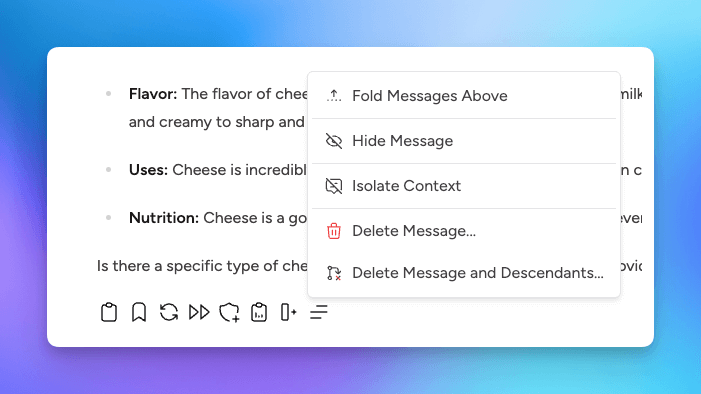
Fold messages
Fold messages to hide them from view to declutter the conversation and focus on specific messages.
View Tools Usage
Display the tools used in the response, including the tool name, input, and output. This is useful for understanding how the model utilized tools to generate the response.
Hide messages
Hide messages from the conversation view. Hidden messages will still be included in contexts.
Hidden messages can be unhidden by clicking the unhide parent/child message option under the adjacent message's response menu. To unhide all, select the conversation's ellipsis menu in top right corner and then select option to Show All Hidden Messages.
Isolate Context
Excludes the response from being included in context sent to model during continued conversation. Select Remove Context Isolation to include context back in conversation. You can also remove all context isolation in a conversation from the ellipsis menu in the top right corner and then select option to Clear All Context Isolations.
Delete message
The delete control separates single-message deletion from branch deletion:
- Click Delete to remove only the current message
- Right-click Delete and choose Delete Message and Descendants to remove the message and every response that follows it on that branch
- Hold Shift while selecting either delete action to skip the confirmation dialog
Deleting only the current message reconnects the remaining valid conversation path where possible. Delete descendants when you intentionally want to remove the rest of that branch.
Message Action Layout
Frequently used actions remain directly below each message. Less common actions, including branching, cloning, hiding, isolation, and tool-usage details, are grouped in the additional-actions menu.
For long messages, the action controls can remain accessible as a floating control while you scroll.
Modern Message Layout
The modern layout displays:
- User messages on the right
- Assistant messages on the left
- A simplified assistant identity label
- Message actions outside the message content
Switch between modern and classic layouts from the conversation menu or Settings > Conversations > Modern message layout.