Managing Models
Add and manage AI models in Msty Studio
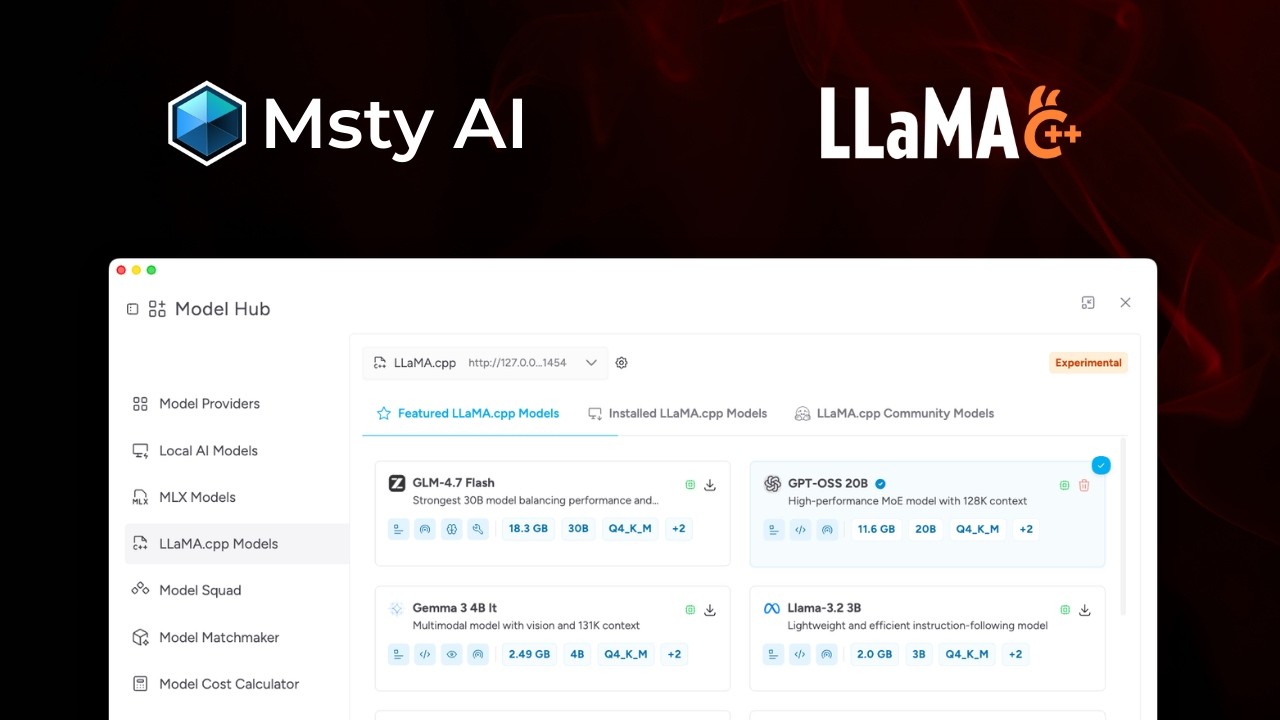
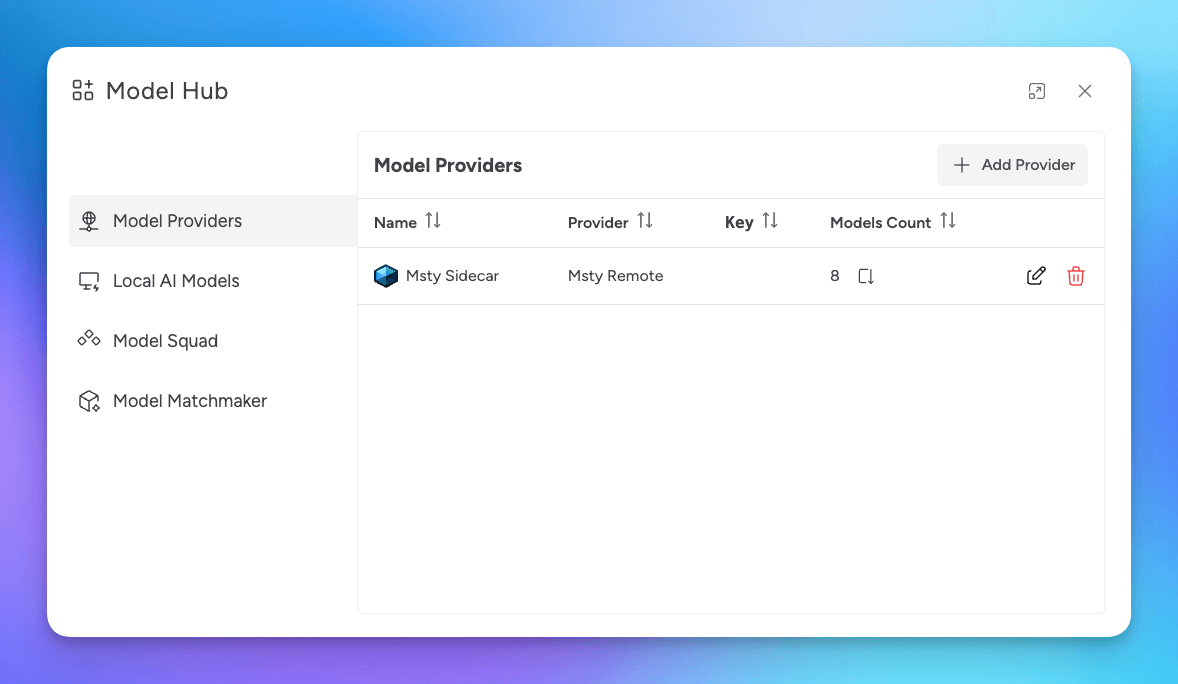
Model Hub is the central place to connect providers, install local models, compare model options, and tune model behavior.
Model Hub Workflow
For most users, model setup follows this order:
- Open Model Hub from the sidebar or Command Palette
- Connect an online provider, install a local model, or do both
- Monitor active service and model downloads from the Model Hub badge
- Set model defaults and purpose tags
- Tune model parameters or apply a preset when needed
Model Hub Sections
- Model Providers: Connect and manage hosted providers and their models
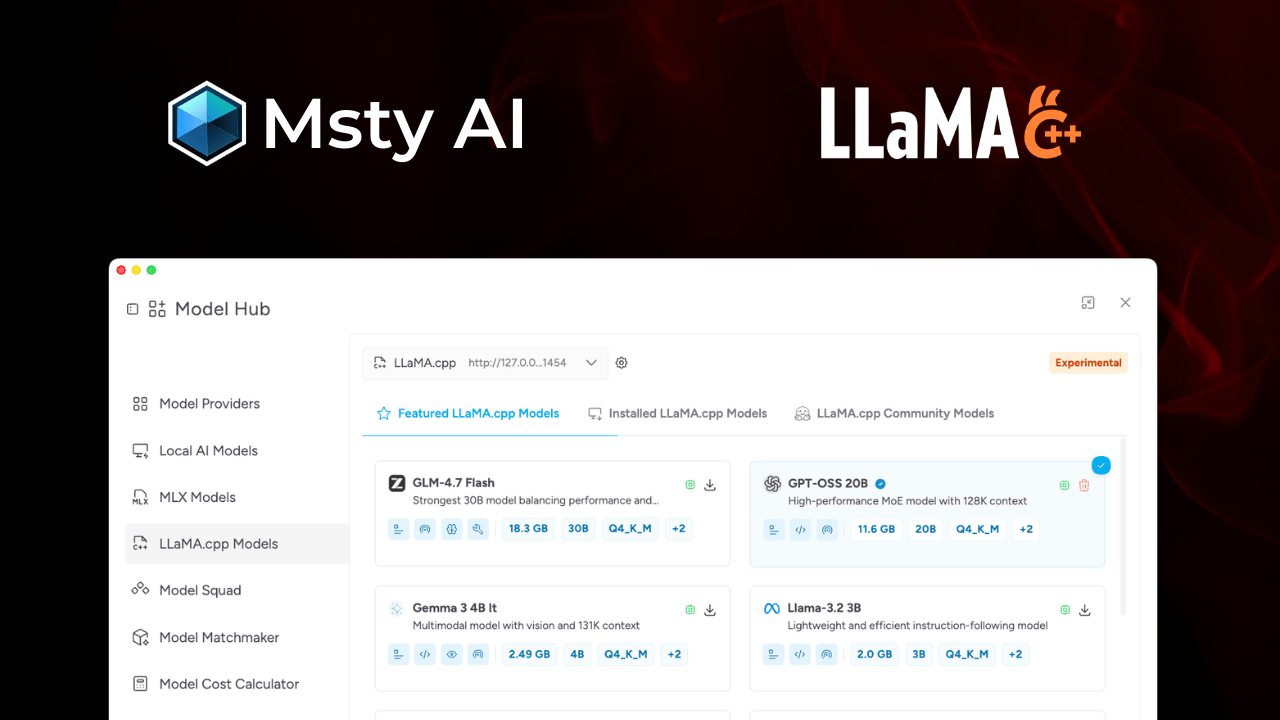
- Local Models: Discover, install, import, and manage models across Ollama, MLX, and Llama.cpp
- Model Squad: Assign preferred models to specific tasks
- Model Matchmaker: Get guided recommendations based on your needs
- Cost Calculator: Estimate hosted model usage costs
- VRAM Calculator: Estimate whether local models fit your hardware
- Context Explorer: Learn how context windows and token usage affect conversations
Active Downloads
When a model or local service is installing, the Model Hub sidebar icon displays an activity badge.
- Select the badge to return to Model Hub
- View active local and remote install counts
- Open the active installs panel to review progress or cancel an installation
Online and Local Models
Msty Studio supports two model sources:
- Online Providers: Hosted APIs that you connect with API keys
- Local Models: Models you install and run on your own machine
Online Providers
Use online providers when you want quick access to hosted models and managed infrastructure.
Go to Online Providers for supported providers, setup steps, and OpenAI-compatible bring-your-own endpoints.
Local Models
Use local models when you want more control over privacy, offline access, and local performance tuning.
Go to Local Models for the unified Featured, Installed, Model Search, and Import workflows.
Find the Right Model Faster
Use Model Matchmaker when you are unsure which model to start with.
Organize Models for Daily Use
Set a Default Model
In the conversation model selector, click the star icon to set a default model.
Rename Models and Providers
In Model Hub or the conversation model selector, click the edit icon to rename a provider or model.
Set Model Purpose Tags
Purpose tags help categorize what each model is best at.
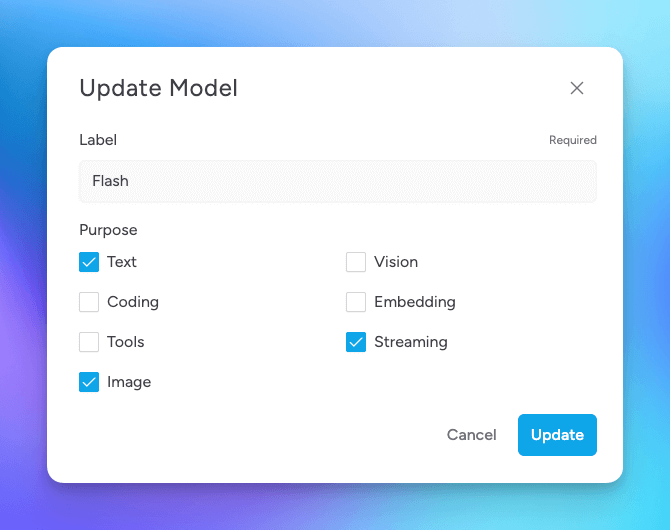
- Text: General text generation and understanding
- Coding: Code generation, analysis, and debugging
- Tools: Tool/API usage with Toolbox (MCP)
- Image: Image generation models (see Image Generation)
- Vision: Image understanding and analysis
- Embedding: Retrieval and vector workflows, including Knowledge Stacks
- Streaming: Near real-time data processing
- Thinking: Reasoning models with extended thinking controls
Provider and Model Logos
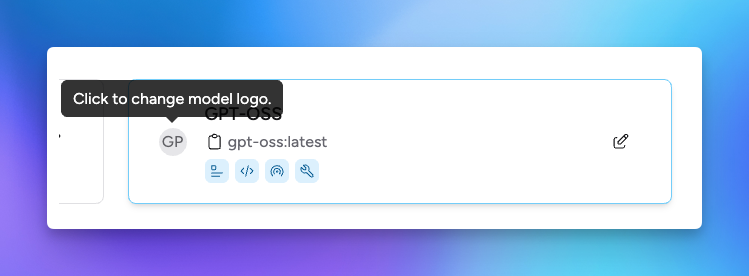
You can change provider and model logos from the edit dialog in Model Hub.