Remote Connections
Connect remotely to Msty Studio Desktop
Getting Started with Remote Connections Aurum Perk
Msty Studio Web can connect to a machine running Msty Studio Desktop to use its local models, MCP tools, and real-time data capabilities.
Choose Your Connection
Local AI and Remote Service have different primary purposes:
| Service | Purpose | Desktop settings | Web connection | Default port |
|---|---|---|---|---|
| Local AI | Model inference through Ollama's API, including OpenAI-compatible endpoints | Settings > Local AI | Msty Remote model provider | 11964 |
| Remote Service | Msty-specific APIs for MCP tools and other desktop capabilities | Settings > Remote Service | Remote Service sidebar button | 11932 |
Msty Remote is the provider name for connecting to another machine's Msty Local AI instance. The name comes from Msty 1.0; it does not mean connecting to the entire Studio application.
If you only need model access, connect directly to Local AI. You do not need to enable Remote Service or connect its sidebar button. Remote Service can also proxy Local AI when you want to use the same connection for models and tools.
Remote connections do not synchronize conversations, settings, or other app data between the web and desktop versions.
Connect Directly to Local AI Models
On the machine hosting the models:
- Open Settings > Local AI > Service Configurations.
- Turn on Enable Network Access when connecting from another device.
- Turn on Allow Access from Msty Studio, or add
https://msty.studioto Allowed Network Origins. - Select Save Changes and Restart Service.
- Use Copy Network URL to get the Local AI address for another device. Use Copy Local URL only when the browser and Local AI are on the same machine. If you use a reverse proxy, use its HTTPS address for Local AI instead.
The address must be reachable from the device using Studio Web. localhost refers to that device, not the machine hosting the models. Check the copied URL for the actual port in use.
In Studio Web:
- Open Model Hub > Model Providers > Add Provider.
- Select Msty Remote.
- Paste the Local AI address into Inference Endpoint. The address must start with
http://orhttps://. - Select Save.
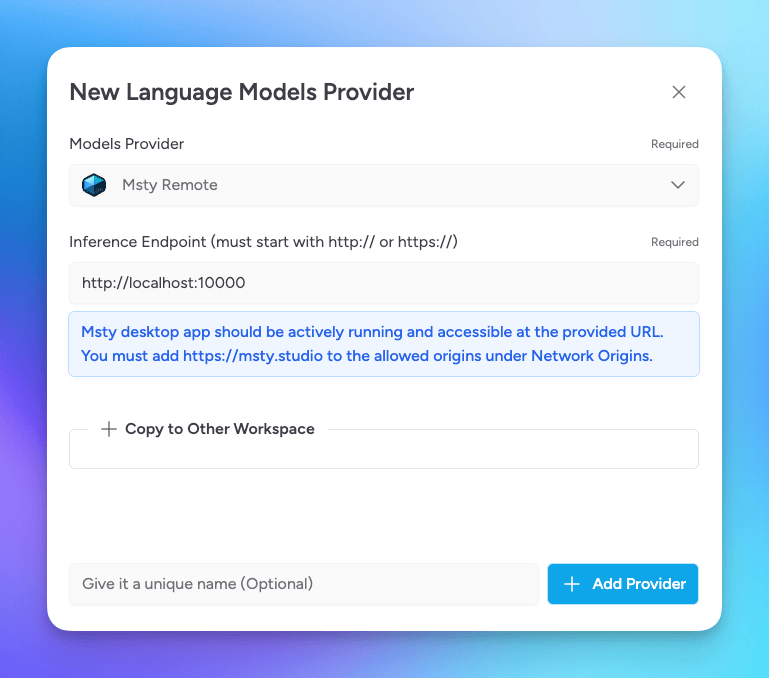
The model list comes from the connected Local AI service. It does not mirror every model provider configured in the host's Studio UI.
Set Up Remote Service for Tools
On the machine providing the tools:
- Open Settings > Remote Service.
- Set a Connection Token to authorize access.
- Optionally turn on Enable Tunneling (Experimental). Leave it disabled if the client can already reach the service through your network, VPN, or reverse proxy.
- Select Enable.
- Select Copy Local URL, or Copy Tunnel URL if tunneling is enabled.
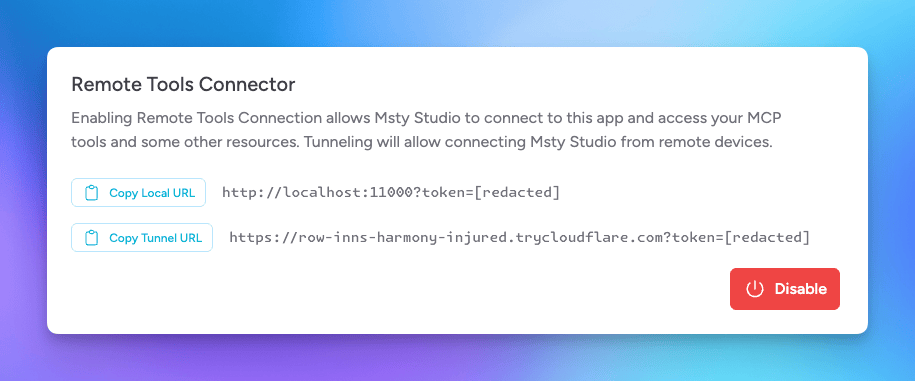
The copied connection URL includes ?token=.... Keep that token when pasting the URL. For another device, replace localhost with the reachable address of the host, or use the tunnel or reverse-proxy URL with the same token. Check the copied URL for the actual service port.
Connect Studio Web to Remote Service
- Open the Remote Service sidebar button.
- Select Connect or Edit Connection Details.
- Paste the full Remote Service URL, including its token, into Connection Info.
- Select Save and Connect.
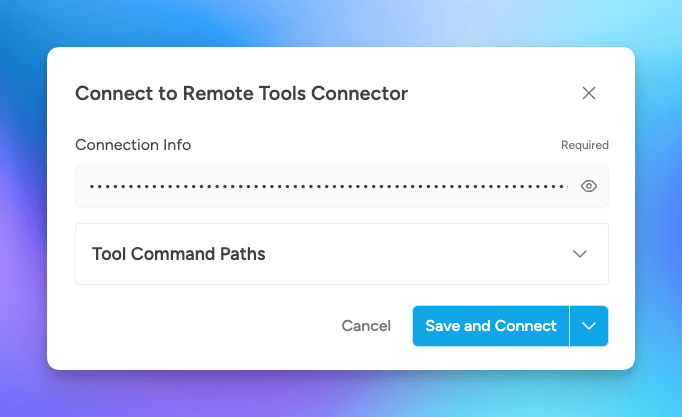
This connection provides access to MCP tools and desktop capabilities such as real-time data and locally installed tool dependencies. A direct Local AI URL cannot be used in Connection Info.
Older screenshots may call Remote Service the Remote Tools Connector, and the Connection Info field Tools Connection.
Use Remote Service for Models Too
To access Local AI through Remote Service, add a Msty Remote provider and paste the same full Remote Service URL, including ?token=..., into Inference Endpoint. Local AI must be running on the host.
Studio adds the Local AI proxy path automatically. Do not append /localai to the copied connection URL yourself. Connecting the Remote Service sidebar button is still only needed for tools and other desktop capabilities.