
Extensions
Discover, install, create, rate, and share Msty Claw extensions
Extensions are packaged add-ons that can add themes, tools, automations, model options, custom views, and app-surface controls to Msty Claw. They are useful when a workflow needs to become reusable, installable, and permission-reviewed instead of living as one-off prompts or manual setup.
Open Extensions from the app navigation, or use Cmd/Ctrl + Shift + X.
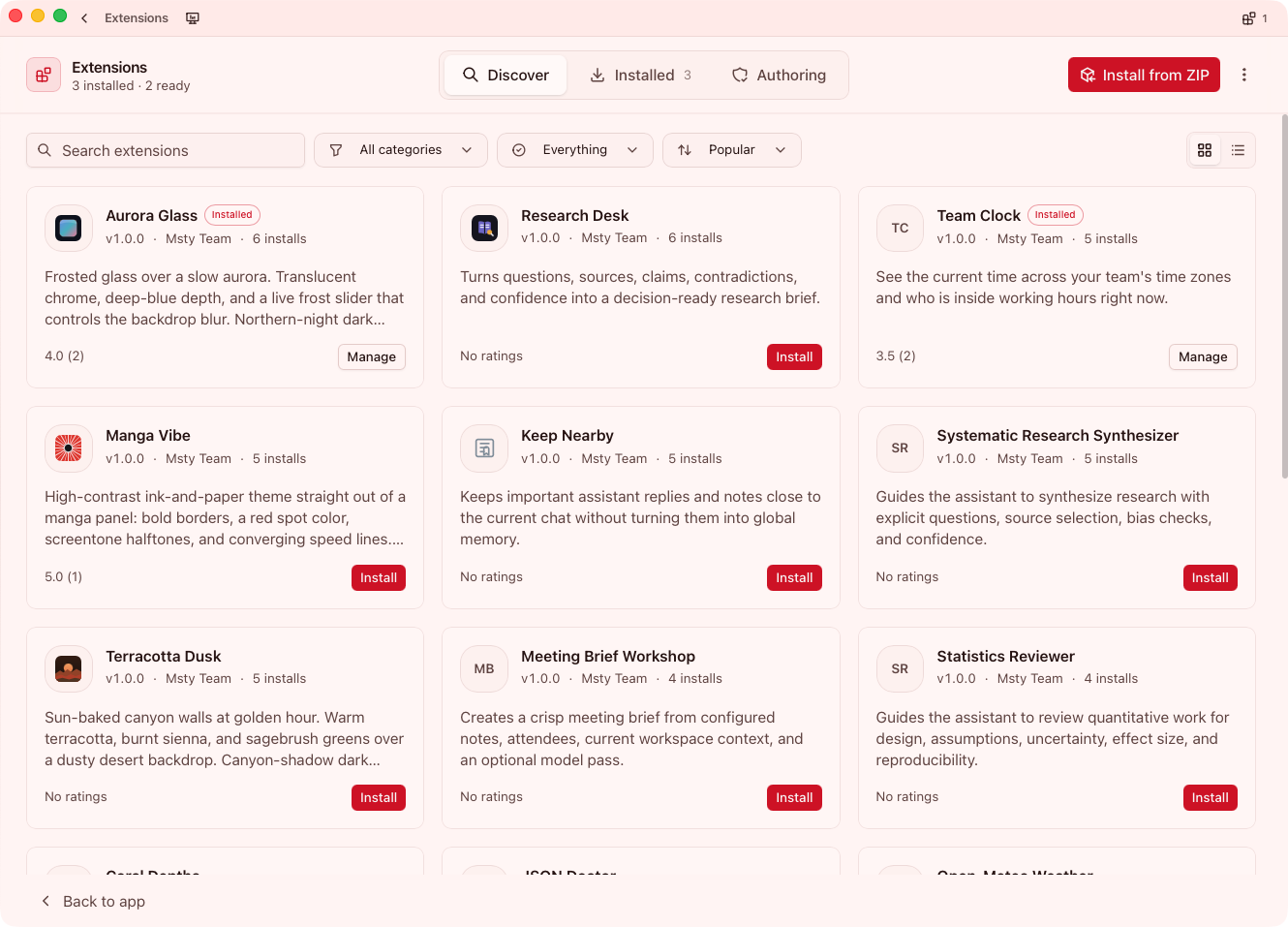
Extension sections
The Extensions view has three main sections:
- Discover: browse catalog extensions, inspect details, install updates, and rate extensions
- Installed: manage local extensions, permissions, settings, logs, activity, storage, updates, and removal
- Authoring: create new extensions, apply for Verified Extension Authoring, and sign finished packages when approved
You can also install a local package at any time with Install from ZIP.
What extensions can do
Extensions can add visible workflow surfaces and background capabilities, depending on the permissions you approve.
Common extension types include:
- Themes: add app themes and theme settings
- Commands and tools: add slash commands, callable tools, and workflow actions
- Rules, playbooks, and tasks: provide reusable automation building blocks
- Trigger providers: add new event sources for automated task runs
- UI surfaces: add full views, drawers, dialogs, popups, title bar items, status bar pills, workspace items, toolbox items, Pulse items, message actions, and composer actions
- Model capabilities: add model assignment slots, virtual models, and local model integrations
Extensions are different from Skills Hub. Skills primarily package model behavior and instructions. Extensions can integrate more deeply with the Claw host app, but they must declare the access they need.
Discover extensions
Use Extensions > Discover to find catalog extensions.
Discovery supports:
- Search by name, description, author, keywords, and metadata
- Category filtering
- Installed or not-installed filtering
- Sorting by
Popular,New,Top rated, orName - Detail drawers with install actions, permission previews, contribution summaries, ratings, source links, and metadata
Before installing, open the detail drawer and review:
- What the extension adds
- Which permissions it requests
- Trust badge and author information
- Source or support links when available
- Version, published date, update date, license, downloads, and ratings
Install and review access
Extensions can be installed from Discover or from a local ZIP.
Typical install flow:
- Choose Install in Discover or Install from ZIP
- Review the extension details and requested access
- Install the package
- Open the permission review if Claw marks access as pending
- Allow only the permissions required for the workflow you intend to use
Required permissions must be reviewed before the extension can fully run. If you deny or revoke required access, the extension may stay limited or unavailable until access is changed.
Manage installed extensions
Use Extensions > Installed after installation.
You can:
- Search, filter, and sort installed extensions
- Review pending permissions
- Allow, deny, or revoke individual permissions
- Enable or disable an extension
- Open extension settings
- Inspect activity, logs, jobs, and storage
- Apply extension themes
- Update catalog-managed extensions
- Remove one extension or remove all extensions
Treat the Installed tab as the operational control plane for extension behavior. If an extension is not working, check permissions first, then settings, then logs/activity.
Create your own extension
An extension is a ZIP package with manifest.json at the root, optional JavaScript entry files, and optional static assets such as icons or previews.
A simple extension project usually contains:
Use a stable reverse-DNS extension ID such as com.yourname.extension-name or ai.yourteam.extension-name. Keep permissions minimal, and include a clear reason for each requested permission so installers know why access is needed.
Package from inside the extension folder so manifest.json is at the ZIP root:
Then install the ZIP with Extensions > Install from ZIP and review permissions.
Use Msty Claw to build one
The fastest path is Extensions > Authoring > Create a new extension.
Choose Start building to open a chat with the extension-building prompt, or copy the prompt into a new chat. Msty Claw uses the built-in create-extension skill to ask only the necessary questions, scaffold the package, validate the manifest, package a test ZIP, and explain the decisions in plain language.
You can also start directly in chat:
Good briefs include:
- Extension name and author
- Desired extension ID, or permission for Claw to suggest one
- Where the extension should appear in the app
- What user action should trigger it
- Which data it needs to read or write
- Whether it needs settings, storage, files, network access, or model calls
After Claw builds the ZIP, install it privately first and validate behavior before sharing it with anyone else.
Use extensions privately
You do not need public catalog listing to use an extension.
Private use options:
- Install your own ZIP locally with Install from ZIP
- Share a ZIP directly with trusted teammates
- Keep the extension source in a private repository
- Use a signed ZIP privately if your account has Verified Extension Authoring
Private extensions still go through local package validation and permission review. Recipients should inspect the source, requested access, and trust badge before enabling the extension.
Share as a verified author
Verified Extension Authoring is for authors who want packages to show a Verified Author badge.
Use Extensions > Authoring > Share as a verified author.
Access states:
- Signed out: sign in to Msty Claw Cloud before applying
- Apply: submit the application with your signed-in account email and optional Discord username
- Pending: Msty has received the application
- Needs info or Rejected: update the application details and submit again
- Ready: the account can sign extension ZIPs
When authoring is ready, choose Sign an extension ZIP. Msty Claw checks the package and saves a signed copy with your verified account name. You can then install the signed package locally or share the signed ZIP.
Verified Author confirms that the package was signed by an approved Msty account. It is not the same as a full Msty code audit.
Submit for public discovery
Public availability in Discover is a reviewed catalog path, not the same thing as private ZIP sharing. There is no automatic public-publish switch inside Claw.
Before submitting an extension for broad availability:
- Test the extension locally from ZIP
- Keep requested permissions minimal and justified
- Prepare source or repository details when appropriate
- Include a clear name, description, version, icon, categories, support URL, and license
- Use Verified Extension Authoring if you want the package to show a verified author identity
Submit the package and metadata to Msty for catalog review through the current Msty review channel. If you are applying for authoring access, join the Msty Discord from the Authoring tab because it helps Msty review authoring and catalog requests faster.
Rate extensions
Ratings are tied to Msty Claw Cloud accounts.
To rate a catalog extension:
- Sign in to Msty Claw Cloud
- Open Extensions > Discover
- Open the extension detail drawer
- Choose a 1-5 star rating
If you are signed out, Discover can show Sign in to rate. Sign-in is for account-backed ratings and verified authoring flows; local ZIP installation does not require rating an extension.
Trust and safety
Use trust labels as one input, not the only decision.
Trust labels include:
- Official: signed by Msty Team
- Verified Author: signed by a verified Msty author
- Reviewed: reviewed through the extension catalog
- Signed: package integrity is signed, but the author is not verified by Msty
- Unverified Author: author identity has not been verified by Msty
Recommended safety baseline:
- Install only extensions you understand and trust
- Review permissions before allowing access
- Prefer narrow permissions over broad access
- Keep private credentials out of extension code and normal storage
- Disable or remove extensions you no longer use
- Re-check permissions after extension updates
Troubleshooting
- Extension installed but does nothing: open Installed, review pending permissions, and enable the extension
- Settings are unavailable: review required permissions or enable the extension
- Update installed but extension paused: review any new access requested by the update
- Catalog rating is unavailable: sign in to Msty Claw Cloud
- Authoring application is unavailable: sign in to Msty Claw Cloud and check the Authoring tab status
- Private ZIP will not install: confirm
manifest.jsonis at the ZIP root and the package uses a supported extension API version