
Start a conversation
Choose a model, send a prompt, and organize your chats.
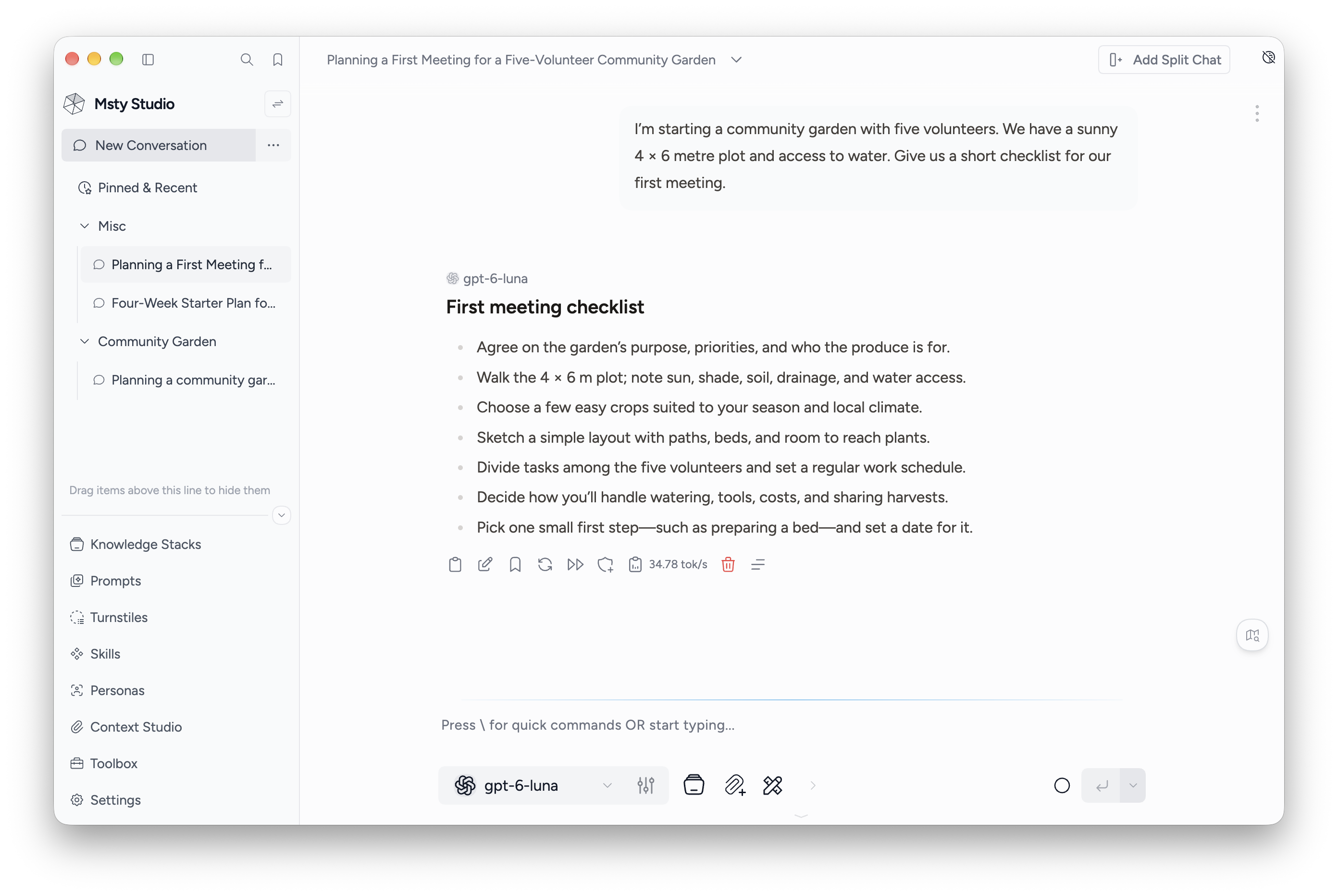
Send your first message
- Click New Conversation in the sidebar. If the button shows another conversation type, open its menu and choose New Conversation.
- Select a model in the chat. Add a provider or install a local model first if the list is empty.
- Write your prompt and click the send button.
- Continue in the same chat to keep the preceding messages available as context.
The send button shows the current keyboard shortcut. Open its menu to choose whether Enter or a modifier plus Enter sends a message.
Use the stop control to interrupt a response. You can then refine your request or regenerate the response.
Add context
Use the controls around the composer to add attachments, a system prompt, Knowledge Stacks, or tools. Availability depends on the selected model and your plan. Review the selected items before sending: an attachment being stored in the workspace does not automatically mean it is included in this prompt.
For a repeatable role or a group of assistants, start a persona or crew conversation.
Find and organize chats
Conversations appear in the sidebar under their projects. Open a conversation's actions to rename, move, bookmark, archive, or export it. Use Sort & Display above the conversation list to change ordering or show archived conversations.
The sidebar search opens the command palette. Use Bookmarks for conversations and messages you want to return to quickly.
Compare answers
Add a split chat to keep another model or line of thought beside the current chat. Each split has its own message history; prompt synchronization lets selected splits receive the same next prompt.