
Prompts
Save prompts, fill variables, and test revisions before using them.
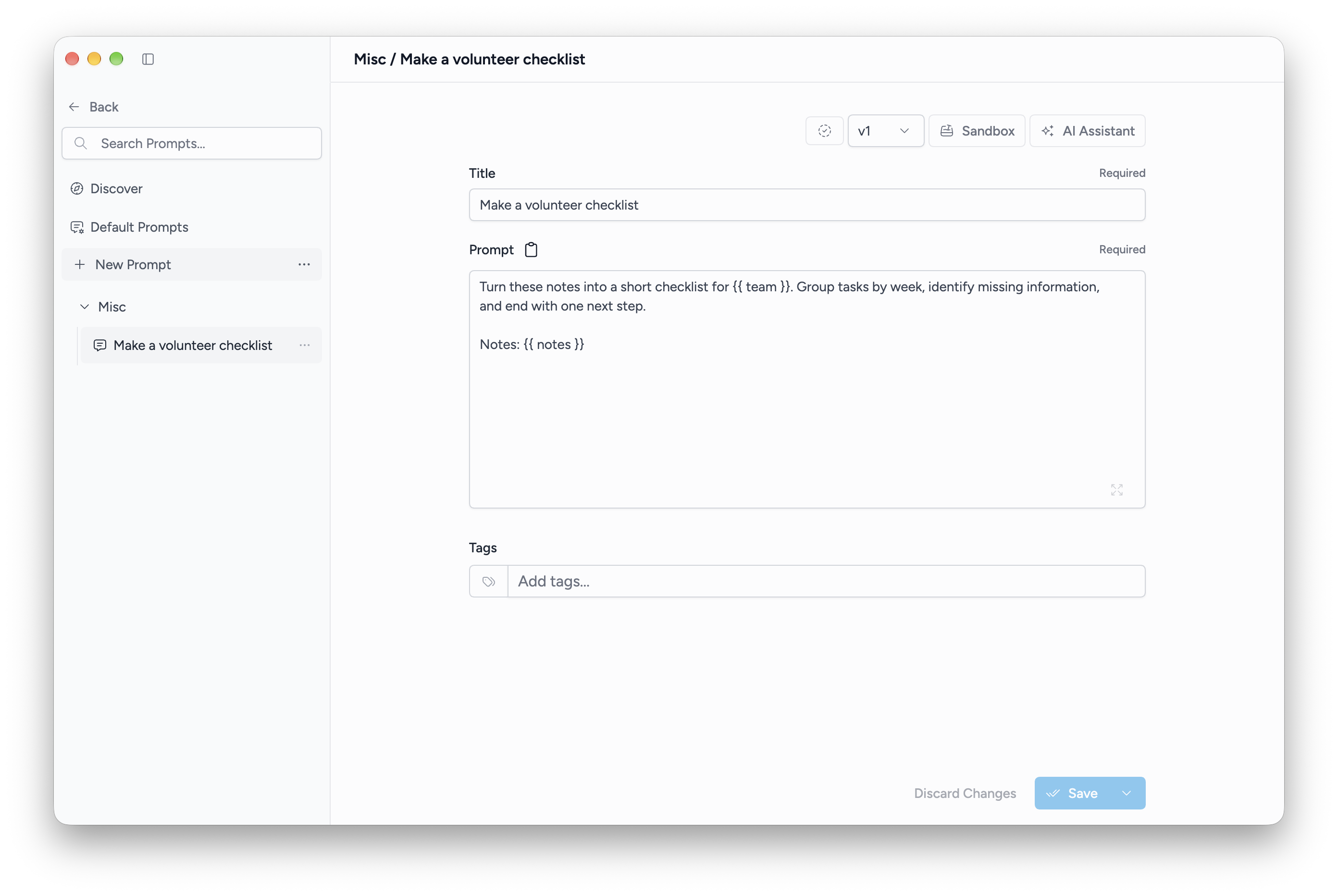
Save a reusable prompt
- Open Prompts and choose a prompt from Discover, or create a new prompt.
- Enter a title and the prompt text.
- Add tags or place it in a folder, then Save.
- In a conversation, open Quick Prompts and choose the saved prompt to insert it into the composer.
Quick Prompts insert text; review it and send when ready. A conversation's System Prompt sets ongoing instructions instead.
Add variables
Use placeholders when part of a prompt should change each time:
{{topic!}} is required. {{audience:beginners}} starts with a default value. Fill the detected variables before running the prompt.
Test and compare
Open Sandbox to try a prompt with selected models and inspect test runs. Use Save as Version to keep a revision before making a larger change. A saved version can be selected without discarding the other versions.
AI Assistant can help draft or improve prompt text; review its result before applying and saving it.
Default Prompts
The Default Prompts section changes Msty's built-in task prompts, including Context Studio analysis and Knowledge Stack tasks. These affect those app workflows rather than merely adding text to the prompt library. Use the reset action to restore a built-in prompt.