
Connect MCP tools
Add an MCP server and test the tools it provides.
Toolbox connects Msty to MCP servers. A server can provide tools for tasks such as reading files or looking up information.
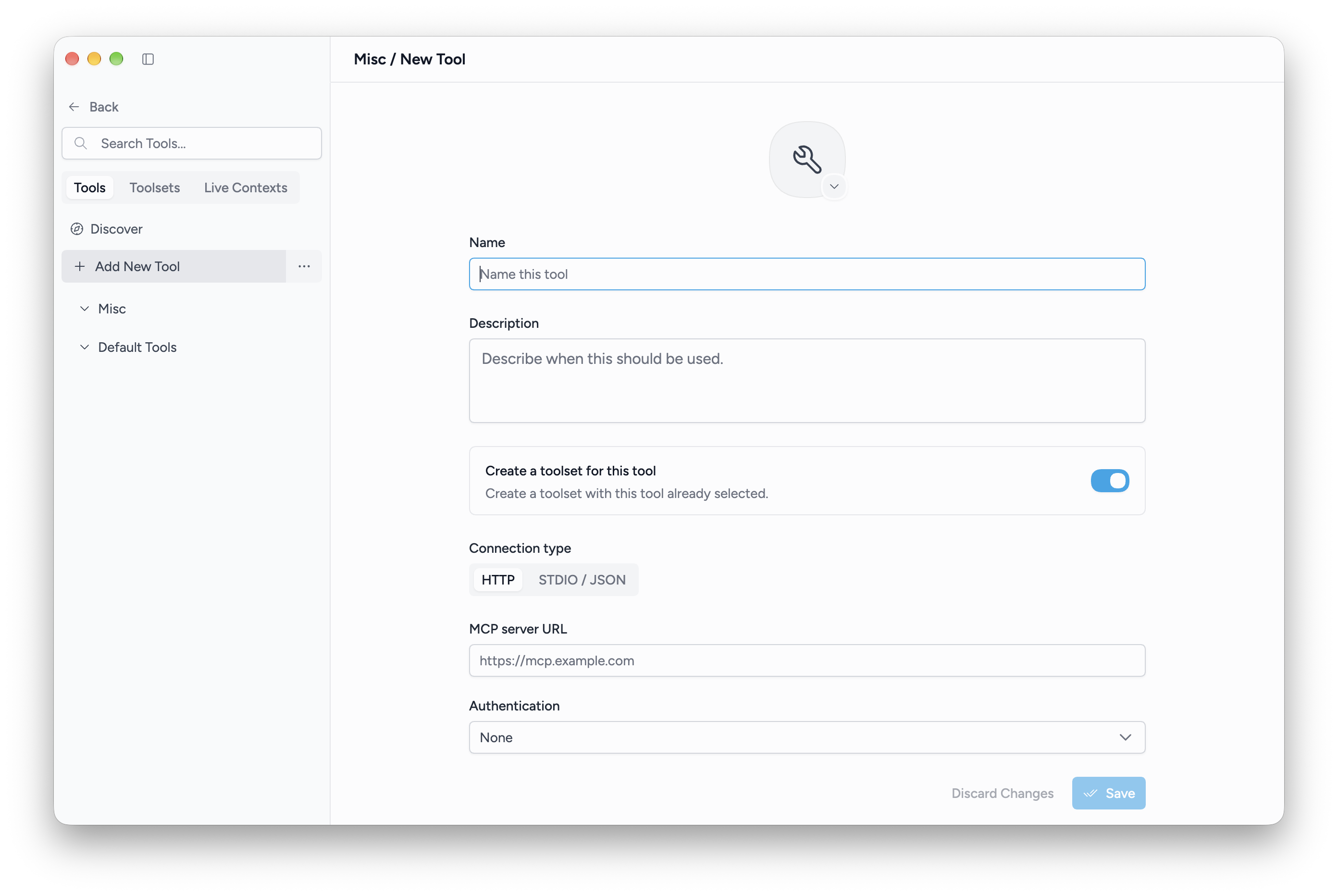
Add a server
- Open Toolbox and select Tools.
- Choose Add New Tool and give it a name.
- Select HTTP for a server URL, or STDIO / JSON for a command-based server configuration.
- For HTTP, enter MCP Server URL and the authentication method required by the server. Options include a bearer token and OAuth.
- For STDIO, paste the server's configuration. Its command and dependencies must be available on the desktop.
- Use Test tool to check the connection, then Save.
Use the configuration supplied by the MCP server's author. Authentication, required environment values, and installed dependencies vary by server.
Make tools available to a conversation
Add the server to a toolset, then select that toolset in the conversation. Use a model that supports tool calling.
A successful connection does not guarantee every request will use a tool. The model chooses from the tools made available to it.
If a tool does not connect
Recheck the URL or command, required values, and authentication. Use the tool's console to inspect errors. For command-based servers, verify the required executable is installed and reachable.