
Media Studio
Generate images or videos and refine them with reference context.
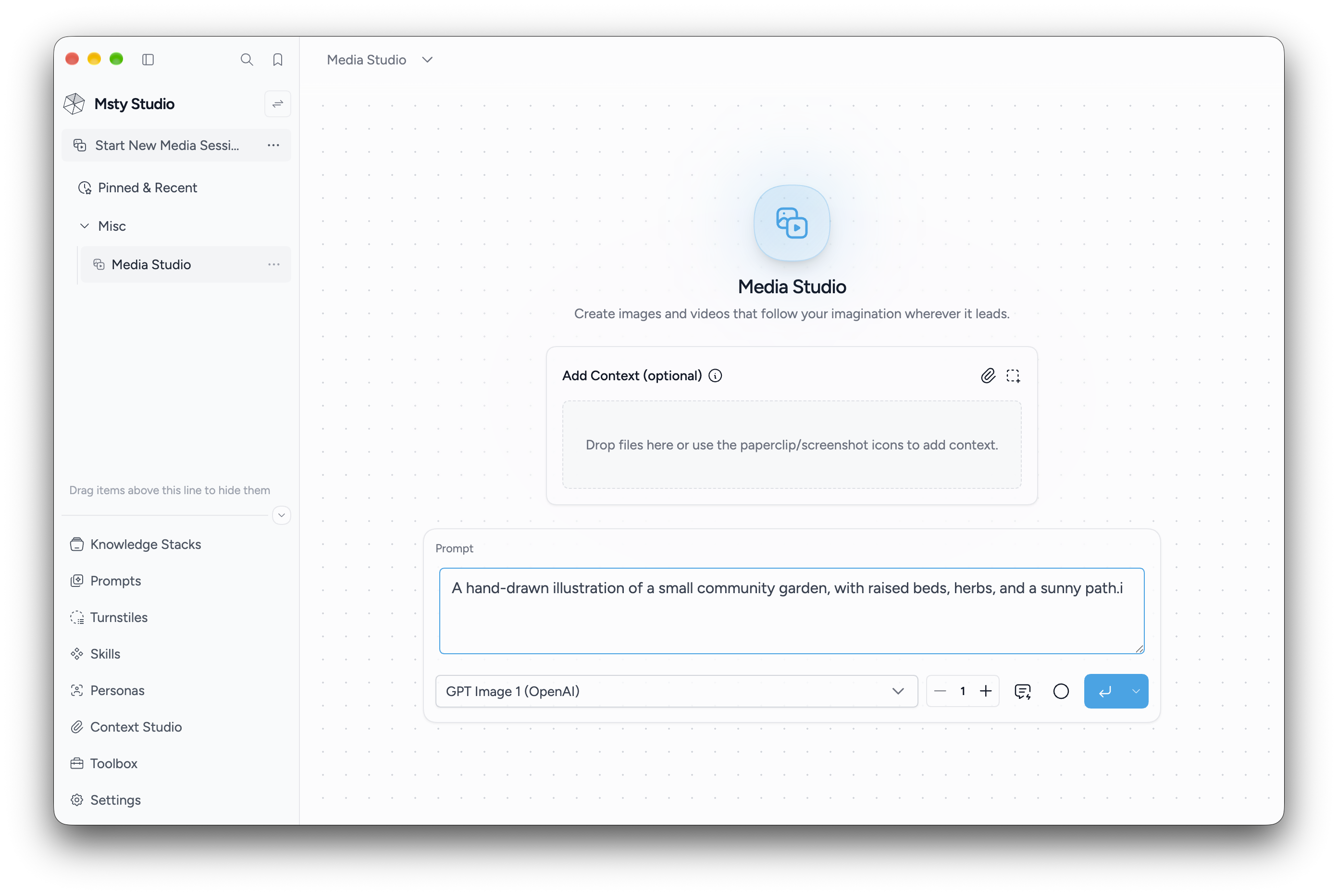
Generate media
- Add an image- or video-capable model in Settings > Model Providers.
- Open the New Conversation menu and choose Start New Media Session.
- Select the image/video model.
- Write a prompt. Optionally use Add Context to include reference material.
- Adjust the generation settings offered for that model, then generate.
- Select an output in the history to inspect or download it.
The selected model determines whether the output is an image or video and which settings and reference inputs are supported. A normal chat model does not automatically support media generation.
Refine an image
Use a previous output or an uploaded image as context, then describe the change you want. Check which context items are enabled before generating again.
Image annotation tools can add marks, text, or a crop to a reference. These annotations are saved as an image; they are not a promise that every model will follow the marks in the same way.
Compare and keep outputs
History keeps the results of a session. Use Compare to inspect up to three selected outputs together. The history and item menus provide actions such as downloading, renaming, and managing context.
For supported video models, reference images can be assigned as starting or ending frames. The available frame controls depend on the selected model.