Access from anywhere
Pro Enterprise
Access from anywhere gives a machine a hosted HTTPS address. Apps outside your network can then call that machine’s Nexus: a laptop away from the office, a server in the cloud, or a teammate at home. Nobody needs to join your network or VPN.
| Plan | Addresses |
|---|---|
| Free | None |
| Pro | 1 per machine |
| Enterprise | Set for your organization |
How it works
Section titled “How it works”The machine keeps one outbound connection to Msty Nexus. A request sent to its hosted address travels through that connection to the machine. You don’t open a firewall port, set up port forwarding, or put Nexus on the internet yourself.
The address only finds the machine. It isn’t a password: every request still needs one of that machine’s API keys. Provider keys stay on the machine.
Everything you can use on the machine works through the address: models, presets, Smart Routes and Smart Balancer pools.
Turn it on
Section titled “Turn it on”- Open the machine, then Connections → Gateway access.
- Under Network & remote access, click Allow external apps.
- Copy the new address under External app access.
- Create an API key just for the app on the Client API keys tab. See Connections.
- In the app, use the address as the base URL and the key as the API key.
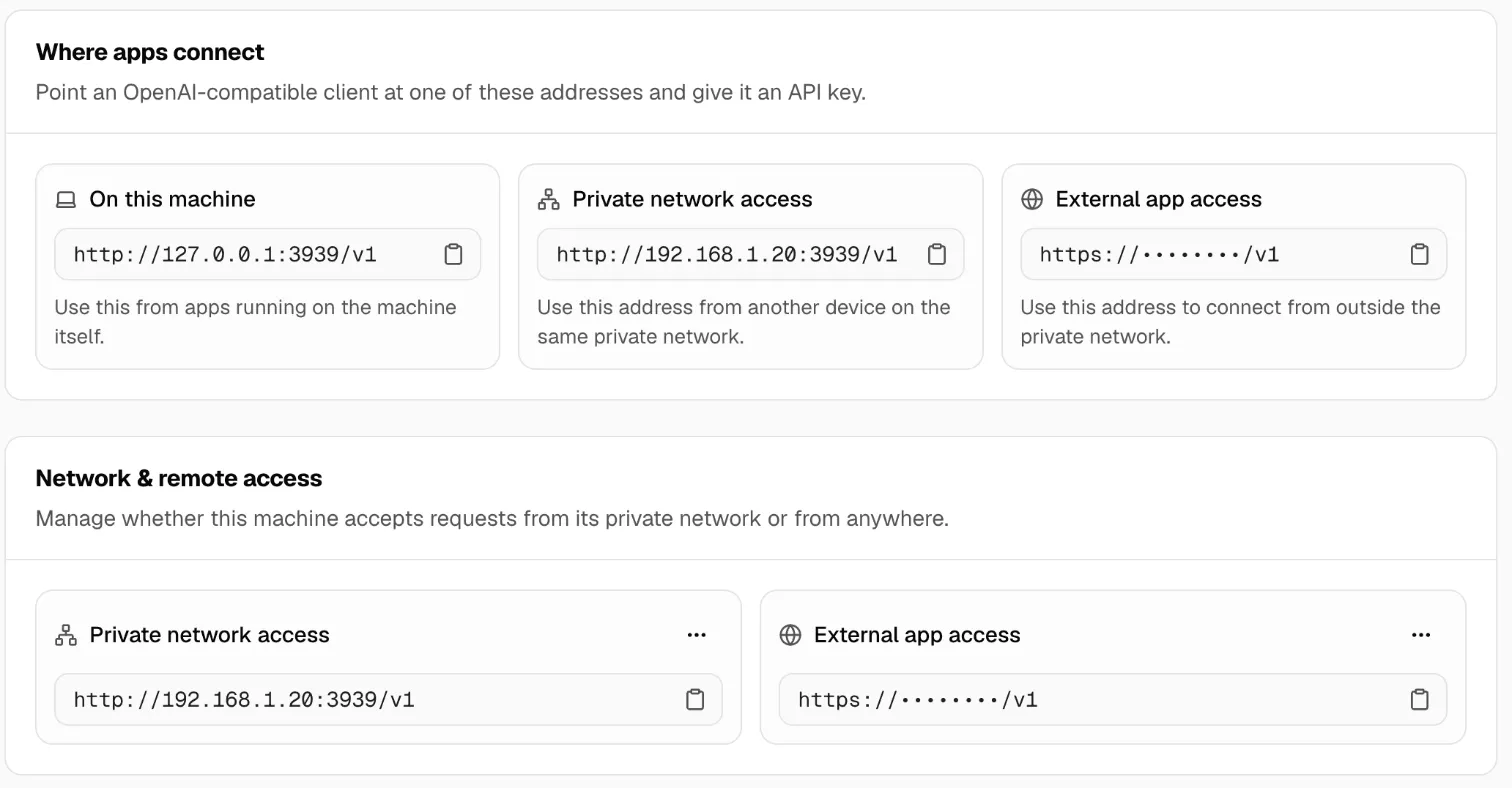
The same address shows in Fleet → Machines, under the machine’s Details.
See the recipe Reach your machine from anywhere.
Turn it off
Section titled “Turn it off”On the External app access box, open the … menu and click Turn off. Traffic to the address stops at once. Apps that use it stop working until you give them another address.
When the address stops working
Section titled “When the address stops working”The machine must stay in the fleet, online, and connected. The address stops working when:
- The machine is off, asleep or offline.
- It leaves the fleet, or its fleet connection drops.
- Your plan no longer includes it.
Keep it safe
Section titled “Keep it safe”- Make one API key per app. Then you can limit or revoke each app on its own.
- Treat the address as public, and the API key as the secret.
- Requests and replies pass through the Msty-hosted relay. HTTPS protects them on the way, but the data doesn’t stay on your own network. If your rules don’t allow that, use Private network access or a VPN instead.
- A web page that calls Nexus also needs its origin allowed. See Settings.
Read Security before you open access for sensitive work.
If something goes wrong
Section titled “If something goes wrong”| What you see | What to do |
|---|---|
| There’s no Allow external apps | Your plan doesn’t include it, or this machine’s address is already used. See Plans. |
| The app can’t connect | Check that the machine is online in Fleet → Machines. |
401 or “invalid key” |
Use an API key from the same machine, not another one. |
| A browser app fails before it reaches Nexus | Allow the page’s origin in Settings. |