
Create a Smart Route
You can start a route four ways, then finish it in a short composer or in the full editor. This page covers both, and how to edit, copy and delete routes later.
Prepare the router
Section titled “Prepare the router”Every route needs the router: a small model that runs on your machine and reads each request. You set it up once per machine.
- Open Smart Routes.
- Click Prepare router.
- Pick a Local runtime: MLX, llama.cpp or Ollama. Each one shows whether it’s Installed and running, Installed, or whether Nexus can install it.
- Click Prepare router, or Install and prepare if the runtime isn’t installed yet.
Nexus installs the runtime if needed, sets up the router model and starts it. When it says The router is ready, you can create routes.
Until the router is ready, routes still work: every request goes to the fallback.
Start a new route
Section titled “Start a new route”Click New Smart Route. The drawer offers four ways to start.
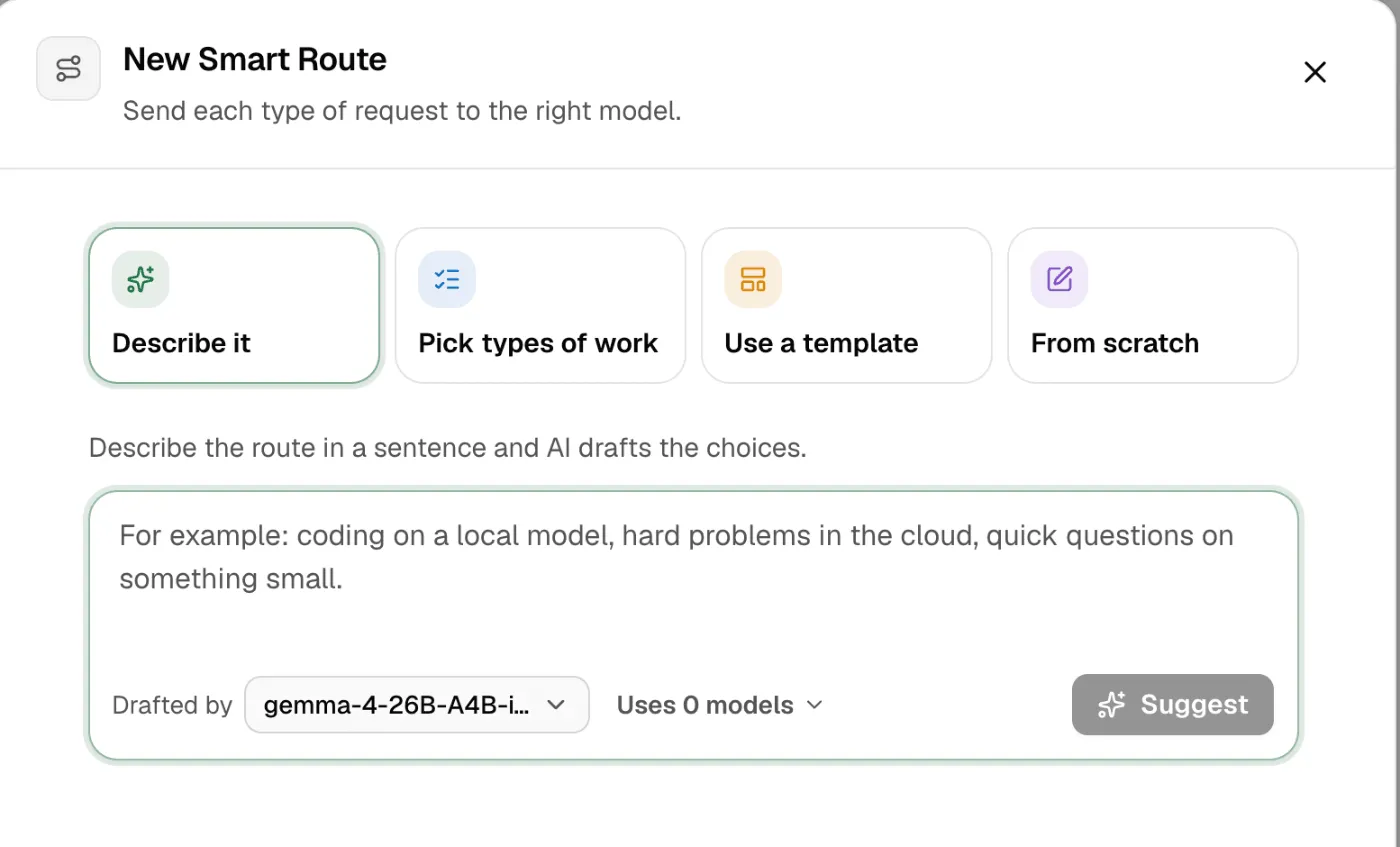
| Start | What you do | Good for |
|---|---|---|
| Describe it | Write one sentence, such as “coding on a local model, hard problems in the cloud, quick questions on something small”. Pick which models it may use under Uses … models, then click Suggest. | A quick first draft. |
| Pick types of work | Click common kinds of work: Coding, Writing, Summaries, Translation, Research, Complex reasoning, or Something else. Nexus adds a choice for each, with a model. | The fastest start. |
| Use a template | Pick a ready-made route. Search templates finds one; Refresh templates gets the latest list. Each template shows its choices, rules and budget. Pick a model for each. | Common setups, such as a coding assistant or a support desk. |
| From scratch | An empty route in the full editor. | You know exactly what you want. |
Finish in the composer
Section titled “Finish in the composer”After Describe it, Pick types of work or a template, the composer shows the draft:
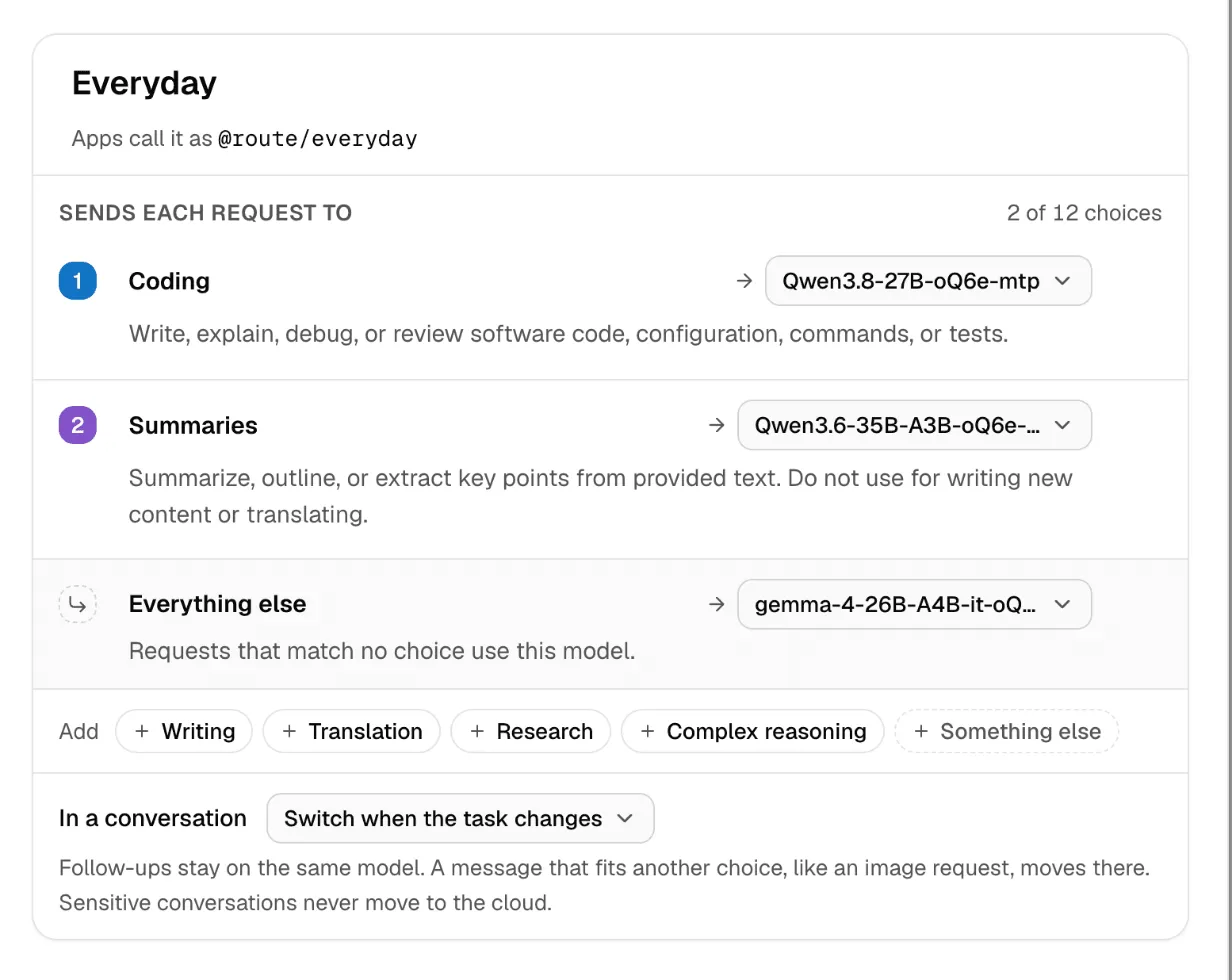
- Route name. Apps call the route by the address under it, Apps call it as
@route/<slug>. - Sends each request to: one row per choice. Each row has a name, a description of what it handles, and a model. A route can have up to 12 choices. Click the chips under Add to add more.
- Everything else: the fallback, for requests that match no choice.
- In a conversation: how follow-up messages are routed. See Conversations.
- Click Check routing to test sample requests. See Test and monitor.
- Click Create route.
At your plan’s route limit, the button says Create turned off: the route is saved but not running.
Open full editor moves the draft into the full editor, with every field. Start over goes back to the four ways to start.
The full editor
Section titled “The full editor”The full editor opens from Open full editor, from From scratch, or from Edit on a route.
| Field | What it does |
|---|---|
| Name | What the Console shows. |
| Route slug | The stable address. Apps call it as @route/ plus this slug. Changing it breaks apps that use the old one. |
| Guidance goal | What Nexus watches and suggests for this route: Balanced, More local, Faster replies or Better answers. It doesn’t change where requests go. See Routing choices. |
| Rules Pro | Exact tests that run before the router, plus the Monthly budget. See Conditional rules. |
| When a target is struggling Pro | Guards. See Budgets and guards. |
| Routing choices | One per kind of work: Choice name, When to use it and Target model or pool. Add choice adds another. |
| Default fallback | Gets requests when Nexus can’t select or use a routing choice. Pick a dependable general model or a preset. |
| Image fallback target | Used for image requests when the default fallback can’t handle images. Use the default fallback keeps them on the default. Required when image choices are used and the default fallback can’t generate images. |
| In a conversation | Switch when the task changes, Keep the first model or Route every message. See Conversations. |
| Data Protection Pro | Which paths are checked for sensitive data. See Data Protection. |
| Enabled | Whether the route runs. A turned-off route keeps its settings. |
A target can be a model, a preset, or a Smart Balancer pool. With a pool, the route picks the kind of model and the pool picks the machine.
Click Save changes when you’re done.
Manage routes
Section titled “Manage routes”The Routes tab lists your routes under Route packs. Each row shows the address, how many lanes it has, and its Data Protection coverage, such as All paths protected.
| Action | Where | What it does |
|---|---|---|
| Try in chat | On the row | Opens Chat Lab with this route as the model. |
| Edit | On the row | Opens the full editor. |
| Copy route id | Next to the address | Copies @route/<slug>. |
| Find gaps | Row menu | Groups requests no choice caught. See Routing choices. |
| Guidance goal | Row menu | Sets what Nexus watches and suggests. |
| Duplicate | Row menu | Copies the route, to try a change without touching the original. |
| Validate | Row menu | Checks that every target exists and can serve. It says This route is valid, or lists the warnings. |
| Delete | Row menu | Deletes the route. Apps that call it get an error. |
If something goes wrong
Section titled “If something goes wrong”| You see | Do this |
|---|---|
| Every request goes to the fallback | Prepare the router, and add at least two choices. |
| Not supported on this machine for a runtime | Pick another local runtime for the router. |
| Set it up yourself first | Install that runtime yourself, or pick one Nexus can install. |
| Create turned off | You’re at your plan’s route limit. Turn another route off, or upgrade. |
| Validation warns that a target is unavailable | Start the model, or pick another target. Until then, its requests go to the fallback. |
| Model shows … is not running in the composer | Load the model, or pick a running one. |