
Lobby walls
Enterprise
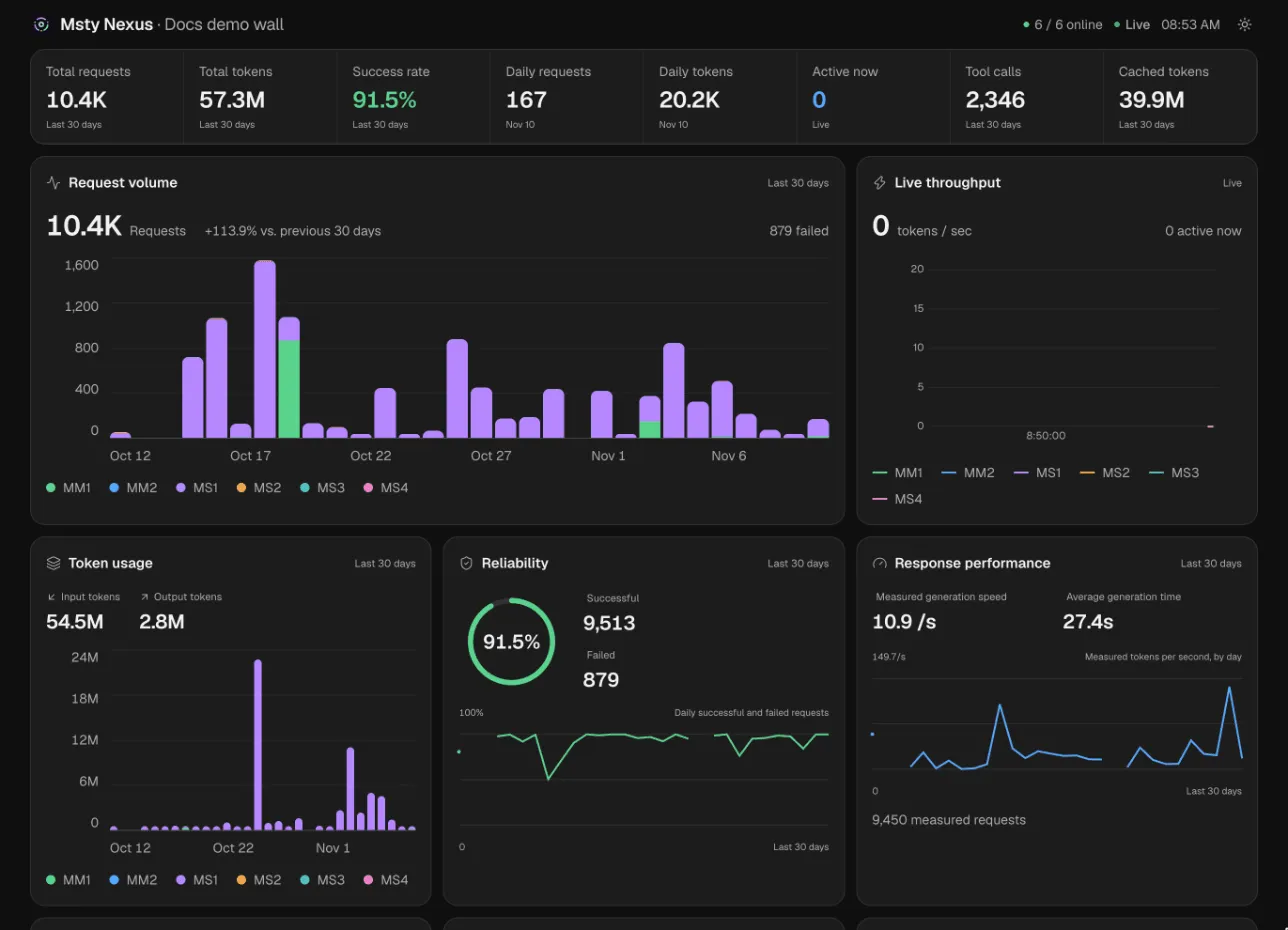
A lobby wall is a live, read-only dashboard of your fleet for a TV, an operations room or an event screen. It shows requests, tokens, speed, reliability and more, and updates on its own. It can’t change anything in Nexus.
Lobby walls are in Fleet → Lobby walls, for owners, admins and team managers. A team manager’s walls show only their teams’ machines.
Make a wall
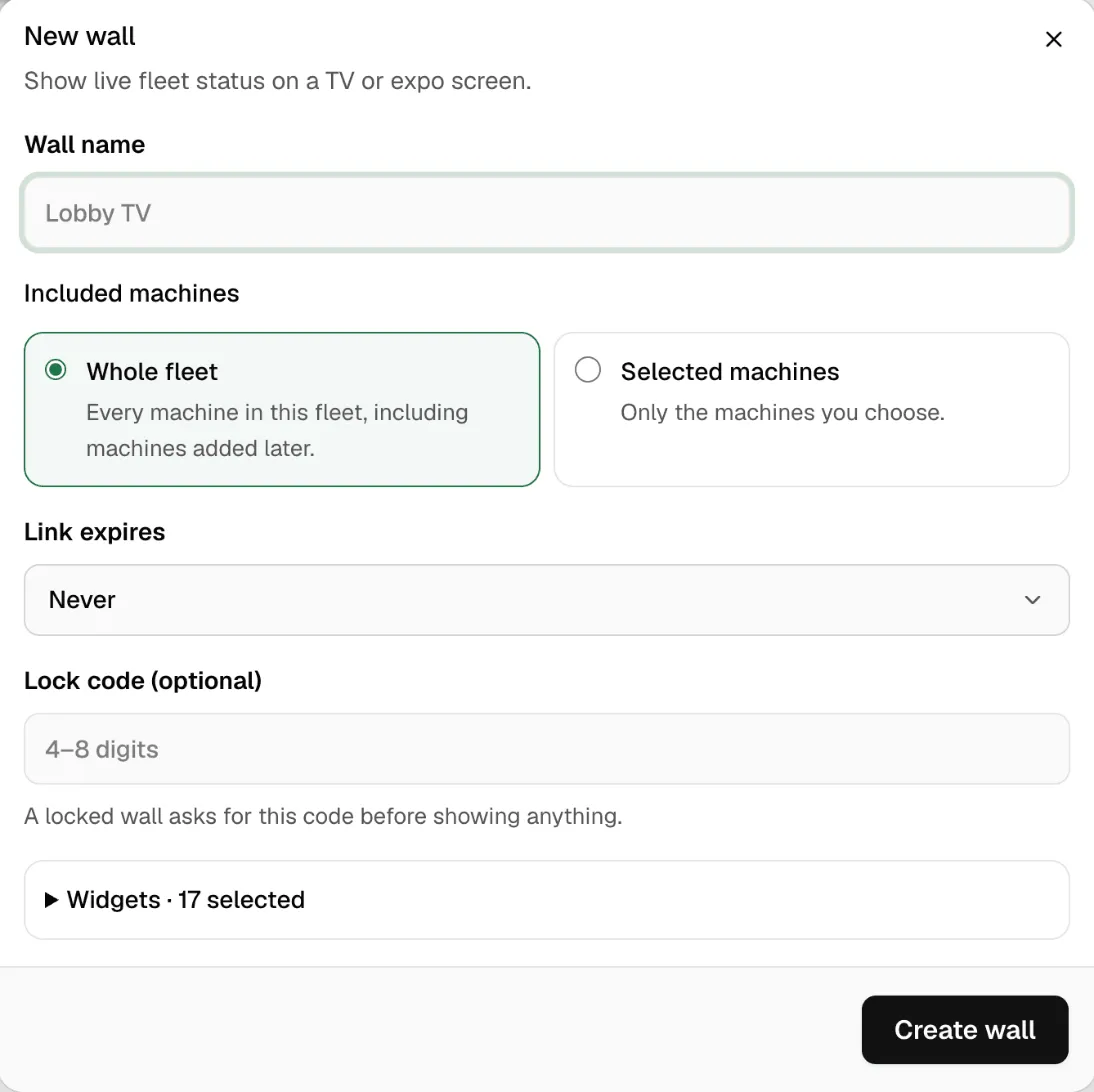
Section titled “Make a wall”- Open Fleet → Lobby walls and click New wall.
- Give it a Wall name, such as “Lobby TV”.
- Under Included machines, pick Whole fleet (including machines added later) or Selected machines.
- Pick when the Link expires, or Never.
- Optional: set a Lock code of 4 to 8 digits. A locked wall asks for it before showing anything.
- Open Widgets to choose what the wall shows.
- Click Create wall.
Wall is live shows the wall’s link. Copy it, or click Open wall. Open the link on the screen that will show it.
What a wall can show
Section titled “What a wall can show”Pick any of these under Widgets, or click Customize on a wall later:
- Key numbers: total and daily requests and tokens, success rate, active requests, tool calls and cached tokens.
- Request volume, Token usage, Live throughput, Reliability and Response performance.
- Popular models and Providers.
- Machines: which are online.
- Work distribution and Load balancing: how Smart Balancer pools share the work.
- Dynamic routing and Lane selection: what Smart Routes decide.
- Clustering: cluster models and their Macs.
- Recent activity, Prompt cache and Usage cost.
Manage walls
Section titled “Manage walls”Each wall’s … menu has:
- Copy link: copies its link again.
- Turn off: the link stops working until you turn the wall back on.
- Delete: removes the wall for good. Its link stops working.
Keep it safe
Section titled “Keep it safe”Anyone with the link of an unlocked wall can see it. A wall never shows prompts, replies, keys or settings, but it does show machine names, models and usage.
- Use a Lock code on screens in shared or public places.
- Set the link to expire for an event.
- Turn off or delete a wall you no longer use.
If something goes wrong
Section titled “If something goes wrong”| What you see | What to do |
|---|---|
| This wall is locked | Enter the wall’s lock code. |
| The link doesn’t work | The wall was turned off or deleted, or the link expired. Copy the link again, or make a new wall. |
| A machine is missing | The wall shows only Selected machines. Edit the wall, or make one for the Whole fleet. |
| The numbers are empty | Check that Monitor is on and the machines are reporting. |