
Serve more chats at once on one Mac
You’ll get: one Mac that answers several chats at the same time, not one after another. A request that can’t start soon gets a quick “busy” answer instead of a long hang.
You need:
- A local model running on MLX, llama.cpp or Ollama. See Local runtimes.
- Free memory. The model loads once, but each request that runs at the same time keeps its own conversation memory. That memory grows with Context length: 4 requests at once at 32K context hold about 4 times the conversation memory of 1.
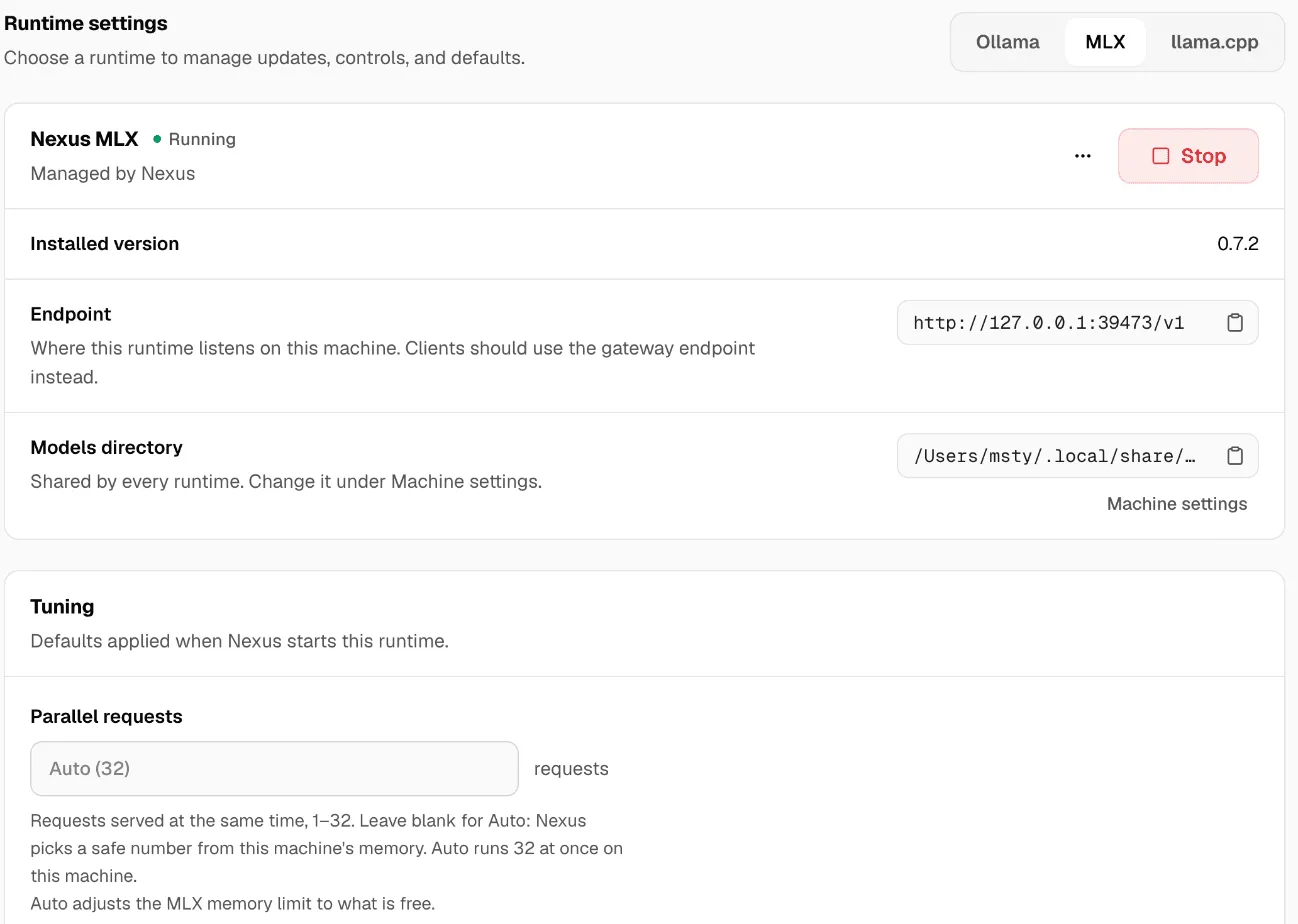
- Open Settings → Local runtimes and pick the runtime that serves your model, such as MLX.
- Under Tuning, read the note under Parallel requests, such as “Auto runs 4 at once on this machine.” Blank means Auto.
- For MLX, with the model loaded, look under Capacity guidance and open Memory estimate. For each context size, it lists how many requests fit in memory and how many Nexus recommends. It measures memory only, not speed.
- Enter a number in Parallel requests: 1 to 32 for MLX, 1 to 16 for llama.cpp and Ollama. Go up in small steps.
- To fit more requests, lower Context length if your chats are short. For MLX, it’s under Advanced, beside KV cache quantization: an 8-bit cache is nearly lossless and uses less memory.
- Click Save changes. For MLX, Nexus asks Restart MLX to apply the new request limit? Click Save and restart. Replies that are streaming stop. Other runtimes use the new value the next time Nexus starts them.
- Under Busy models, set Longest expected wait, from 10 to 600 seconds (Auto is 120). Click Save changes.
When a request would wait longer than that limit, Nexus answers at once with HTTP 429, the error code INFERENCE_BUSY and a Retry-After header. OpenAI and Anthropic SDKs retry this on their own.
To make each reply finish sooner, so a slot frees up sooner, add a speed-up to a preset: see Speed up a local preset. It also uses more memory: the helper model, plus its own cache for each request at once.
Check it worked
Section titled “Check it worked”- Open Benchmarks → Quick Check and pick your model. Set Total replies to 16 and At once to 1. Click Run.
- Run it again with At once set to your new number.
- Compare the two runs. All replies combined goes up. First response and Reply speed should still be fine for your users.
After a day of real use, open Usage and set Traffic source to Local runtimes. Waiting for a model shows only when requests waited. Many Waited with steady Generation speed: there’s room for more. Rising Turned away, or slower replies: go back down.
More in Settings, Benchmarks and Usage.