Connections
Connections is where you let apps in. It has two tabs:
- Client API keys: the keys apps use to call this machine.
- Gateway access: the addresses apps call, and whether other devices can reach the machine.
An app needs both: an address to call, and a key. Apps use a Nexus key, never your provider keys. Nexus keeps provider keys to itself.
Create an API key
Section titled “Create an API key”Make one key for each app. Then you can see what each app uses, and stop one app without touching the others.
-
Open Connections → Client API keys.
-
Click Create API key.
-
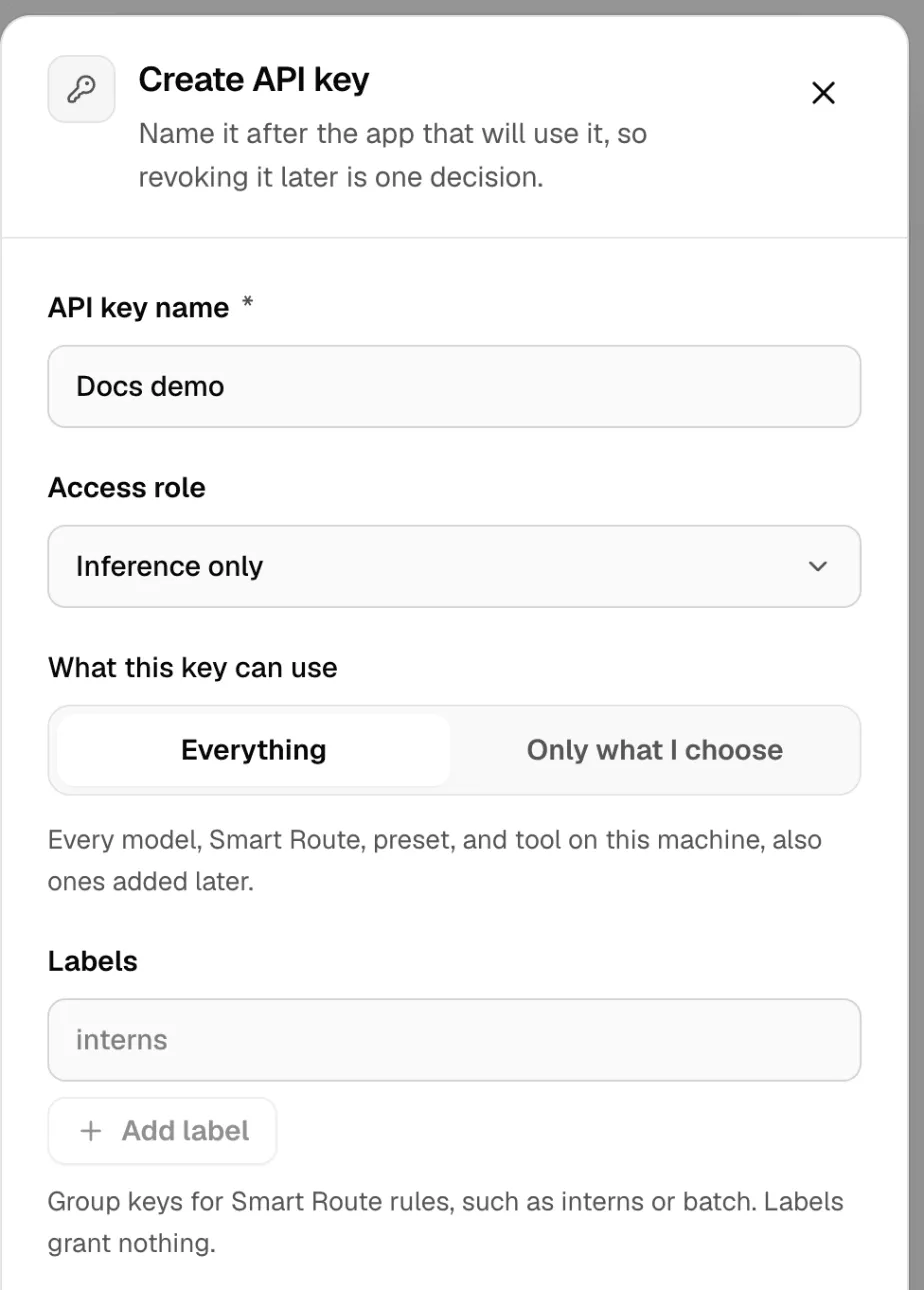
Enter an API key name. Name it after the app, such as “Cursor on Sam’s laptop”.
-
Pick the Access role:
- Inference only: can send requests, can’t change anything. Use this for apps.
- Administration: full control, including settings and API keys. Only for trusted tools that manage Nexus. Not on Free.
-
Under What this key can use, pick Everything or Only what I choose. See below.
-
Optional: add Labels, for Smart Route rules.
-
Click Create.
-
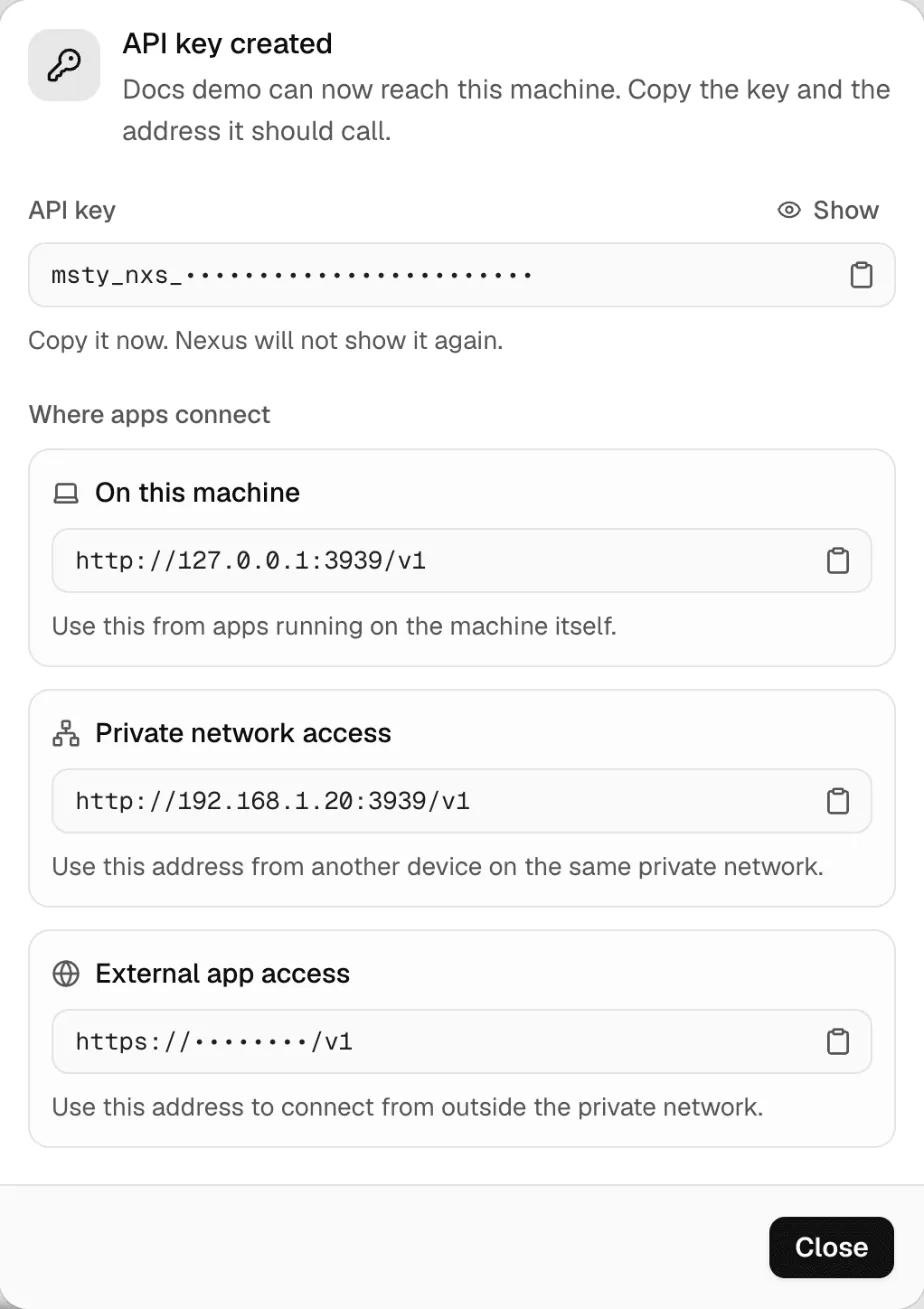
Copy the key from API key created, together with the address next to it.
Free includes 10 client API keys and Pro 20. The page shows how many are in use. Connected apps also use a key each.
Choose what a key can use
Section titled “Choose what a key can use”- Everything: every model, Smart Route, preset and tool on this machine, also ones added later.
- Only what I choose: pick the models, Smart Routes and presets the key can use, and set its tool access.
A model list is strict. A key that names two models reaches those two and nothing else: no Smart Route, unless you name the route too. Choosing models needs Pro. If you drop to Free, a saved list keeps working but you can only clear it.
Tool access
Section titled “Tool access”Tools Gateway tools are separate from models. For each key, pick:
- No tools
- All tools
- Custom Pro: a rule for each integration or tool, and hourly limits.
A Custom rule can be:
| Rule | What happens |
|---|---|
| Allow | The app can call the tool. |
| Ask | The app asks its user for approval before each call. |
| Admin approves | An admin approves each call in Tools Gateway → Approvals. |
| Block | The app can’t call it. |
| Not set | The broader rule decides. |
A rule on one tool wins over the rule on its integration. Pick a Tool profile to share the same rules across many keys. A key can change a local profile, but can’t go beyond a profile your team manages.
Some tools sign in to an account, such as a remote MCP server that uses OAuth. Under Connected tool accounts, sign in for this key only, so each key uses its own account. See Tools Gateway.
Labels
Section titled “Labels”Labels group keys, such as interns or batch, so Smart Route rules can treat them differently. Labels grant nothing on their own. Use lowercase letters, numbers, dots, dashes and underscores, up to 32 characters, and up to 16 labels a key. Don’t put names, emails or secrets in them.
Rotate or revoke a key
Section titled “Rotate or revoke a key”Rotate API key gives the app a new key. The old key stops working once the new one is saved, so copy the new one into the app right away. Rotating doesn’t use another key slot.
Revoke API key stops the key at once. Apps that use it stop working, and you can’t undo it. Revoke a key when an app is removed, a device is lost, or someone leaves. Your provider keys and other apps’ keys don’t change.
Each key shows when it was last used, so you can spot keys nobody uses.
Gateway access
Section titled “Gateway access”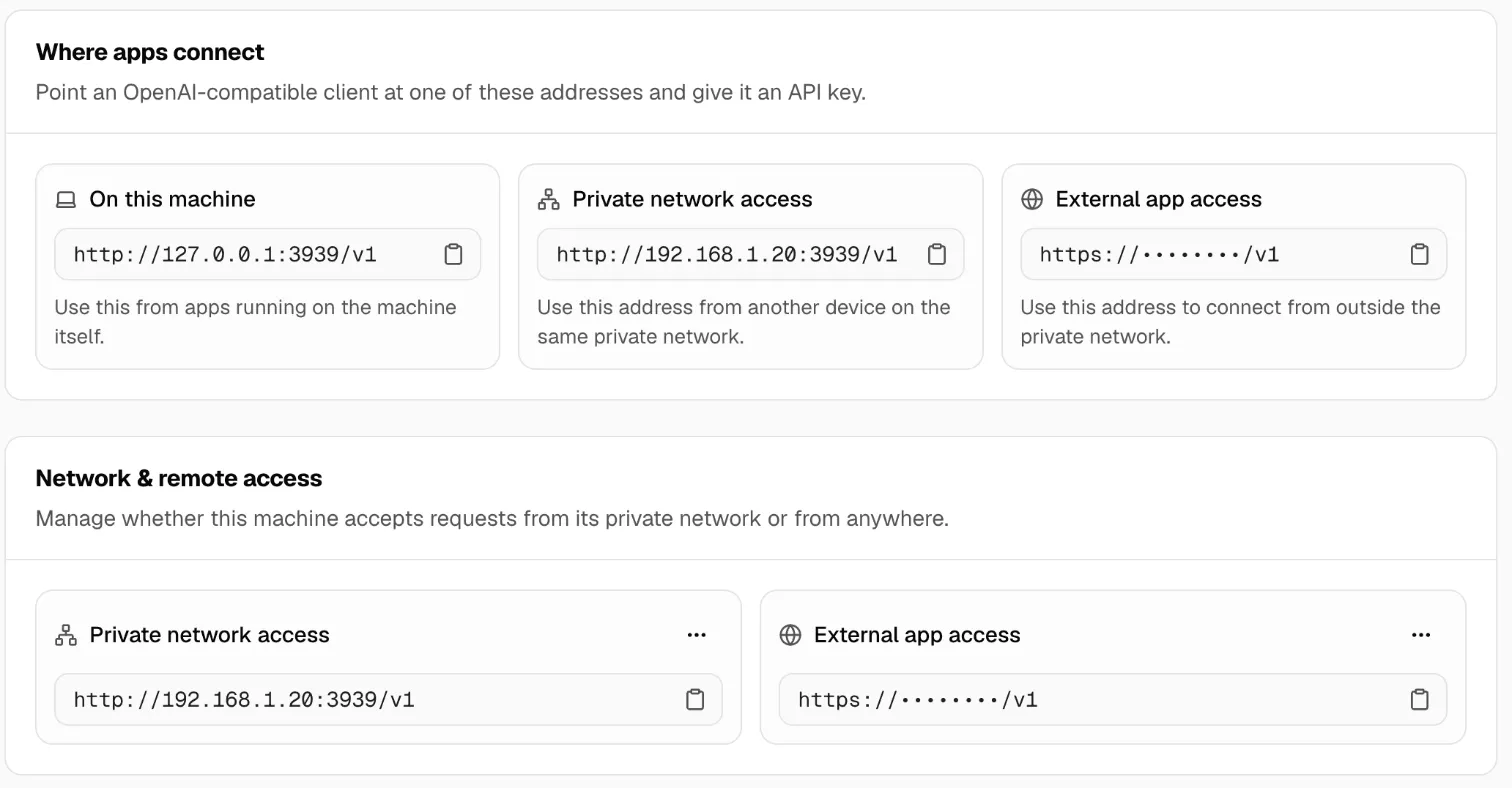
Where apps connect lists this machine’s addresses:
- On this machine:
http://127.0.0.1:3939. For apps running on the same computer. Always on. - Private network access: for other devices on your home or office network, or VPN.
- External app access: a secure address that works from anywhere. Pro
An address alone doesn’t let anyone in. Every request still needs a client API key.
Private network access
Section titled “Private network access”Nexus starts reachable from this machine only. To let other devices on your network in:
- Under Private network access, click Turn on.
- Confirm Turn on and restart. Nexus restarts to apply it.
- Copy the address that appears, such as
http://192.168.1.20:3939/v1.
Use a trusted network or VPN, and give each app its own key. You can also change this in Settings → Machine → Network and access.
External app access
Section titled “External app access”External app access gives this machine an HTTPS address that works from outside your network, without opening ports on your router. Turn it on with Allow external apps, then Copy access address. The same client API keys work there.
Traffic passes through a Msty relay, protected by HTTPS. See Access from anywhere before you use it for sensitive work.
Browser apps
Section titled “Browser apps”A web page calling Nexus from the browser also needs its origin allowed. Add each origin, one HTTPS origin per line, under Allowed browser origins in Settings → Machine → Network and access.
- Allowing an origin doesn’t open Nexus to the network. That’s private network access.
- The browser’s preflight check needs no key. The real request always does.
- List exact origins. Don’t use
*: it lets any website try to use your keys.
- Connect your first app: use the key and address in an app.
- Connected apps: let a supported app pair with Nexus without copying a key.
- Gateway: the API the key works with.