Use one tools address in every app
You’ll get: one MCP address, http://127.0.0.1:3939/mcp, that every AI app on your machine uses for tools. You add each MCP server to Nexus once. The apps hold only a Nexus API key, never the server’s own login.
You need:
- An MCP server: a program that runs on your machine, or a server with an HTTP address.
- A Nexus API key for each app. Make one in Connections.
-
Open Tools Gateway → Integrations and click Add integration.
-
Enter a Name, such as “Files”.
-
Under Connection, pick Local MCP command.
-
Enter the Command
npx, and these Arguments, one per line:-y@modelcontextprotocol/server-filesystem/Users/alex/DocumentsFor a server with an HTTP address, pick Remote MCP endpoint instead and enter its MCP URL.
-
Click Add integration. Check its Available tools.
-
Open Connections → Client API keys, open the app’s key menu (…) and click Edit.
-
Under What this key can use, pick Only what I choose. Then, under Tool access, pick All tools. Click Save changes. (Everything also gives all tools, but with every model too.)
-
Back on Tools Gateway, click Copy MCP address under On this machine.
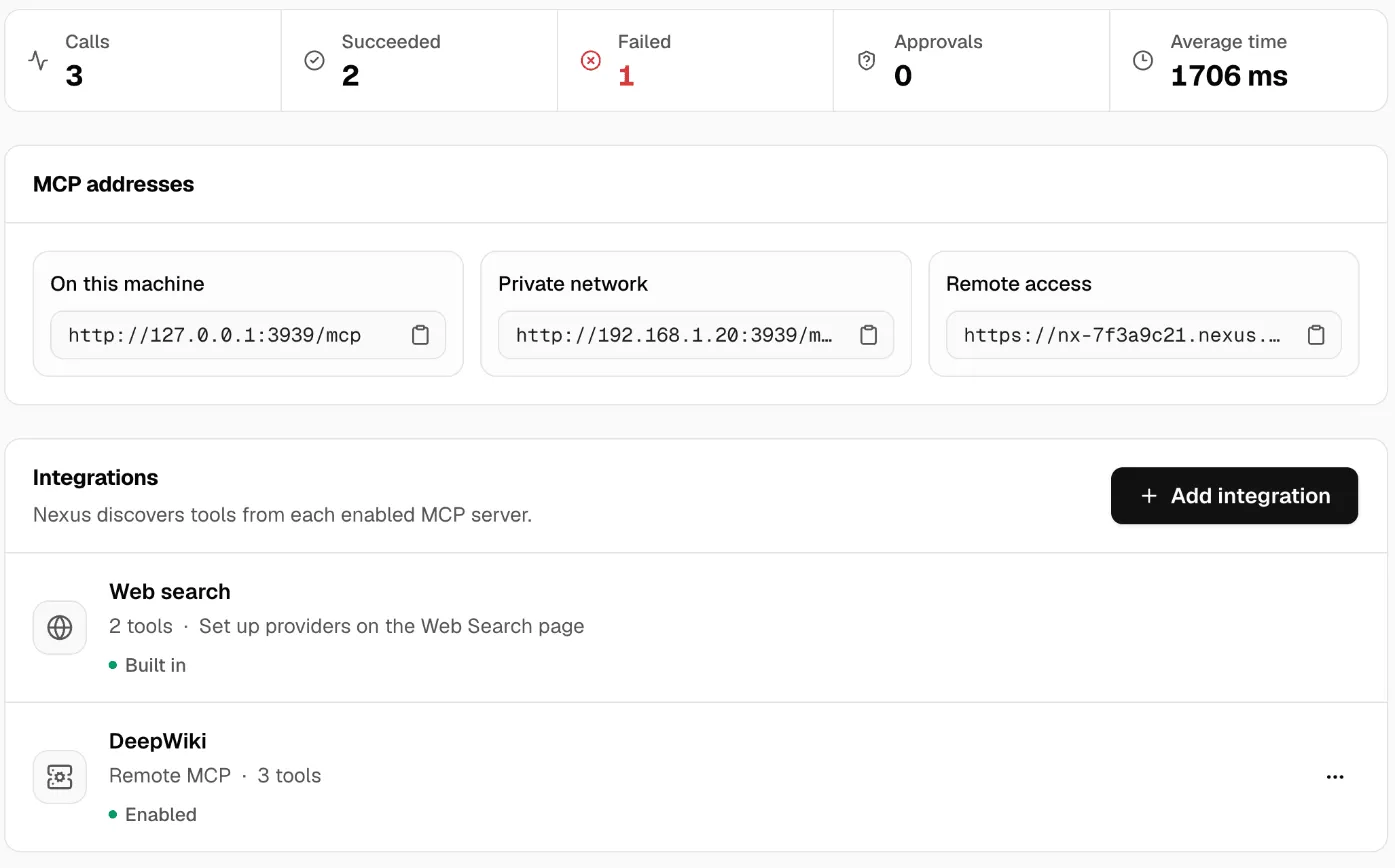
Now add the address to each app, with the key as a header.
Cursor: in ~/.cursor/mcp.json:
{ "mcpServers": { "nexus": { "url": "http://127.0.0.1:3939/mcp", "headers": { "Authorization": "Bearer msty_nexus_key_here" } } }}Claude Code:
claude mcp add --transport http nexus http://127.0.0.1:3939/mcp --header "Authorization: Bearer msty_nexus_key_here"Other apps: use the same address, the Streamable HTTP transport, and the header Authorization: Bearer <your key>.
Change msty_nexus_key_here to the app’s key. Give each app its own key, so you can see and limit each one.
Check it worked
Section titled “Check it worked”- Restart the app, or reload its MCP servers.
- Its tool list shows the Files tools. Each name starts with the integration’s ID, such as
files-3f9a2c1b.list_directory. - Ask the app to list the files in your Documents folder.
- On Tools Gateway → Activity, the call shows with the tool, the key and Succeeded.
To see an integration’s ID, open its menu (…) and click Edit. Integration ID stays the same when you rename it, so apps and key rules keep working.
The program must be installed on the Nexus machine, here Node.js for npx. To let an app use only some tools, see Ask before a tool does anything risky. More in Tools Gateway.