
Settings
Settings changes how one machine works. Pick the machine in the machine switcher first: the settings you change apply to that machine only.
It has two tabs:
- Machine: identity, updates, network, storage, privacy and how long history is kept.
- Local runtimes: tuning for Ollama, llama.cpp and MLX on this machine.
When you change something, Nexus says You have unsaved changes. Click Save changes, or Discard. A setting your organization manages shows Managed by your organization and can’t be changed here.
Machine
Section titled “Machine”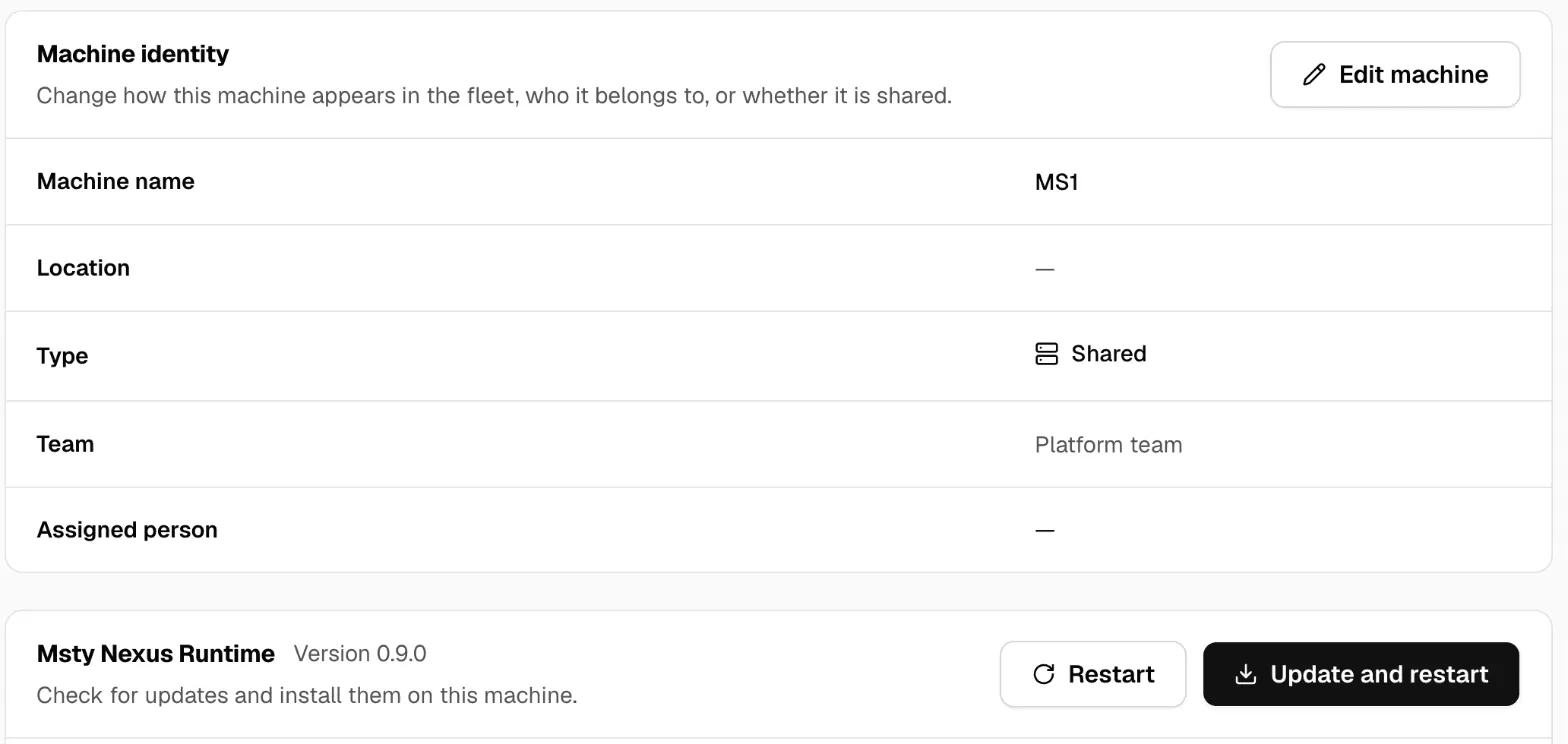
Machine identity
Section titled “Machine identity”How this machine appears in your fleet: its name and location, who it belongs to, and whether it’s shared. Click Edit machine. See Fleet.
Msty Nexus app and Runtime
Section titled “Msty Nexus app and Runtime”Msty Nexus app updates the desktop app you’re using. Click Check for updates, then Install and restart. You can turn on Check for updates automatically and Install updates automatically.
Msty Nexus Runtime is the background service that does the work on this machine.
- Check for updates, then Update and restart. Requests may pause briefly.
- Restart: stops active replies and unloads loaded models. The machine is unavailable for a short time. Try this first when the machine acts up.
If you can’t update a machine, the page says to ask an admin.
Fleet reporting
Section titled “Fleet reporting”Whether this machine sends usage to your fleet’s Monitor and Insights, and whether it collects them for the others (This machine collects fleet analytics). It shows where it reports, when it last delivered, and any queued events. A machine can be in a fleet without reporting.
Network and access
Section titled “Network and access”- Allow private network access: lets other devices on your local network reach this machine, not just this machine itself. Nexus restarts to apply it.
- Allowed browser origins: web pages allowed to call Nexus from the browser. One HTTPS origin per line.
- Gateway endpoint: the address apps use now.
See Connections for what each choice means, and Security before you open a machine to the network.
Storage
Section titled “Storage”Models directory: the folder where Nexus keeps downloaded and imported models. Choose a folder that already exists, with enough free space.
Diagnostics and privacy
Section titled “Diagnostics and privacy”What this machine records about its own traffic. Prompts and replies are never stored.
| Setting | What it does |
|---|---|
| Metadata-only gateway diagnostics | Records request timing and routing decisions, for Diagnostic logs. |
| Track aggregate usage | Counts tokens and requests per model, for Usage. On by default. |
| Sort usage by task | A local model labels each request, such as Write code. Only the label is saved. On by default. |
| Share benchmark results with Msty | Sends speed results from Quick Checks. Off by default. See Benchmarks. |
| Cache Claude prompts automatically | Adds Anthropic cache points to longer conversations, so later turns cost less. |
| Enable Gauge | Turns on Gauge. |
| Quiet desktop notifications | Stops this machine’s Nexus app from showing notifications. |
Data retention
Section titled “Data retention”How many days this machine keeps its own history before it deletes the oldest:
- Usage retention: Usage.
- Gauge retention: Gauge.
- Request history retention: Smart Route and Smart Balancer request history.
Each shows the allowed range. Shorten them before a rollout if your policy needs less history.
Local runtimes
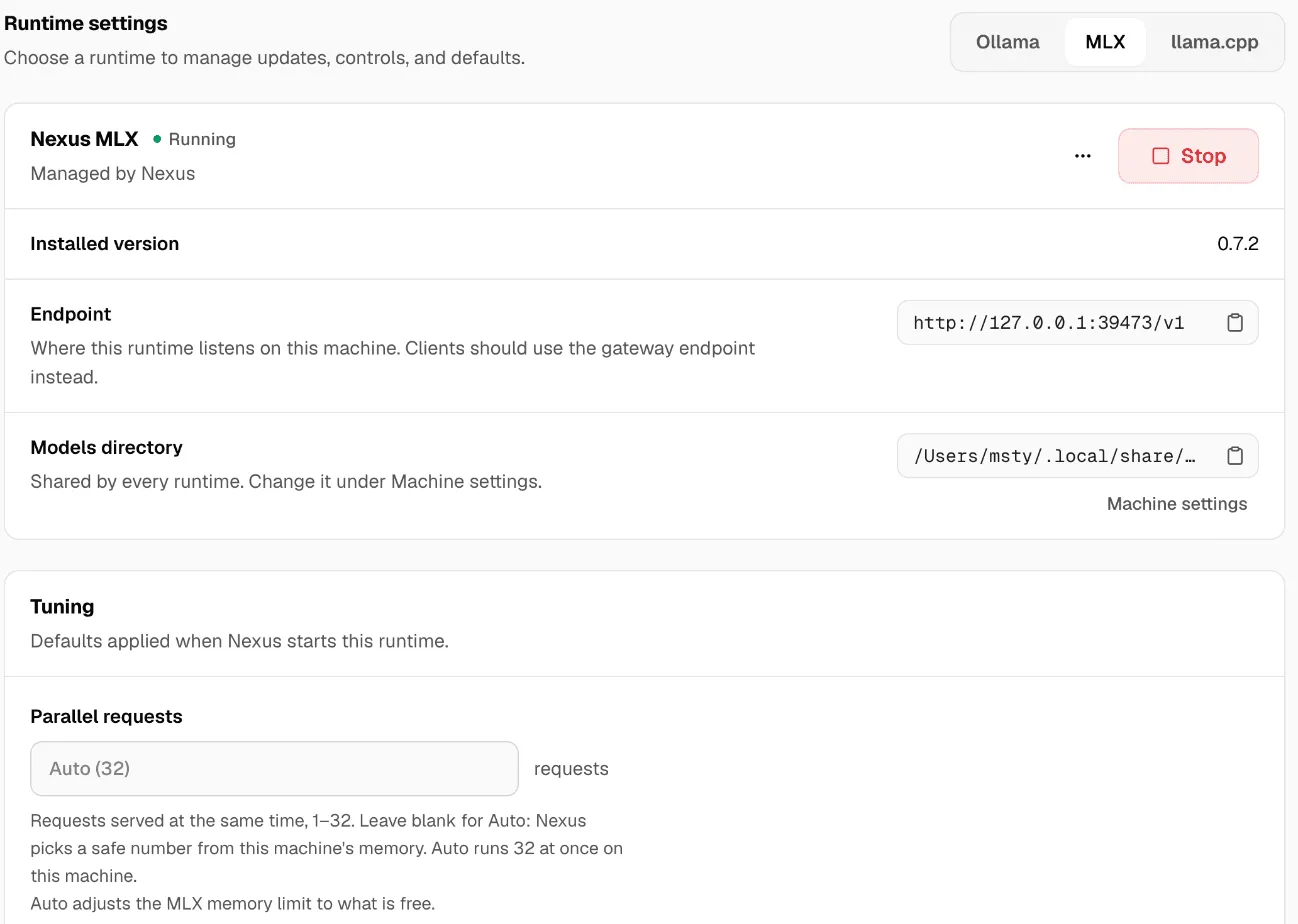
Section titled “Local runtimes”Tune how Nexus runs local models on this machine. Pick the runtime at the top. The defaults are right for most machines.
Tuning
Section titled “Tuning”These are the defaults Nexus uses when it starts the runtime. Reset to automatic puts them back.
| Runtime | Settings |
|---|---|
| Ollama | Context length, Parallel requests, Maximum loaded models, Maximum queue, Keep alive |
| llama.cpp | Context length, Parallel requests, Threads, Batch size, Micro-batch size |
| MLX | Parallel requests. Under Advanced: Context length and KV cache quantization. On Auto, Nexus also keeps MLX’s memory use within what’s free. |
Advanced holds power settings, such as Flash attention, KV cache type, GPU layers and Turn off model thinking. Change them only if you know you need to.
Higher values usually use more memory. If the page says the runtime needs a restart, restart it. For MLX, a new request limit asks Restart MLX to apply the new request limit?: active replies stop during the restart.
Parallel requests
Section titled “Parallel requests”Parallel requests on Auto sizes it to the machine and model. The page says how many Auto runs at once.
The number you set is the most a model runs at once. Nexus may run fewer. It watches how fast each reply streams. When replies get too slow to read, it starts fewer requests at once and queues the rest, so the replies in progress stay usable. When speed recovers, it goes back up to your number, never above it.
For example: Parallel requests is 8, and 8 people use a large model at once. Each reply crawls. Nexus runs about 5 at a time, and the other 3 wait for a free slot.
Don’t raise it just to stop requests waiting. Check that memory, time to first reply and reply speed stay fine. See Usage and Serve more chats at once on one Mac.
Busy models
Section titled “Busy models”When every slot is taken, requests wait in line. Longest expected wait (10–600 seconds) is how long a request may wait. If it would wait longer, Nexus answers “busy, try again shortly” at once, with the error INFERENCE_BUSY, instead of leaving the app hanging. This applies to every local runtime.
GPU acceleration and Acceleration engine
Section titled “GPU acceleration and Acceleration engine”- GPU acceleration (llama.cpp): Use GPU or CPU. Stop llama.cpp first, then Apply GPU mode or Apply CPU mode.
- Acceleration engine: the compute engine, such as Metal, CUDA, ROCm / HIP, Vulkan or CPU only. Automatic (recommended) picks for you. Install engine or Switch engine to change it.
Install, start, stop and update the runtimes themselves in Local runtimes.
Start at login
Section titled “Start at login”To start Nexus when you sign in to your computer, turn on Start at login in the Nexus menu (the menu bar icon on macOS, the system tray on Windows and Linux). Nexus manages only its own startup entry and never replaces others.