
Presets
A preset is a model plus its settings, saved under one name. Apps call it like a model: @preset/coder. Every app then gets the same temperature, reasoning effort, web search and privacy settings, without setting them itself.
Use a preset when:
- Several apps should behave the same way.
- You want to change the model or settings later without touching the apps.
- A model needs settings that are easy to get wrong, such as sampling values or a cache.
- You want web search or Data Protection on every request to a model.
For a plain stable name with no settings, use a model alias. For one name that picks between models, use a Smart Route.
Create a preset
Section titled “Create a preset”- Open Presets.
- Click New preset.
- Pick how to start:
- Describe it Pro: write what the preset is for, in your own words, and Nexus suggests settings.
- Pick a goal: choose Everyday chat, Coding, Writing, Precise answers, Brainstorming, Long documents or Fast replies, then a model.
- Decision preset: ask the same structured question every time. See Decision presets.
- From scratch: the full editor, empty.
- Review the suggested settings. Nothing is saved yet.
- Click Create preset, or Open full editor to change the details first.
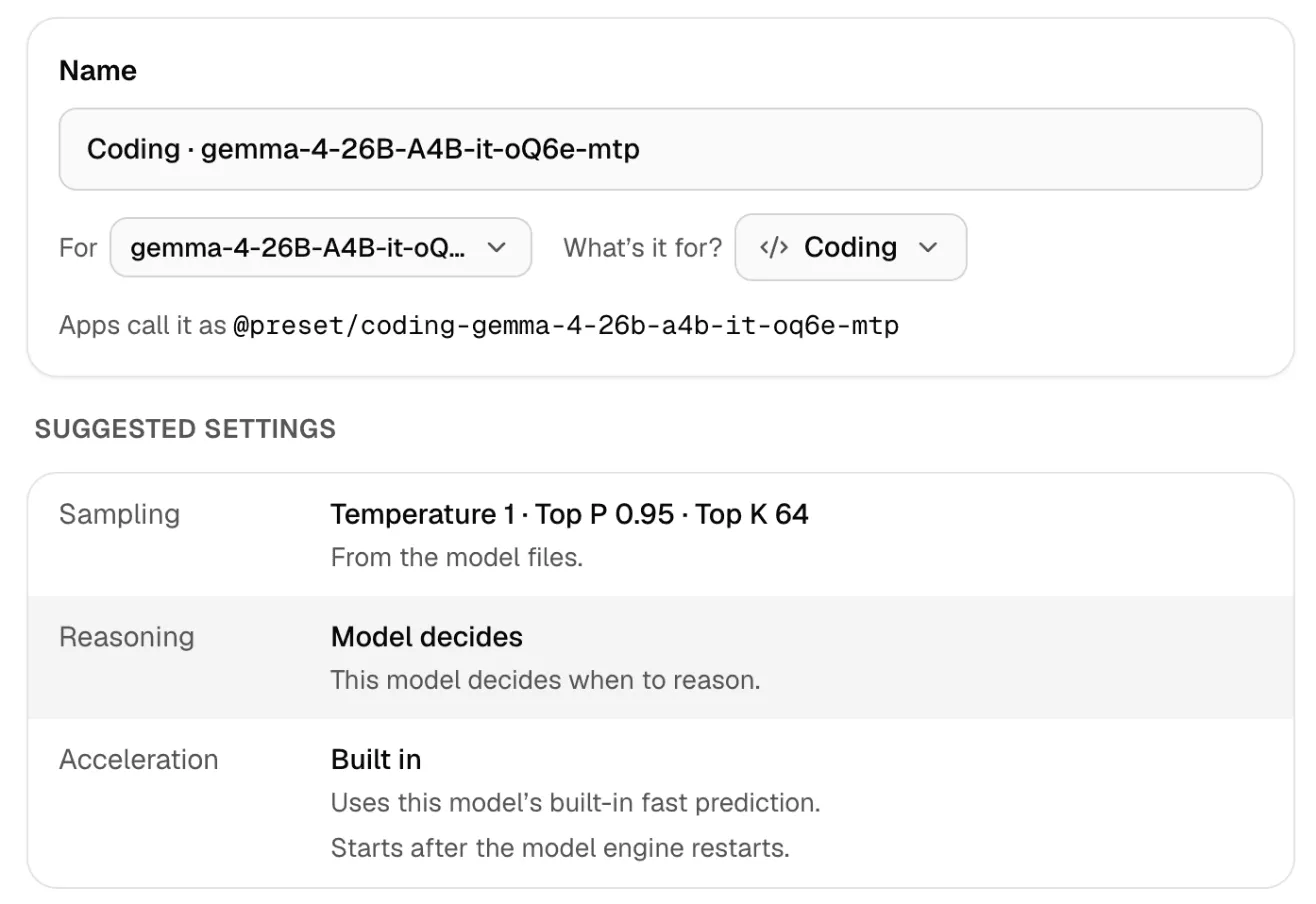
Pick a goal and Describe it make a Smart Preset. Nexus weighs the goal, the model’s own recommended values, what the provider supports, speed-ups for local models, and this machine. Each suggested setting comes with a short reason.
Describe it reads your text with a decision model on this machine, so the text stays local. If no decision model is set up, Nexus offers to set one up, or you can Pick a goal instead.
You can also start from a model: in Models, click Create Smart Preset… on the model.
Use a preset
Section titled “Use a preset”Send its name as the model. The Preset ID is shown as Apps call it as.
{ "model": "@preset/coder", "messages": [{ "role": "user", "content": "Explain this regex" }] }The preset’s settings are defaults. If a request sets a value itself, such as temperature, the request wins for that call.
Try in Chat Lab on a preset opens it in Chat Lab. Copy preset id copies the name.
A preset can target a model, a Smart Balancer pool, or a Smart Route.
Settings
Section titled “Settings”| Setting | What it does |
|---|---|
| Generation parameters | Temperature, Max tokens, Top P, Top K, penalties, Seed and Stop text. Add setting adds one; Custom adds any other field. |
| Reasoning effort | Off, Minimal, Low, Medium, High or Maximum. Provider default leaves it to the model. |
| Show reasoning | Summary or Hide. |
| Cache this preset | Asks Claude models to cache the stable start of the prompt, for 5 minutes or 1 hour (Keep cached for). Saves time and cost on long, repeated prompts. |
| Search the web | Lets the model search. See Web search in a preset. |
| Remove personal information | Cleans every request with Data Protection. |
| Provider options | Fields for one kind of provider only, such as OpenAI’s service_tier. |
| Acceleration mode | Speeds up local models. See Speed up a local preset. |
Nexus turns each setting into what the target provider understands. If a provider can’t use a setting, Nexus drops it rather than send something the provider would reject, and the preset shows a warning, such as 2 warnings. Open the preset to see which settings don’t apply.
View as JSON shows the whole preset.
Web search in a preset
Section titled “Web search in a preset”Pro
Turn on Search the web, set Searches per answer (1 to 10, default 3), and choose whether to Add a Sources list to answers.
The model must be able to call tools. Nexus runs the searches with your Web Search providers and returns one finished answer. If Remove personal information is on, searches use the cleaned request.
If Web Search isn’t available later, the preset keeps answering, without search.
Speed up a local preset
Section titled “Speed up a local preset”For local models, a preset can use a speed-up method under Acceleration mode:
- Classic draft model: a small helper model guesses the next few tokens, and the main model checks them. Pick the Draft model.
- MLX native MTP: for models with built-in multi-token prediction. Set Draft depth: Auto (recommended), Up to a number, or Exactly a number.
Then:
- Click Check. Nexus checks the helper fits the model and runtime.
- Click Apply.
- If it says Restart required, click Restart runtime.
Start with Auto. A deeper draft guesses more tokens at once, but wastes more work when guesses are wrong. Compare real results in Usage or Benchmarks before you fix a depth. Usage shows the speed-up, accepted draft tokens and time saved.
If something goes wrong
Section titled “If something goes wrong”| What you see | What to do |
|---|---|
| {n} warnings on a preset | Some settings don’t apply to this model. Open the preset to see which. |
| Data Protection needs setup | Turn on Data Protection, or turn off Remove personal information. |
| Restart required | Click Restart runtime to apply acceleration. |
| Web search is part of Pro. | Web search in presets needs Pro. |
| A model can’t be deleted | A preset still uses it. Change or delete the preset first. |
| The preset doesn’t search | Check the model can call tools. |