Install Msty Nexus
Nexus is a desktop app plus a background service, Nexus Runtime. You install the app; it sets up and starts the Runtime for you. You don’t need an account to start.
Download and open
Section titled “Download and open”- Go to nexus.msty.ai and click Download Nexus.
- Pick your system:
- macOS: one installer for Apple Silicon and Intel Macs (DMG).
- Windows: x64 installer (EXE).
- Linux: x86_64 AppImage.
- Install and open Msty Nexus.
Nexus starts in the menu bar on a Mac, or in the system tray on Windows and Linux. The first time, it opens the Console and walks you through Getting started.
Getting started
Section titled “Getting started”Getting started has four short steps. You can Skip for now at any point.
- Where everything is. A quick tour: the Menu, the Desktop Console, and, with Pro, the Web Console.
- How should this device run models?
- Run locally and privately: this computer runs the models. Your prompts stay on it.
- Use a provider: connect an account you already have, such as OpenAI, Anthropic, OpenRouter, or any compatible API.
- Decide later.
- Run models locally or Connect a provider, depending on your choice.
- Local: Nexus checks what’s already installed and recommends a runtime: MLX (built for Apple Silicon), llama.cpp (runs GGUF model files directly) or Ollama. Click its install or start button, such as Install MLX or Start Ollama.
- Provider: pick the provider, paste its API key, and click Connect. The key is stored by this machine’s Runtime. It is never sent to Msty.
- What is set up lists what’s ready.
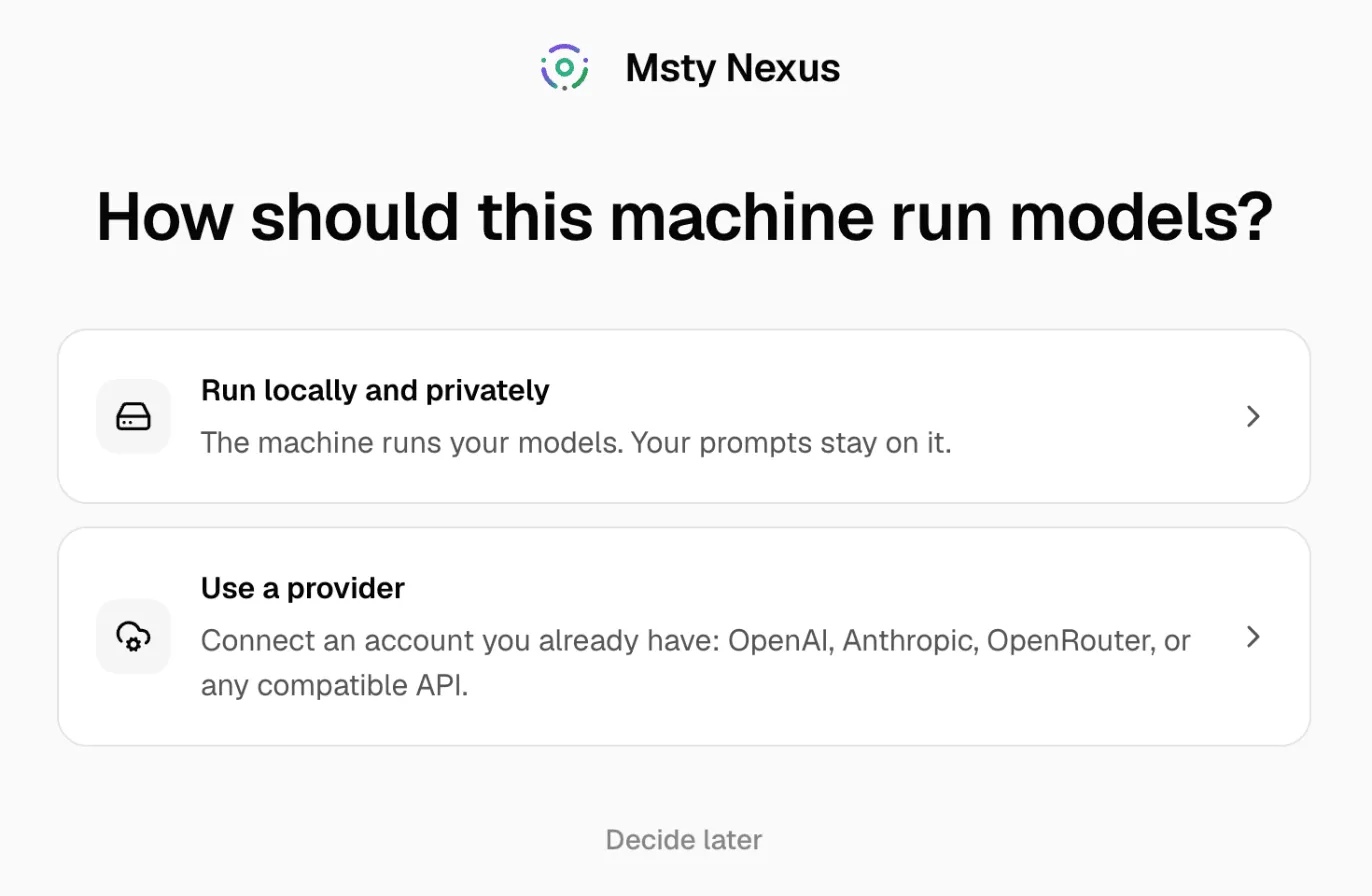
The web Console asks the same questions with slightly different titles, such as How Nexus is organized and How should this machine run models?
To see it again later, open the account menu at the bottom of the sidebar and click Getting started.
Next: get your first model running.
The menu bar and the Console
Section titled “The menu bar and the Console”The menu bar (or tray) panel is for quick checks:
- Status: Ready, Working, Needs attention or Offline.
- Access: the addresses apps can use, such as This Mac and Your network, with copy buttons.
- Connect an app: copies the address and makes an API key in one go.
- Serving: your Smart Routes, Smart Balancer pools and Cluster at a glance.
- Models: load and unload local models, or Add models….
- Open Nexus opens the Console. Start at login, Restart Runtime and Quit are here too.
The Console is the full window. Everything in these docs happens there unless a page says otherwise.
Sign in (optional)
Section titled “Sign in (optional)”You can use Nexus on one computer without an account. Sign in when you want Pro features, more machines, or the web Console.
- Open the account menu at the bottom of the sidebar and click Sign in.
- Click Continue in browser and sign in with your Msty account.
- Back in Nexus, click Add this device to put this computer on your account. Or click Continue without this device.
Adding the device keeps everything already on it: models, providers, routes, settings and API keys.
If the device is linked to another Msty account, Nexus offers Switch account or, where allowed, Move to this account.
Personal and Business editions
Section titled “Personal and Business editions”There are two builds of the app. They can run side by side.
| Msty Nexus | Msty Nexus Business | |
|---|---|---|
| For | Free and Pro, one person | Enterprise organizations |
| Account | Optional | Required: sign in with your work account |
| Gateway address | http://127.0.0.1:3939 |
http://127.0.0.1:3949 |
| Belongs to | Your Msty account | One organization |
| Works offline | Yes | Yes, with a machine license |
Business starts locked and asks you to sign in. Your organization’s admin decides who can enroll machines. Once enrolled, the machine gets a machine license: the Runtime keeps serving after you sign out, after restarts, and while offline, until the license’s offline window ends. If an admin removes the machine from Fleet, the license ends and the Runtime stops serving until it’s enrolled again.
Machines without a screen
Section titled “Machines without a screen”To run Nexus on a server or a Mac with no one at it, don’t install the app. From the web Console, use Add a machine and run the command it gives you. See Fleet.
Start at login
Section titled “Start at login”To have Nexus ready whenever you sign in to your computer, turn on Start at login in the menu bar panel. Nexus only manages its own startup entry.
Uninstall or reset
Section titled “Uninstall or reset”To start fresh on a Mac, see Reset a Mac installation.