Your first model
Nexus needs at least one model before an app can use it. There are two ways to get one. Pick either; you can add the other later.
| Run it on your computer | Use an online provider | |
|---|---|---|
| Where it runs | This machine | The provider’s servers |
| Prompts leave the machine | No | Yes |
| Cost | Free after download | Billed by the provider |
| You need | Enough memory and disk for the model | An API key from the provider |
If you did one of these in Getting started, you already have a model. Skip to Check that it works.
Run a model on your computer
Section titled “Run a model on your computer”1. Set up a runtime
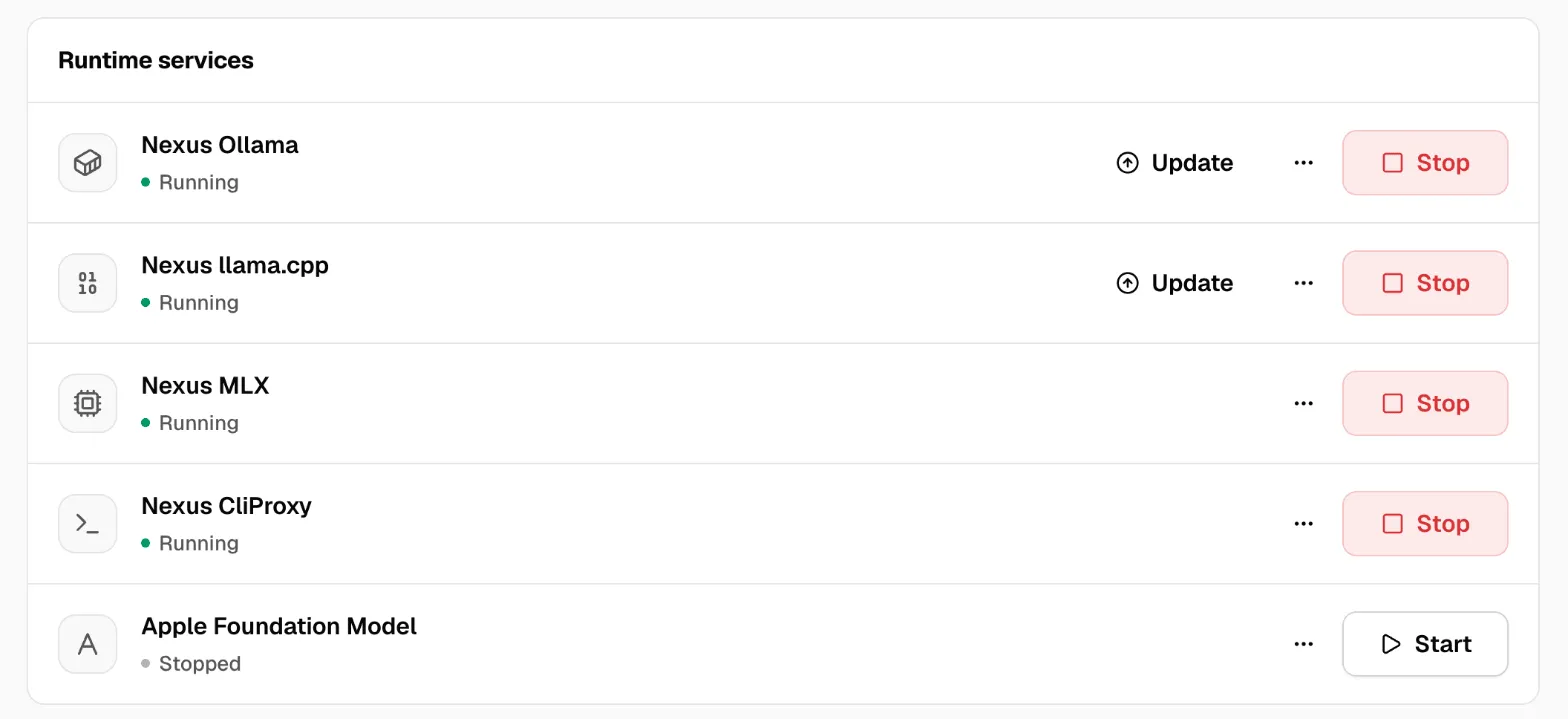
Section titled “1. Set up a runtime”A runtime is the engine that runs local models. Nexus installs and manages it for you.
- Open Providers, then the Local runtimes tab.
- Pick a runtime and click Install, or Start if it’s already installed.
| Runtime | Use it for |
|---|---|
| MLX | Apple Silicon Macs. Usually the fastest choice on a Mac. |
| llama.cpp | GGUF model files, on any system. |
| Ollama | Models from the Ollama library. Also finds an Ollama you already run. |
Already running a model server yourself, such as LM Studio or Ollama? Open the Discovery tab, click Scan this machine, then Add to Nexus next to it. Nexus uses it but won’t start or stop a server it didn’t start.
2. Download a model
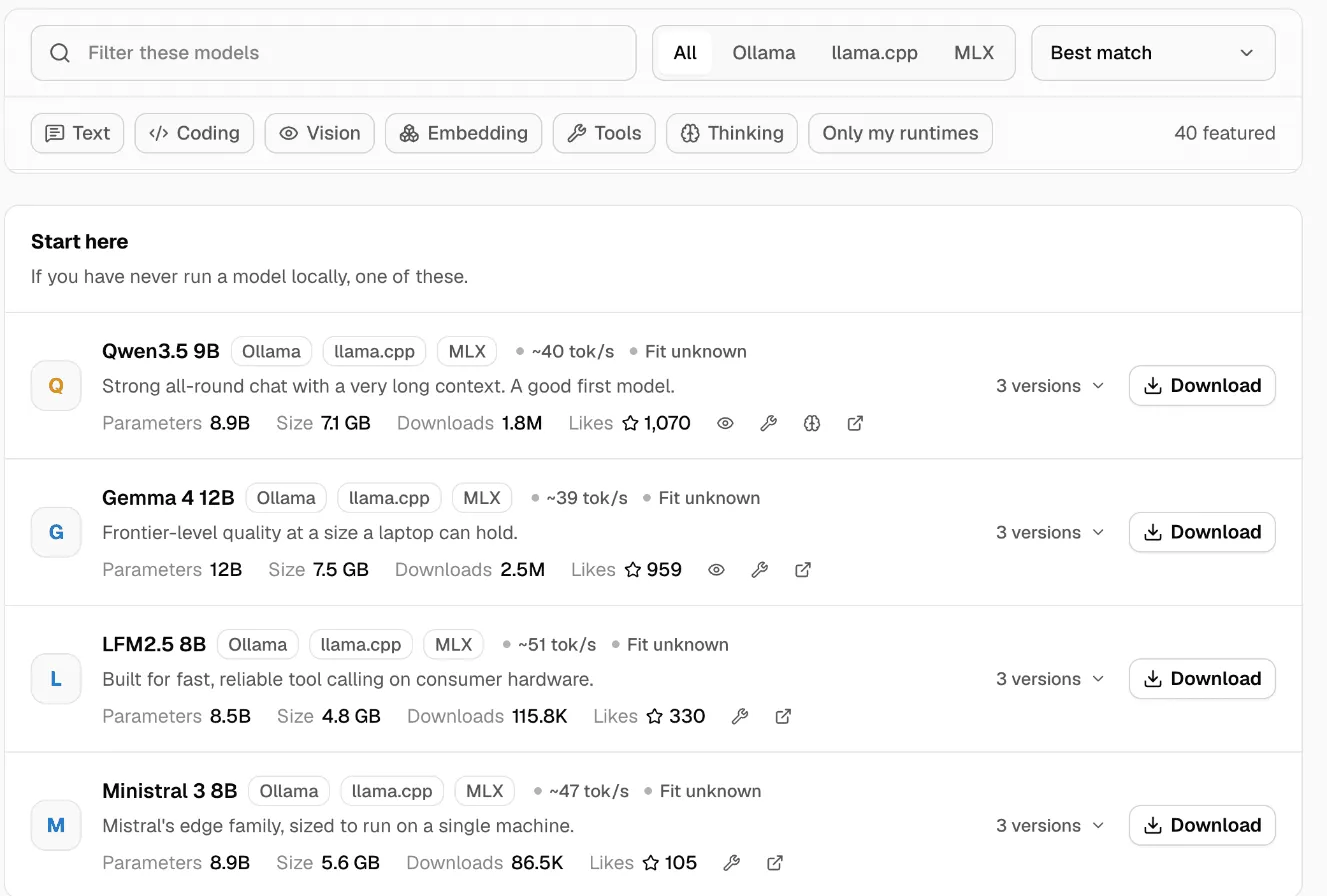
Section titled “2. Download a model”- Open Models, then Featured. These are models picked to work well. Each one says whether it Fits this machine.
- Click Download on one that fits your machine.
Or open Search to find any model by name, from Hugging Face or the Ollama library.
Downloads run in the background, two at a time, and pick up again after a restart. Watch them in Activity.
Have models from Msty Studio, LM Studio or Ollama already? Use Import to link them instead of downloading again. See Models.
Use an online provider
Section titled “Use an online provider”- Open Providers and click Add provider.
- Pick the Provider type: OpenAI, Anthropic, OpenRouter, Amazon Bedrock, Azure OpenAI, or any OpenAI-compatible API.
- Paste the provider’s API key.
- Under Models shared with apps, keep All models or choose Selected models.
- Save, then click Check connection.
The key is stored by this machine’s Runtime, in your system’s secure storage. Nexus never shows it again, never puts it in logs, and never sends it to Msty or to your apps.
Have a Claude, ChatGPT or Google subscription instead of an API key? See Providers: Subscriptions.
Check that it works
Section titled “Check that it works”- Open Models. Your model is in the Library tab.
- Click Try in Chat Lab on it, and ask something.
If it answers, Nexus can serve it. Chat Lab shows the speed and which model replied, too.
If something goes wrong
Section titled “If something goes wrong”| What you see | What to do |
|---|---|
| A local model won’t load | It may not fit in memory. Try a smaller one, or unload other models. |
| Check connection fails | Check the key and, for a compatible API, the address. The provider account must be able to list models. |
| No models in the Library | For a provider, wait for its model list to load, or check Models shared with apps. For a runtime, make sure it’s running. |
| A download is waiting | Another download or a runtime setup may be ahead of it. See Activity. |
More fixes: Troubleshooting.
Connect your first app to use the model from your own tools.