
Use models you already downloaded
You’ll get: the models you already have in Msty Studio, LM Studio or Ollama, served by Nexus, with no second download and no extra disk space.
You need:
- Nexus and the other app on the same machine.
- The runtime the models need running in Nexus: MLX, llama.cpp or Ollama. See Local runtimes.
- Open Models → Import.
- Under From other apps on this machine, wait while Nexus looks through the folders those apps use.
- Pick a Source. Each shows how many models it found.
- Tick the models you want, or Select all.
- Click Link selected.
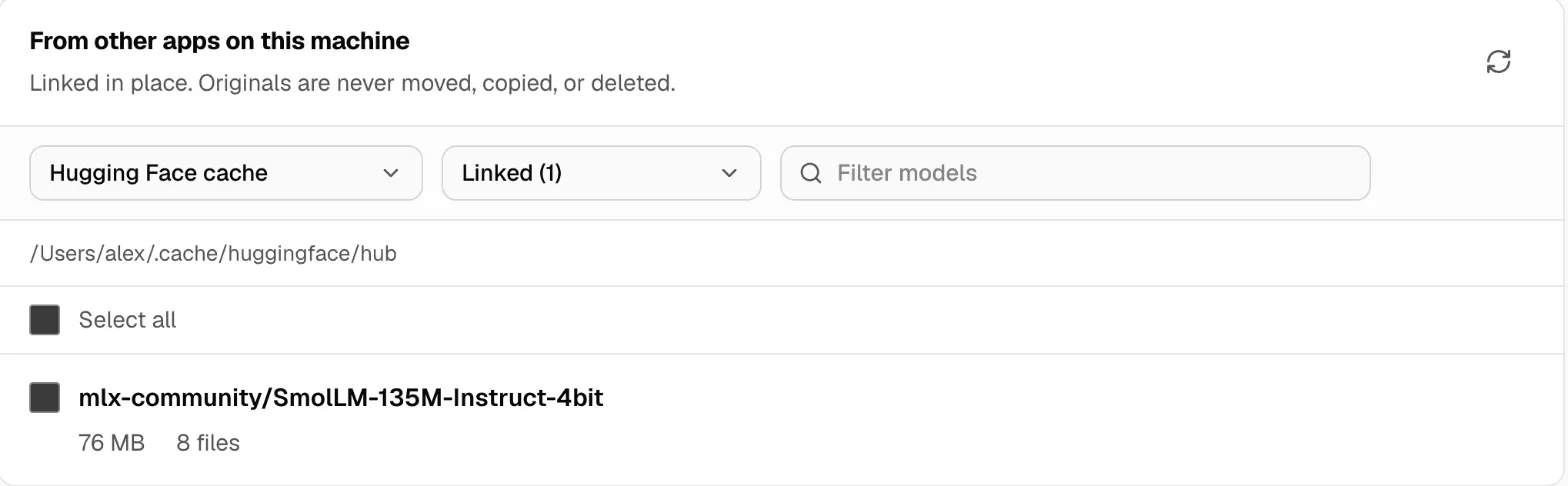
Nexus links the models in place. It never moves, copies or deletes the originals.
If MLX must restart to see the new models, Nexus asks: Restart MLX to use linked models? A restart unloads the MLX models that are running and stops their open chats. Pick Later if people are using them right now.
Check it worked
Section titled “Check it worked”Open Models → Library. The linked models are there. Click Load on one and try it in Chat Lab.
Set Show to Linked on the Import page to see everything you linked from a source.
Undo it
Section titled “Undo it”Set Show to Linked, tick the models, and click Unlink selected. Only the links go. The files in the other app stay exactly where they are.
If something goes wrong
Section titled “If something goes wrong”| You see | Do this |
|---|---|
| No other model directories were found on this machine. | The other app isn’t installed here, or keeps its models somewhere else. |
| Not installed on this machine | Nexus found that app’s model folder, but not the app itself. |
| A model shows under Unavailable | Nexus skips files that are incomplete, unreadable or already linked, and says why. |
More in Models.