
Test and monitor a Smart Route
Test a route before apps rely on it, then watch how it routes real traffic. None of the tools on this page store prompts or replies.
| Tool | Where | Calls a model? |
|---|---|---|
| Check routing | The composer and the route editor | No. Only the router. |
| Prompt lab | Try a prompt | Only if you click Compare answers. |
| Try in chat | The route’s row | Yes. A real chat in Chat Lab. |
| Send traffic | The Live tab | Yes. Real requests. |
Check routing
Section titled “Check routing”Check routing shows where requests would go. It asks the router and runs your rules, but no model is called and nothing is saved.
In the composer, Nexus starts you off with one sample request per choice and one for the fallback, such as “Hello, how are you?”:
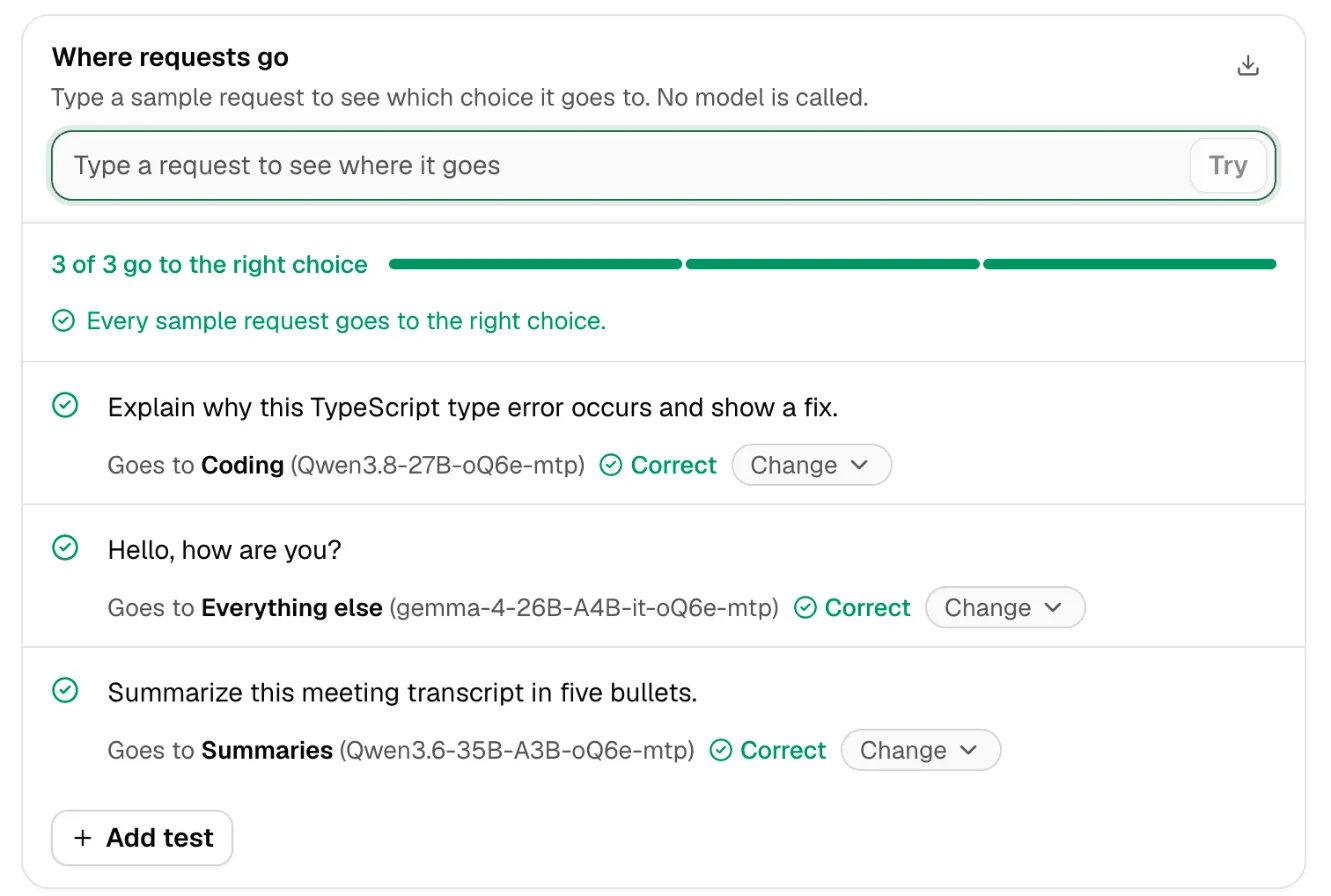
- Read each result, such as Goes to Coding (Qwen3.8-27B-oQ6e-mtp).
- If it’s wrong, click Change and pick where it should go. Nexus marks it Should go to … and counts it against the route.
- Type your own request in Try a request and click Try. Add test keeps it in the list.
- Aim for Every sample request goes to the right choice. If one doesn’t, sharpen the choices’ When to use it text. See Routing choices.
You can test up to a handful of requests at once. Download test results saves them.
In the full editor, Check routing also runs your rules, with Pretend values for facts a typed request can’t carry, such as the time or the key’s labels.
Prompt lab
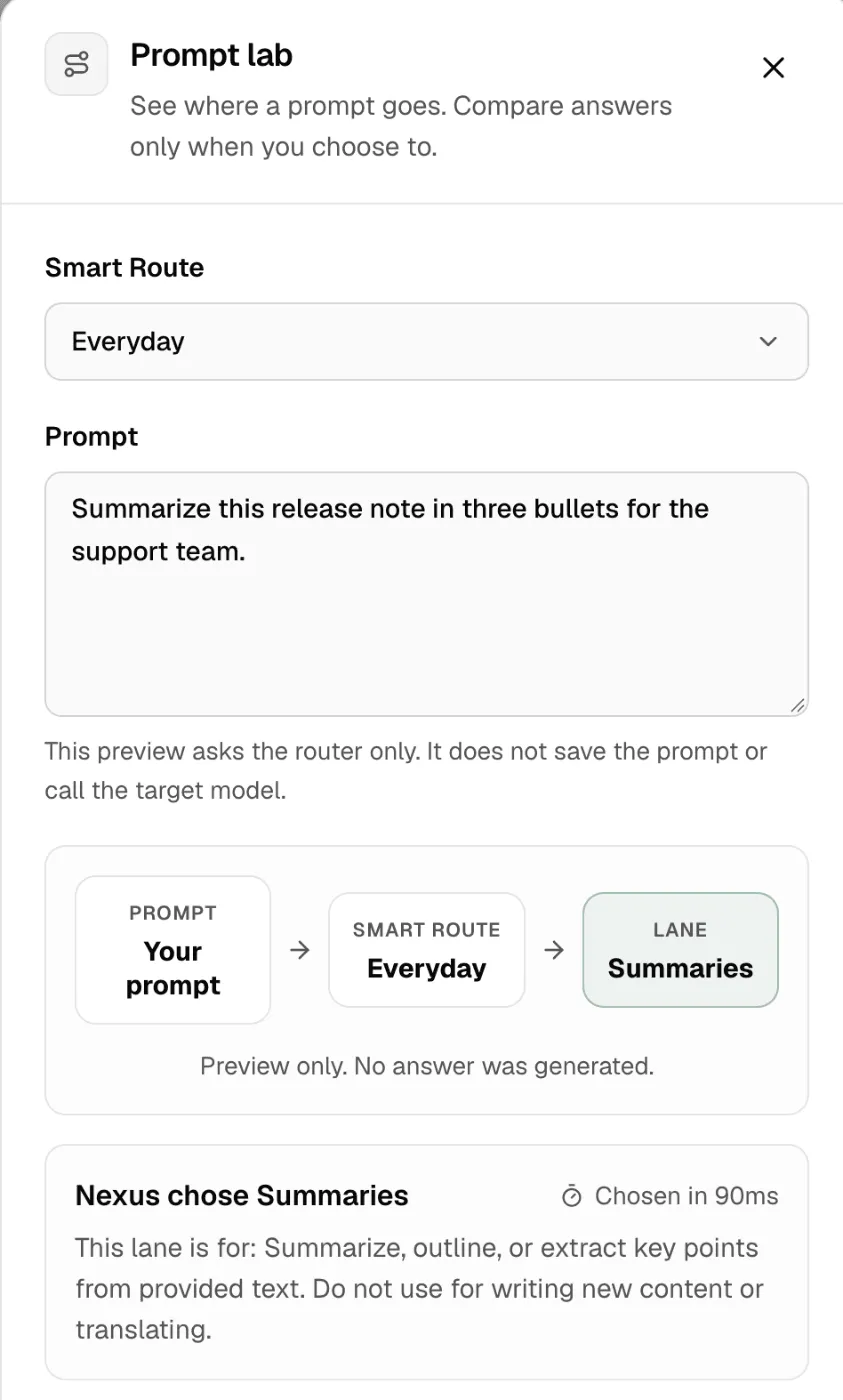
Section titled “Prompt lab”The Prompt lab tests a saved route.
- On the Smart Routes page, click Try a prompt.
- Pick the Smart Route and type a Prompt.
- Click See where it goes. Nexus shows the path: your prompt, the route, and the lane or fallback it picked, with why (This lane is for: …) and how long the router took.
This is Preview only. No answer was generated.
To compare answers, click Compare answers. The same prompt goes to the route’s pick and to the fallback, with model names hidden. Pick the better answer, then the names are revealed. Online models may charge your account; the two answers share a small output cap. Results feed the Better answers guidance goal.
Try in chat
Section titled “Try in chat”Click Try in chat on a route to open Chat Lab with the route as the model. Each reply says which model answered, such as Routed to mlx/….
Send traffic
Section titled “Send traffic”Send traffic, on the Live tab, sends real test requests through one or more routes so you can watch them.
- Click Send traffic.
- Pick the Smart routes.
- Pick a Scenario: Quick check (100 requests over 30 seconds), Busy minute (1,000 over a minute), Launch spike (5,000 as fast as possible), or Custom.
- For Custom, set Requests, Send over, Concurrent requests, Request mix and Answer length.
- Click Send.
These are real requests: online providers may charge for them. Traffic keeps going if you close the page; stop it from the header or in Activity.
The Live tab
Section titled “The Live tab”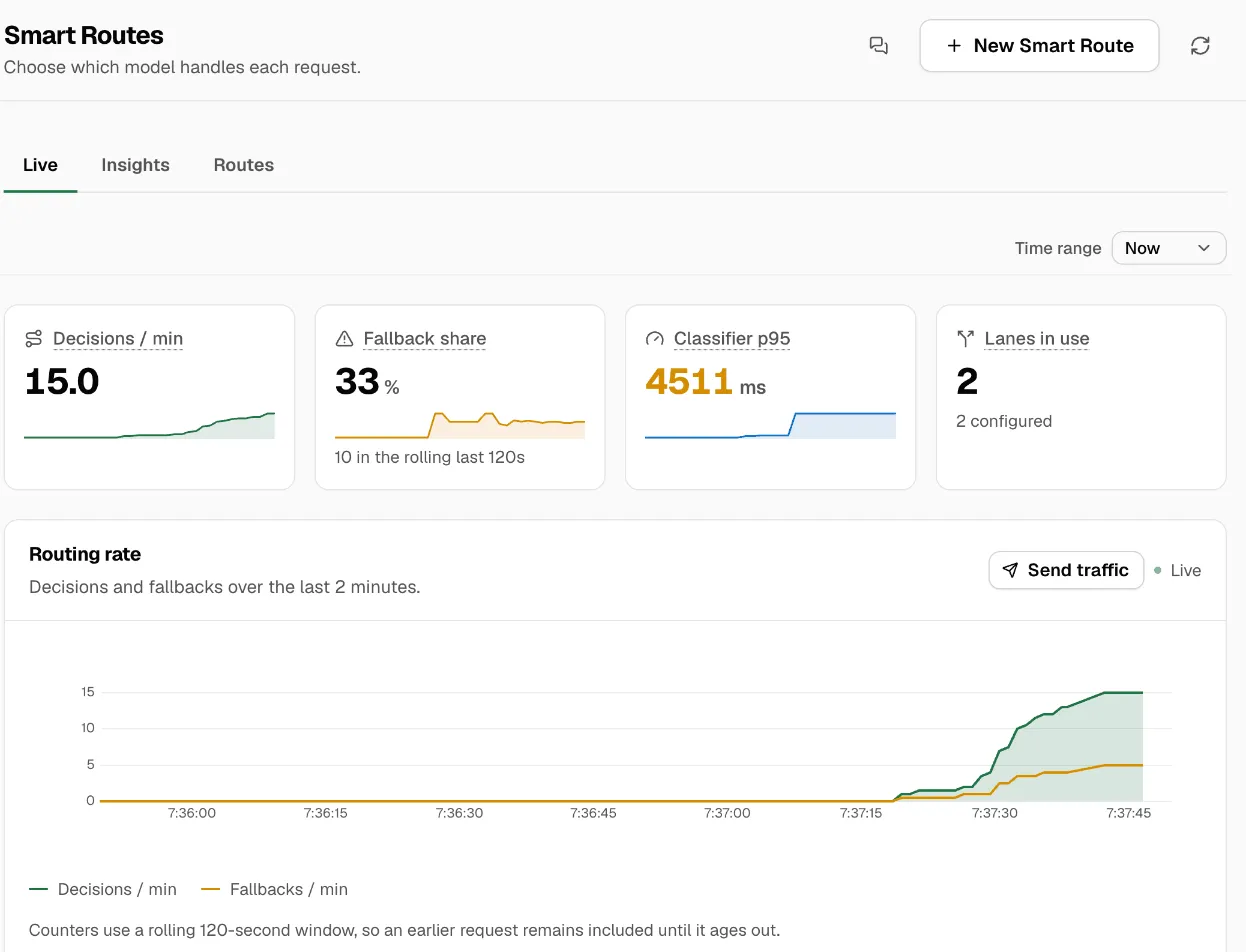
| Card | What it shows |
|---|---|
| Decisions / min | Requests routed per minute. |
| Fallback share | The share that went to the fallback, over a rolling two minutes. A high share means the choices miss real traffic. |
| Classifier p95 | How long the router takes, for the slowest 5% of requests. Above a second or so, the router is the bottleneck. |
| Lanes in use | How many choices got traffic, out of how many there are. |
Below them:
- Routing rate: decisions and fallbacks per minute, over the last two minutes. Time range shows longer periods.
- A card for each route, with its address, Edit, and Improve this route suggestions. Routes · … selected picks which routes show; Show … with traffic adds the busy ones.
- Data Protection, on protected routes: requests checked, cleaned, blocked and rerouted.
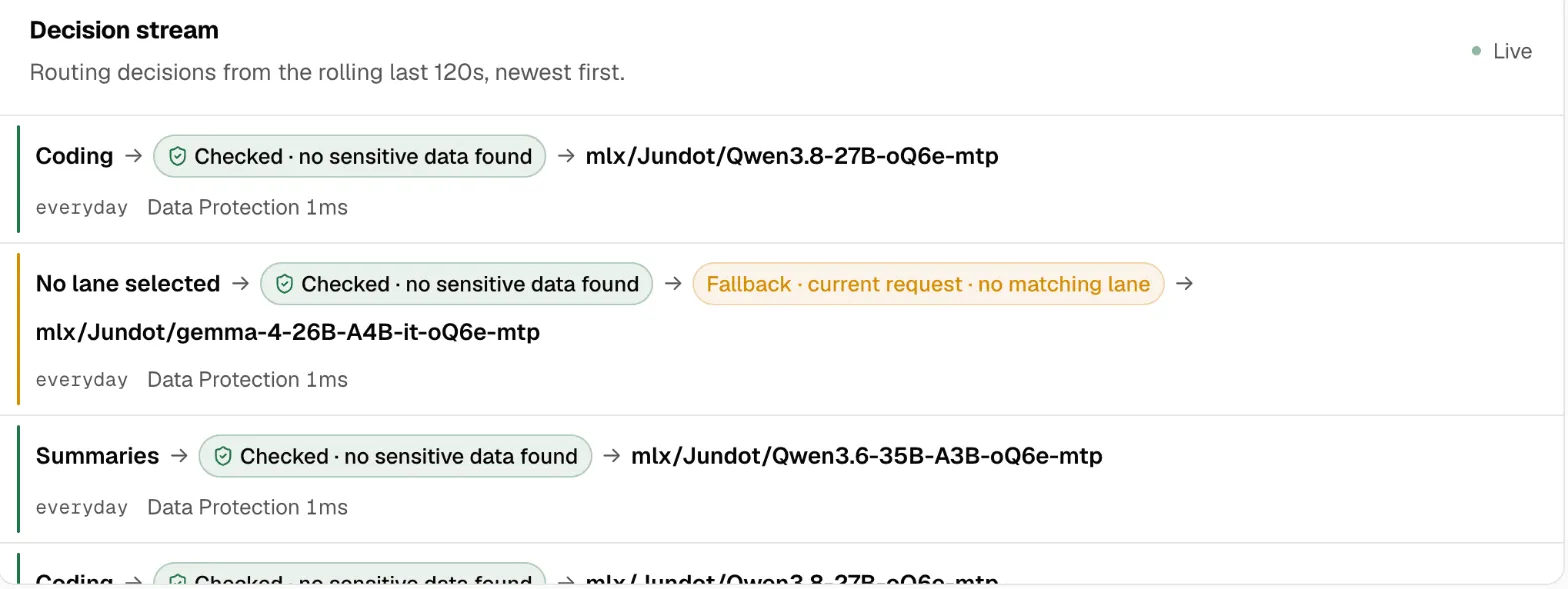
- Decision stream: each request as it’s routed: the lane, the target, how long the router took, and any Data Protection result.
- View: a live picture of requests flowing through the route, as Orbit, Circuit or Gravity.
Request history
Section titled “Request history”Request history, on the Live tab, lists the latest 100 Smart Route requests. Show All, or only those Decided by a rule. For each one:
- the lane or rule that decided, or the guard that moved it;
- the target, and whether it fell back, and why;
- why a follow-up went where it did, such as Follow-up, stayed on the same model (see Conversations);
- how long the router took.
It never holds prompt or reply text.
Insights
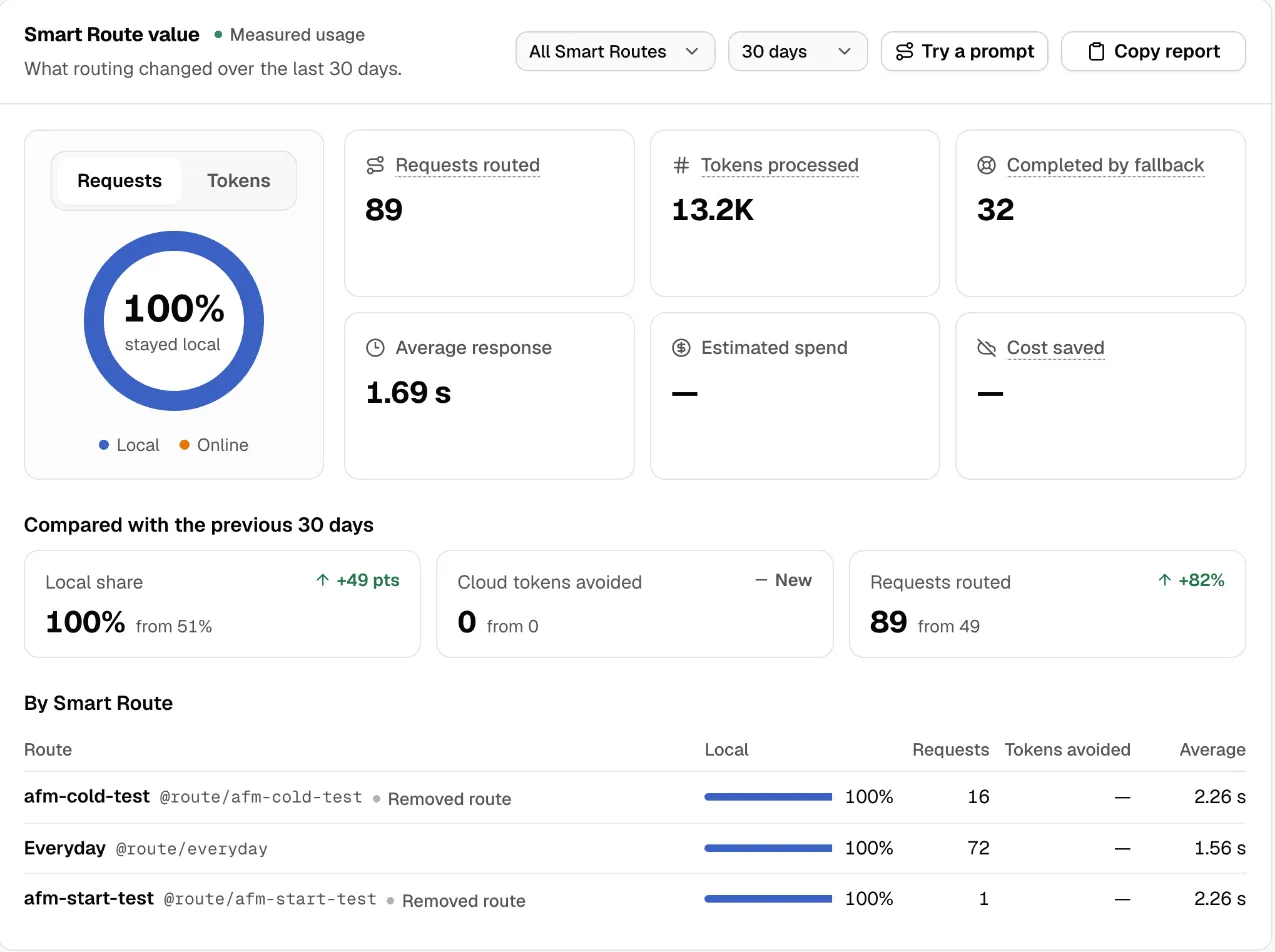
Section titled “Insights”The Insights tab shows Smart Route value: what routing changed over a time range, for one route or All Smart Routes.
| Number | What it means |
|---|---|
| Requests routed | Requests that went through the route. |
| Tokens processed | Tokens in and out. |
| Cloud tokens avoided | Tokens served locally, compared with each route’s online fallback. |
| Spend avoided / Cost saved | What that local work would have cost at the online fallback’s prices. Without prices it says Set fallback prices to estimate this. |
| Estimated spend | What the route’s online traffic did cost. |
| Completed by fallback | Requests the fallback finished. |
| Average response and Local vs online | How fast replies were, and how local compared with online. |
Copy report copies the numbers, to share or paste into a ticket.
Export for support
Section titled “Export for support”Export for support makes a bundle for a support ticket.
- On the Live tab, under Request history, click Export for support.
- Pick the Routes, or All routes.
- Under Include, keep the Recommended sections: Request history, Decision stream, Insights, Models and providers, Router status and System info.
- Pick the History window: Last 24 hours or Last 7 days.
- Click Export.
No message text, keys, or tokens are included. The same bundle comes from msty-nexusctl routes export; see Use from apps.
If something goes wrong
Section titled “If something goes wrong”| You see | Do this |
|---|---|
| Nothing has routed yet | Send a request to the route, or use Send traffic. |
| The router is not ready. in Check routing | Prepare the router. See Create a route. |
| Check routing cannot read this route. | It works with up to 12 choices that use models or presets. |
| The check took too long. | The router is busy. Try again in a moment. |
| A high Fallback share | Use Find gaps, and sharpen the choices. |
| A high Classifier p95 | Run the router on a faster runtime, or a less busy machine. |