
Model Aliases
An alias is a second name for a model. Apps send the alias, such as coding-local, instead of the model’s real ID. Later, you point the alias at a different model, and every app that uses it switches at once, with no change to the apps.
For example, today coding-local points at mlx/qwen3-coder-30b. When a better model comes out, you move the alias to it.
Which one do I need?
| You want | Use |
|---|---|
| A stable name for one model | An alias |
| A stable name plus fixed settings, such as temperature or web search | A preset |
| One name that picks a model for each request | A Smart Route |
Add an alias
Section titled “Add an alias”- Open Model Aliases.
- Click Add alias.
- Pick the model.
- Type one or more names. Each must be unique.
- Check the names, then save.
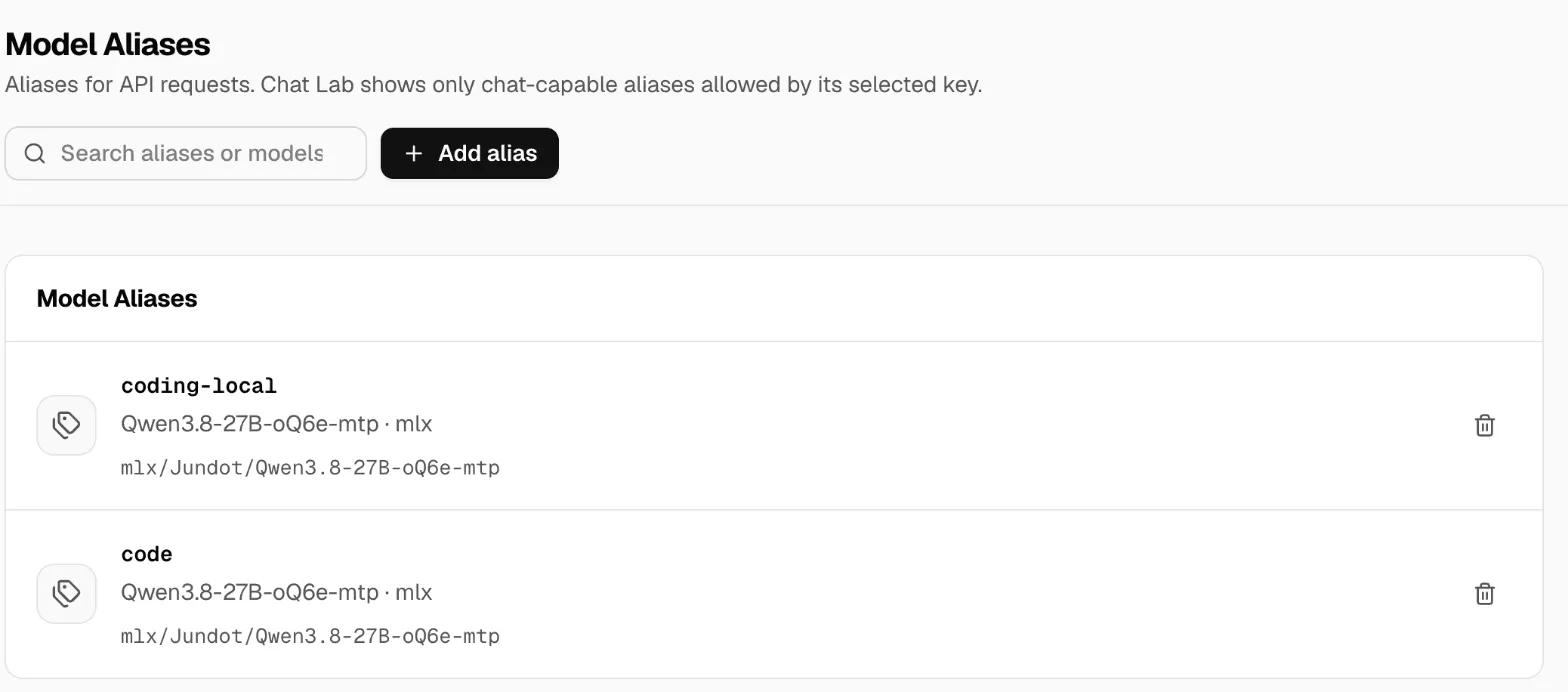
The page groups aliases by model. Search by the alias or the model name. A model’s aliases also show in its details in Models.
To change a model’s aliases, click Edit aliases for the model, change them, and click Save aliases.
Use an alias
Section titled “Use an alias”Send it wherever you’d send a model ID:
{ "model": "coding-local", "messages": [{ "role": "user", "content": "Write a test for this function" }] }A real model ID always wins. You can’t make an alias with the same name as an existing model.
When apps can see an alias
Section titled “When apps can see an alias”- An alias shows in the model list only while its model is visible and working. If you hide the model, its aliases go too.
- Team policy and key limits apply to the model behind the alias. An alias doesn’t give a key access to a model it couldn’t use anyway.
- Chat Lab shows only aliases for chat models that its selected key may use.
Before you delete or move an alias
Section titled “Before you delete or move an alias”Find the apps, presets and Smart Routes that use it first. Deleting an alias stops requests that use that name at once. It doesn’t delete the model or its other aliases.