Add a machine without a screen
Pro
You’ll get: a server or spare Mac in your fleet, serving models like any other Nexus machine. It can run without a screen, a browser or the desktop app.
You need:
- A machine with Linux (with systemd), macOS, or Windows 10 1803 or later.
- A terminal on it, as your normal user.
- Room in your plan: Pro includes 3 machines.
- Open the web or desktop Console and switch to Fleet.
- Open Machines and click Add a machine.
- Enter a Machine name you’ll recognize, and a Location if you like. Click Continue.
- Pick the machine’s system: macOS, Linux or Windows.
- For a Mac that will join a Cluster, turn on This Mac will join a Thunderbolt cluster.
- Click Copy command.
- On the machine, paste the command into a terminal (PowerShell on Windows) and run it. Use your normal account: not
sudo, not root, not Administrator. - Leave the terminal open until setup finishes.
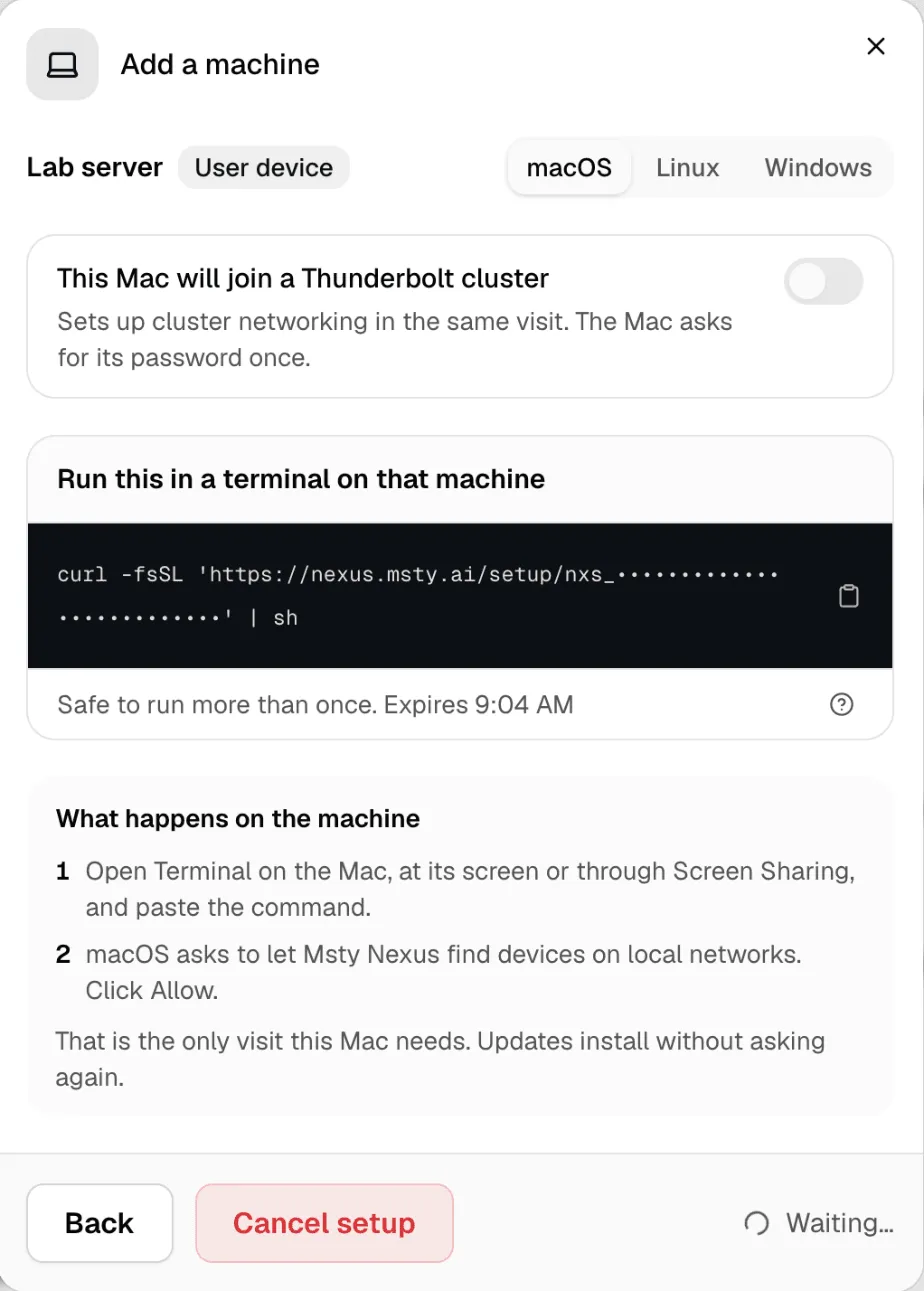
On a Mac, macOS asks to let Msty Nexus find devices on local networks. Click Allow. A cluster Mac also asks for its password once. Linux may ask for your password once, so Nexus keeps running after you log out.
The command is safe to run more than once, and it expires. Send it only through a trusted channel: it lets one machine join your fleet.
Check it worked
Section titled “Check it worked”The machine shows up in Machines as online. You don’t need to approve it. Switch to it and open Machine overview.
Already running the Nexus app on it?
Section titled “Already running the Nexus app on it?”In Add a machine, click Already running Msty Nexus on that machine?, then Get a code. On that machine, open Settings → Fleet → Join a fleet and paste the code. A machine added this way is reachable only while the app runs.
More in Machines.