Connect your first app
Any app that can talk to OpenAI or Anthropic can talk to Nexus. You give the app two things:
- An address: where Nexus listens, such as
http://127.0.0.1:3939/v1. - An API key: a Nexus key, made for that app. Never a provider key.
Then the app picks a model by name, just as it would with OpenAI.
1. Make an API key
Section titled “1. Make an API key”- Open Connections, on the Client API keys tab.
- Click Create API key.
- Name it after the app that will use it, such as
RaycastorTeam dashboard. Then revoking it later only affects that app. - Keep Access role on Inference only. That key can send requests but can’t change anything.
- Under What this key can use, keep Everything, or pick Only what I choose to limit it to certain tools, or, with Pro, certain models.
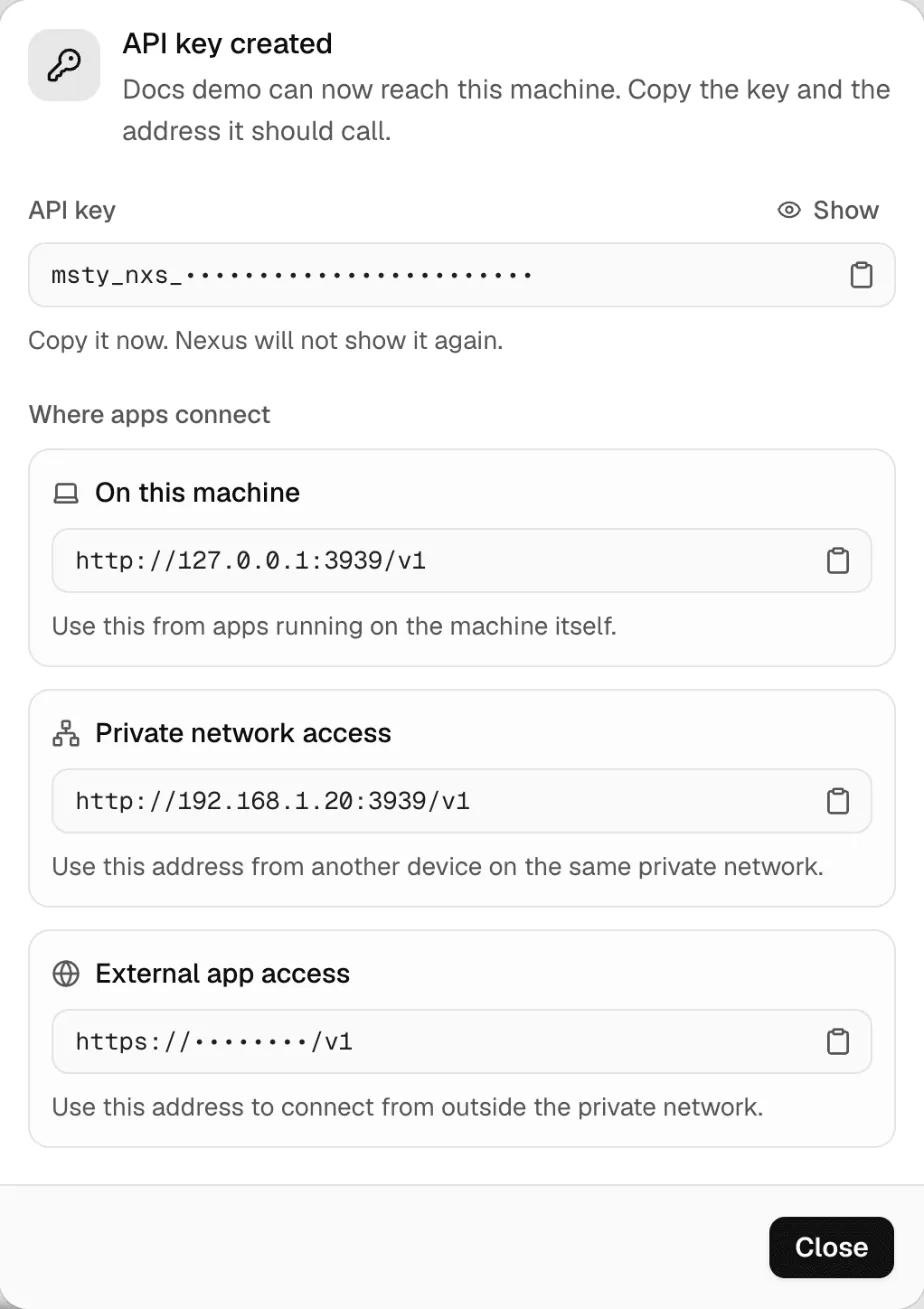
- Create it. The API key created dialog shows the key and the addresses to use.
- Click Copy API key and paste it into your app now. Nexus won’t show it again.
Shortcut: in the menu bar panel, Connect an app copies the address and makes a key in one step.
2. Point the app at Nexus
Section titled “2. Point the app at Nexus”In your app’s settings, find where it asks for an OpenAI (or Anthropic) base URL and API key.
| The app speaks | Base URL | API key |
|---|---|---|
| OpenAI API | http://127.0.0.1:3939/v1 |
Your Nexus key |
| Anthropic API | http://127.0.0.1:3939 |
Your Nexus key |
Some apps call the base URL an “endpoint” or “API host”. If an app asks for the full URL, use http://127.0.0.1:3939/v1/chat/completions.
On Msty Nexus Business, the port is 3949 instead of 3939.
3. Pick a model
Section titled “3. Pick a model”Send any of these as the model name:
| Name | Example | What it does |
|---|---|---|
| A model ID | ollama/llama3.1:8b |
One exact model. Copy it with Copy model id in Models. |
| An alias | coding-local |
A stable name you point at any model. See Model Aliases. |
| A preset | @preset/coder-fast |
A model plus saved settings. See Presets. |
| A Smart Route | @route/everyday |
Picks a model per request. See Smart Routes. |
| A balancer pool | @pool/chat |
Spreads requests across machines. See Smart Balancer. |
The app’s model list comes from GET /v1/models, so most apps show your models in their own picker.
Try it
Section titled “Try it”From a terminal:
curl http://127.0.0.1:3939/v1/chat/completions \ -H "Authorization: Bearer $NEXUS_KEY" \ -H "Content-Type: application/json" \ -d '{"model": "ollama/llama3.1:8b", "messages": [{"role": "user", "content": "Say hello."}]}'With the OpenAI Python library:
from openai import OpenAI
client = OpenAI(base_url="http://127.0.0.1:3939/v1", api_key="YOUR_NEXUS_KEY")reply = client.chat.completions.create(    model="@route/everyday",    messages=[{"role": "user", "content": "Say hello."}],)print(reply.choices[0].message.content)
With the Anthropic Python library:
import anthropic
client = anthropic.Anthropic(base_url="http://127.0.0.1:3939", api_key="YOUR_NEXUS_KEY")reply = client.messages.create(    model="anthropic/claude-sonnet-4-5",    max_tokens=200,    messages=[{"role": "user", "content": "Say hello."}],)print(reply.content[0].text)
Then open Usage or Activity in the Console. Your request is there, under the key’s name.
Connect from another device
Section titled “Connect from another device”127.0.0.1 only works on the machine running Nexus. For apps on other devices:
- On your network: open Connections, then Gateway access, and click Turn on private network access. This needs a Runtime restart. Then Nexus shows the new address, such as
http://192.168.1.20:3939/v1. - From anywhere Pro: click Allow external apps to get a hosted HTTPS address. No router or firewall changes needed. See Access from anywhere.
- From a web page: browsers also need the page’s origin in Allowed browser origins. See Settings.
Every address still needs a Nexus key. Read Security before you open access.
Apps that pair instead
Section titled “Apps that pair instead”Some apps, such as Msty Sail and Msty Stack, pair with Nexus instead of using a pasted key. The app shows a code, and you approve it in Connected apps. See Connected apps.
If something goes wrong
Section titled “If something goes wrong”| What you see | What to do |
|---|---|
UNAUTHORIZED |
The key is wrong, revoked or missing. Make a new one in Connections. A provider key won’t work here. |
MODEL_NOT_FOUND |
Check the model name. Hidden models and aliases of hidden models can’t be used. |
MODEL_ENDPOINT_NOT_SUPPORTED |
The model can’t do this kind of request, such as embeddings on a chat model. Pick another model. |
| The app can’t connect at all | Check the address and port. From another device, turn on private network access first. |
| The app shows no models | The key may be limited to Only what I choose. Check what it can use in Connections. |
More: Gateway reference and Troubleshooting.