
Teams & policies
Enterprise
Teams & policies lets you manage many machines at once with one policy for each team. A policy says what every machine of the team must have, such as a Nexus version, runtimes, models and routes. You also decide who can open each machine, which machines a team can share, and the Guard rules every request must follow.
It’s in Fleet → Teams & policies, for owners, admins and team managers, in organizations Msty set up for you.
People, teams, roles and billing live in Msty Account. Nexus handles the machines:
| In Msty Account | In Msty Nexus |
|---|---|
| People, teams, memberships, organization roles, team managers, Nexus access, billing, token limits | Machines, who each user machine belongs to, the team policy, shared machines, Guard rules, team tool controls |
The teams list
Section titled “The teams list”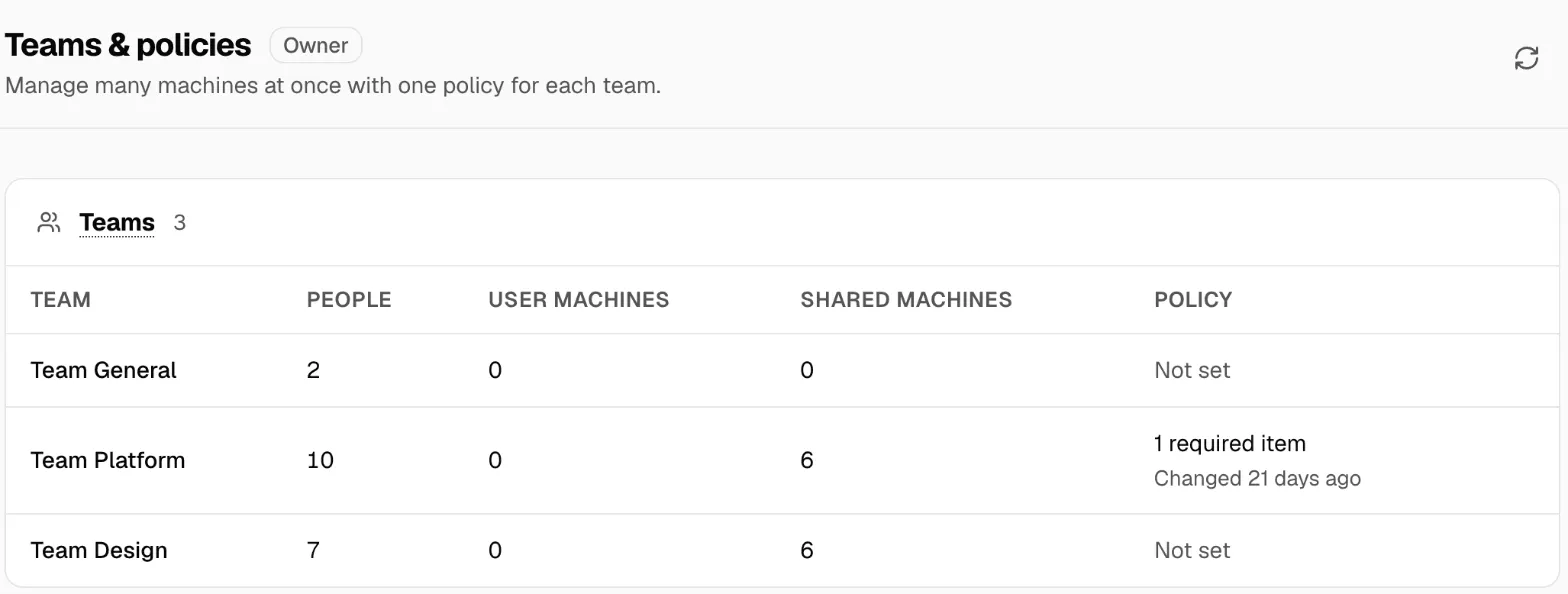
Each team shows its People, User machines, Shared machines, and Policy: how many items it requires and when it last changed, or Not set. Click a team to open it.
A team page has four tabs: Overview, People, User machines and Shared machines. View audit shows the team’s changes in Audit.
Two kinds of machine
Section titled “Two kinds of machine”Every machine has one home team.
- A user device is one person’s own machine, such as a laptop. It belongs to one team and can be assigned to one person. The team’s user machine policy applies to it.
- A shared machine serves many people, such as a server or a big GPU machine. Its home team owns it and can share it with other teams.
You pick the type when you add the machine. Changing it later changes who can use it and which policy applies, so check its teams first.
Set up a team
Section titled “Set up a team”The team’s Overview starts with Set up this team: five steps you do once.
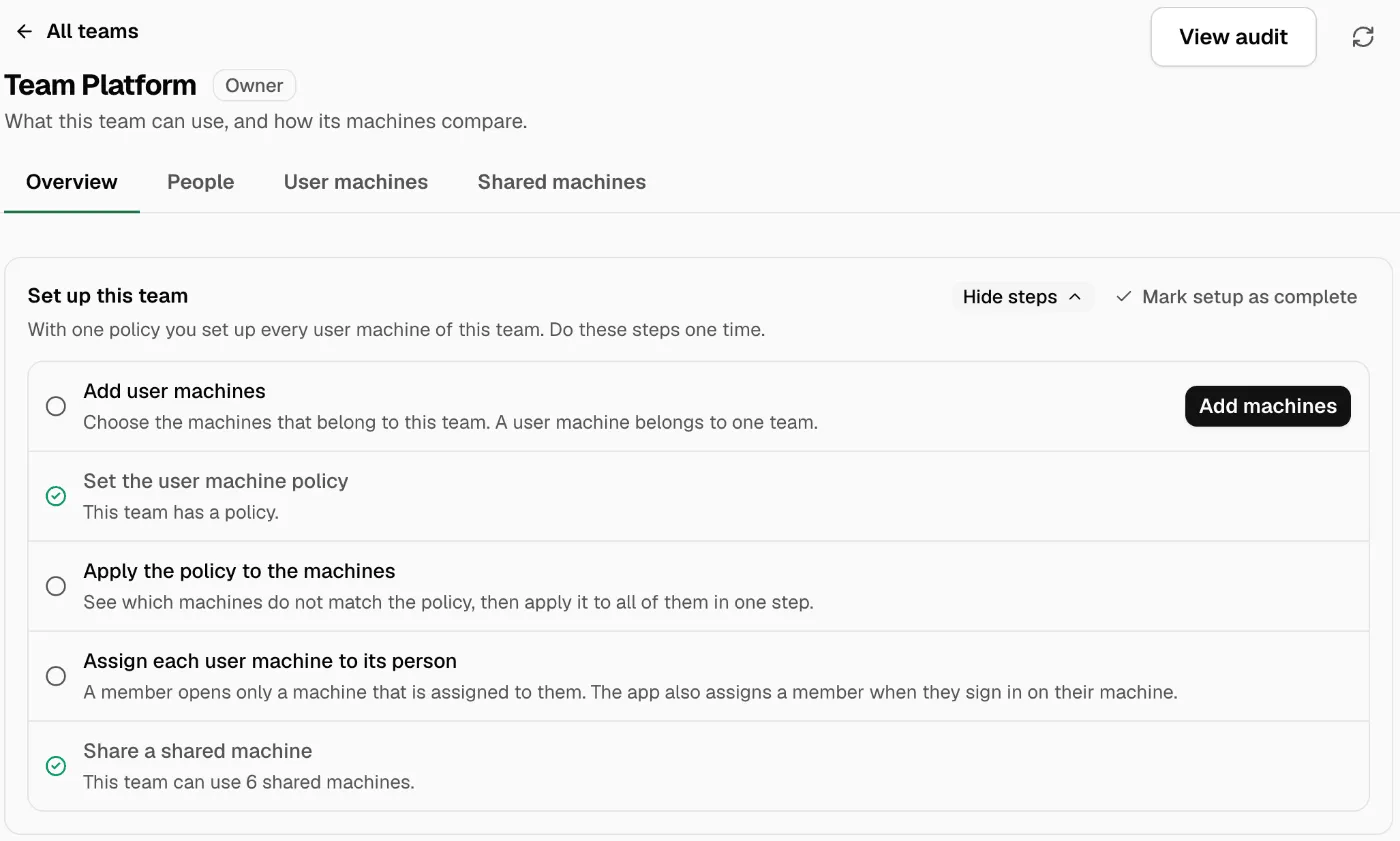
- Add user machines: choose the machines that belong to this team. Click Add machines.
- Set the user machine policy: what every user machine must have. See below.
- Apply the policy to the machines: see which machines don’t match, then apply the policy to all of them in one step.
- Assign each user machine to its person: a member opens only machines assigned to them. The app also assigns a member when they sign in on their machine.
- Share a shared machine with the team, if it needs more power than its own machines.
First, create the team, add its people and give it Nexus access in Msty Account. Hide steps folds the list away. Mark setup as complete removes it.
The team map
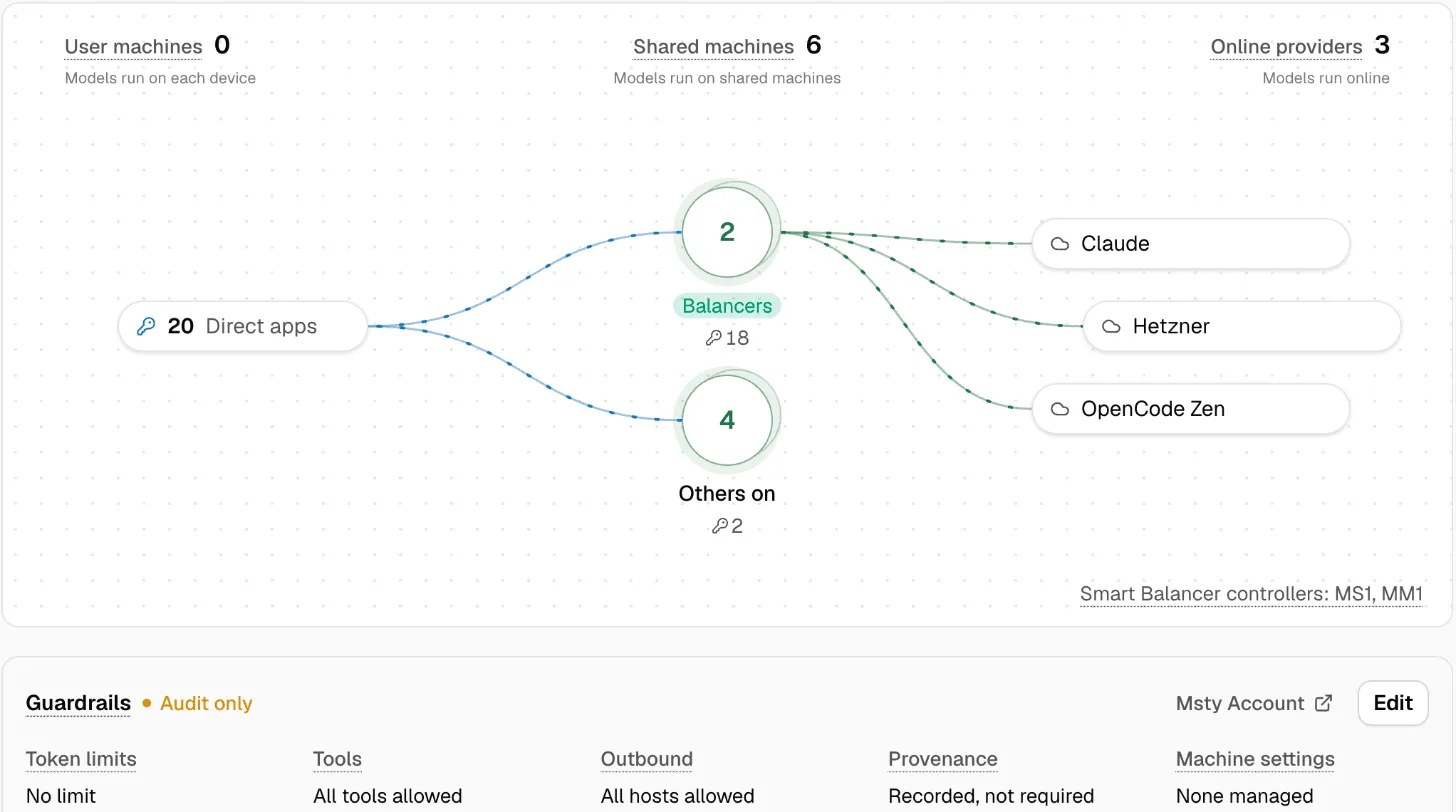
Section titled “The team map”Below the steps, a map shows how the team’s work flows: apps on one side, the team’s User machines, Shared machines and Smart Balancer pools in the middle, and the Online providers it reaches on the other side.
The user machine policy
Section titled “The user machine policy”A user machine policy lists what every user machine of the team must have:
- Msty Nexus Runtime version
- Local runtimes, each pinned to a version or kept up to date
- CLI Proxy
- Models
- Presets and Smart Routes
- Online providers
- Tool integrations and tool profiles
- Data Protection and its privacy model
You build the policy from one online team machine, the example machine. Nexus copies its settings, never its provider keys or API keys.
Pick No policy to let people fully control their own machines. That’s different from a policy with nothing in it.
Apply the policy
Section titled “Apply the policy”Saving the policy doesn’t change any machine. To bring machines in line:
- On User machines, select the machines. To find the ones that differ, set the Policy filter to Has gaps.
- Click Apply policy.
- Read what will happen on each machine: what will be copied, installed or downloaded, and what you must do by hand.
- Click Apply.
Installs and downloads keep going in the background on each machine. The machine list shows when each one matches the policy.
Some items can’t be copied, and the review says so: a provider whose key must be entered on the machine, a model with no download source, or a different version of a runtime. Offline machines can’t be compared or changed until they come back.
If someone changes a policy item on their own machine, the next comparison shows the difference. Apply policy puts it back.
Machine types and global policies
Section titled “Machine types and global policies”Machine types let one team policy fit different hardware. A team can, for example, give every laptop a small model and every high-memory Mac a bigger one.
Owners and admins set them up in Fleet → Machines → Machine types & global policies:
- Click Add machine type.
- Give it a Name, such as “Pro”.
- Under Rule, fill in one or more conditions. Leave a field empty to not check it.
- Save.
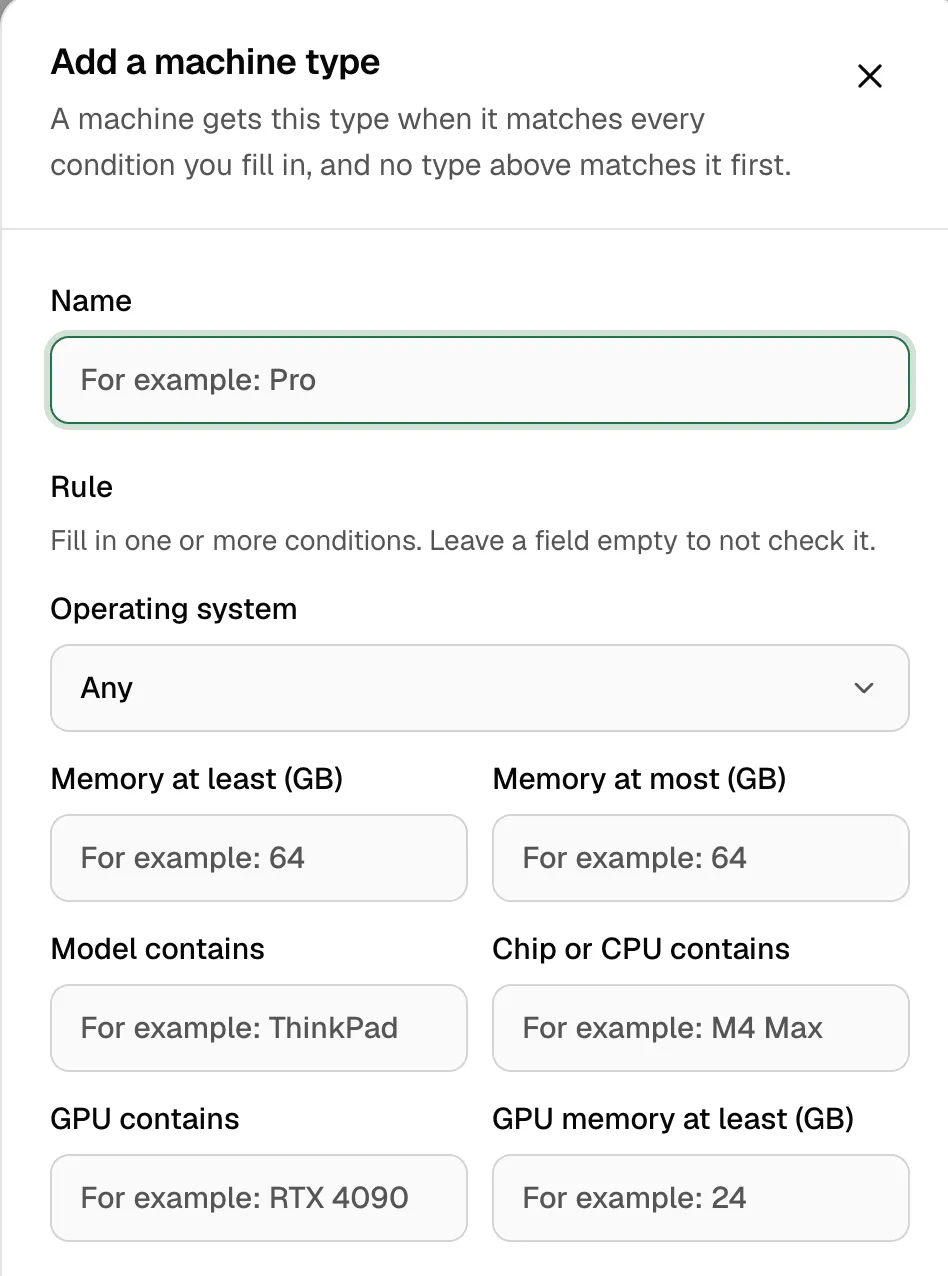
A machine gets a type when it matches every condition you filled in, and no type above it matches first. Order the types with Move up and Move down. The last type, Everything else, has no rule, so every machine gets a type. An owner, admin or the machine’s team manager can pin a machine to a type instead.
Each type can have an organization policy. Each team can then, for each area, keep it Same as team, use Team plus these, use Only these, or set a single value.
How the layers combine
Section titled “How the layers combine”For a user machine, Nexus works out the policy in this order:
- Team policy: the team’s starting point.
- Organization default for the machine type.
- Team override for the machine type.
A later layer changes only the areas it names. Everything else comes from the layer before. When you compare a machine, each value shows where it came from, so you know where to change it.
Who can open and change what
Section titled “Who can open and change what”Access adds up: every level must allow an action.
- Organization role sets the most a person can do:
- Owner: full control, including billing and other owners.
- Admin: manages machines, people and settings.
- Operator: runs and changes models on machines they were given.
- Viewer: read-only.
- Team manager: an admin for their teams only. See Team managers.
- Machine assignment: a member opens only user machines assigned to them.
- Team rule: the areas members can manage on their own machines (online providers, local providers and models, routing, tools, API keys and machine settings), marked Members can manage on their own machine.
- Person rule: a custom rule for one person replaces the team rule for them.
Shared machines
Section titled “Shared machines”A shared machine’s home team owns it, changes it, and decides the most another team may get. Each receiving team then picks its own rule, within that limit:
| Access | What the team can do |
|---|---|
| Through routes only | The team’s machines can send requests to it. People can’t open it in the Console. |
| View logs | Read its operational logs without changing it. |
| View in the console | Open it and look, including its usage. No changes, logs or tokens. |
| Operate | Open it and change its models and settings. |
And the Connection: Internal network only, or Internal network, and from outside.
A manager of the receiving team can change only their team’s rule. They can’t change the machine or give their team more than its home team allows.
Use shared machines for central GPUs, online provider access, Smart Balancer targets, or big local models. If a route depends on a shared machine that is reachable only in the office, keep a working fallback.
Guardrails
Section titled “Guardrails”Guard checks every request on the team’s machines, on the machine itself. It works even while the machine is offline.
The Guardrails row on the team page sums up the rules. Click Edit to change them.
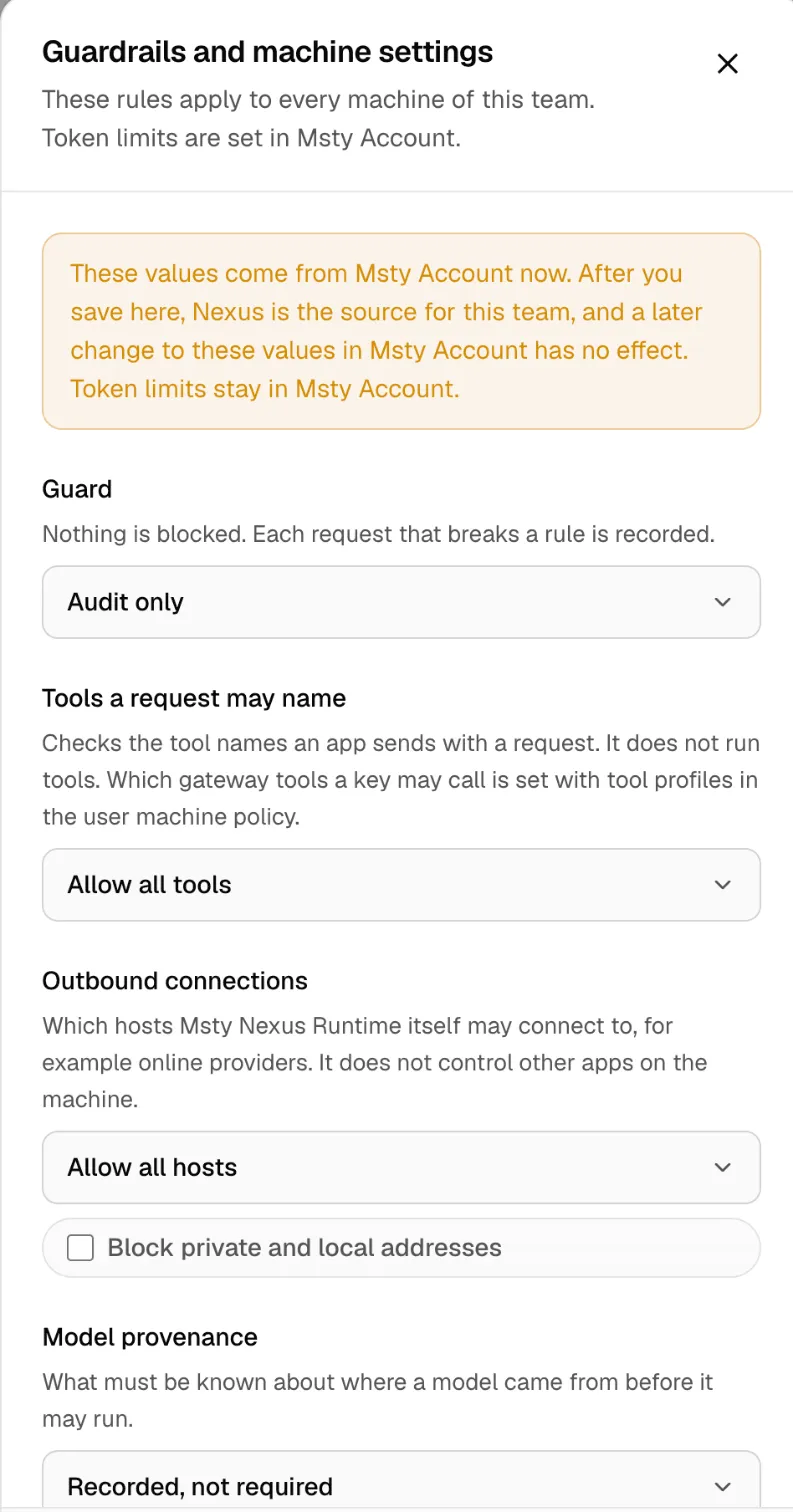
- Guard:
- Off: the rules and token limits aren’t applied.
- Audit only: nothing is blocked. Each request that breaks a rule is recorded.
- Enforced: a request that breaks a rule or a token limit is blocked.
- Tools a request may name: Allow all tools, Allow only the listed tools, Block the listed tools, or Allow no tools. This checks the tool names an app sends. Which Tools Gateway tools a key may call is set with tool profiles instead.
- Outbound connections: which hosts Nexus Runtime itself may connect to, such as online providers. Allow all hosts, Allow only the listed hosts, or Block the listed hosts, plus Block private and local addresses. It doesn’t control other apps on the machine.
- Model provenance: what must be known about where a model came from before it may run: Recorded, not required, Verified file hash required, or Approved source and license required.
- Managed machine settings: usage tracking, how long usage and Gauge data are kept, request logging, Gauge, and network access. A Default can be changed on a machine. An Enforced value can’t.
Token limits are set in Msty Account. If the other values came from Msty Account, saving them here makes Nexus their source for this team. Later changes to them in Msty Account then have no effect.
Nexus signs the policy for each machine, and the machine checks the signature. With Enforced on and no valid policy, guarded requests fail. Fix the machine’s team or policy. Don’t try to get around it.
Use the policy when machines should have the same software. Use Guard when every request must follow a rule.
Team tool controls
Section titled “Team tool controls”Team tool controls manage MCP tools for the whole team, apart from the rest of the policy. It sums up as, for example, “0 managed profiles · Local commands: Allowed”.
- Managed profiles: tool profiles sent to the team’s machines read-only. On each machine, assign a profile to an API key. Each rule is Allow, Ask, Admin approves or Block, with Calls per hour (0 = unlimited).
- Local command tools: Allowed, Approved commands only (list each Program and its Arguments), or Off.
Click Save and apply. Online machines update now. Offline machines keep their last settings until they next sync. If it doesn’t reach a machine, click Apply now to try again.
An API key can narrow a team profile but never get around its block, approval or hourly limit. Team controls don’t install integrations, assign profiles to keys, or copy credentials. See Tools Gateway.
Team managers
Section titled “Team managers”A team manager is an admin for their own teams only. An owner or admin makes someone a team manager in Msty Account. A person can manage several teams.
| Area | A team manager can | A team manager can’t |
|---|---|---|
| See | The team’s user and shared machines, in Machines, Monitor, Insights and the team page. | Machines of other teams, or machines with no team. |
| Policies | Set the user and shared machine policies, Apply policy, and the team’s Guard rules. | Change billing, SSO, the plan, or what the organization has bought. |
| Add machines | Add user and shared machines to a team they manage. | Add machines to another team. |
| Change machines | Change, and remove, any machine whose home team they manage. | Change a shared machine owned by another team. |
| Shared machines | Share their team’s machines with other teams they manage, and set their team’s rule for machines shared with it. | Give their team more than the home team allows. |
| People | Assign user machines to people and set per-person rules. | Make someone a manager, or change organization roles. |
| Lobby walls | Make walls that show only their teams’ machines. | See or change other walls. |
| Audit | See events for the teams they manage. | See organization-only events, or other teams’ events. |
What never leaves the machine
Section titled “What never leaves the machine”Team policy never copies provider keys, subscription sign-ins, API keys, prompts, replies or tool inputs into Msty’s servers. See Security.
If something goes wrong
Section titled “If something goes wrong”Check in this order:
- The machine’s home team, and for a user machine, its assigned person.
- The machine’s type, matched or pinned.
- Where each policy value comes from: Team policy, Organization default or Team override.
- Whether a team override adds to the inherited list or replaces it.
- The person’s organization role, the team rule, and any person rule.
- For a shared machine: both the home team’s limit and the receiving team’s rule.
- If requests are blocked: the Guard mode, and whether the machine has a current policy.
- Audit, to see who changed the policy, access, assignment or sharing.
| What you see | What to do |
|---|---|
| A machine stays out of policy after Apply | Read the review: some items, such as provider keys, must be set on the machine. |
| “The example machine of this policy is gone” | Open the policy, choose a new example machine, and save. |
| “The example machine did not answer” | Turn the example machine on and try again. |
| A member can’t open their laptop | Assign the machine to them, or have them sign in on it. |
| Requests are blocked with Guard Enforced | Check the rules in Guardrails, or switch to Audit only while you test. |