Providers
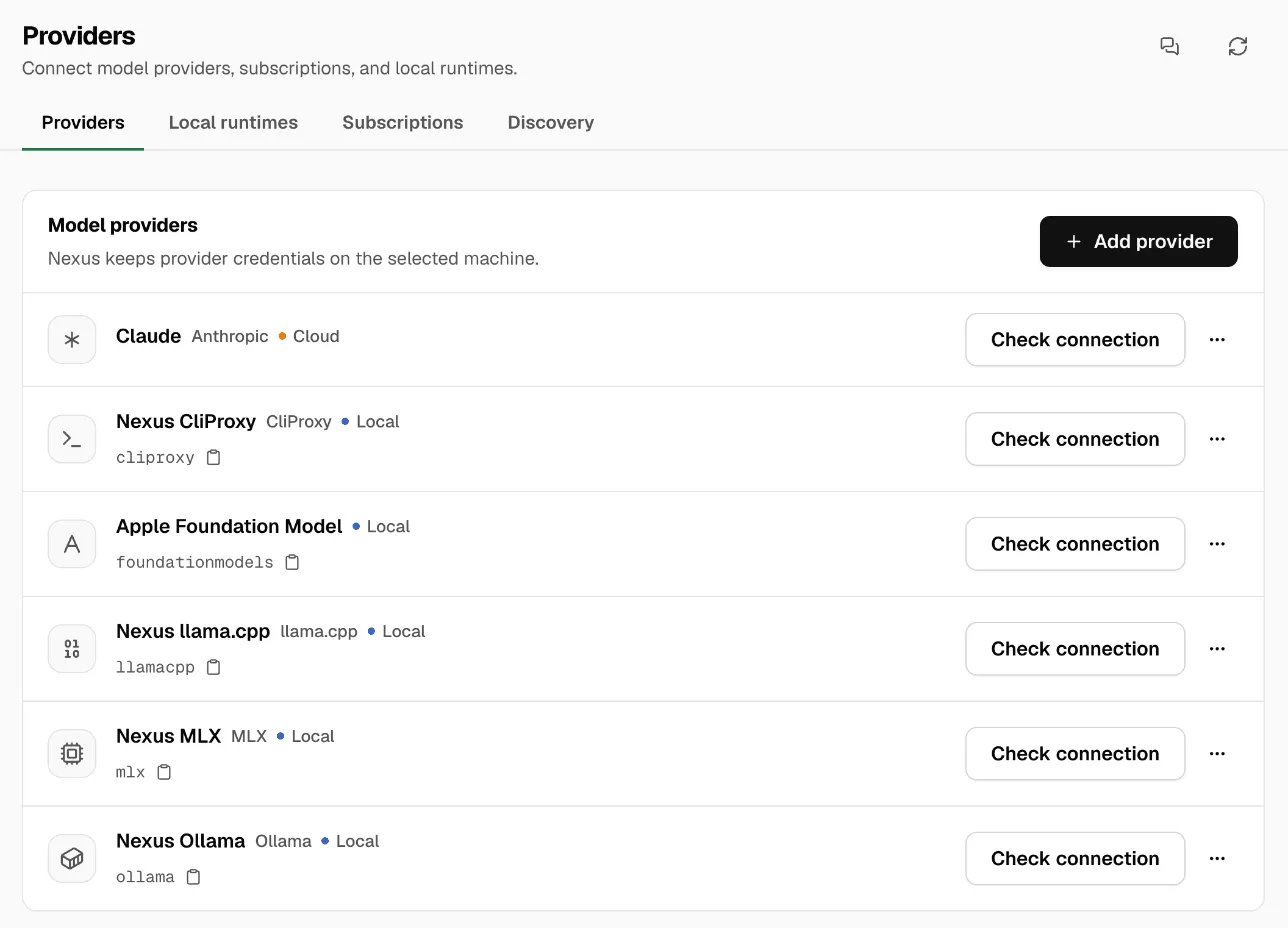
A provider tells Nexus where models live and how to reach them. It can be an online API such as OpenAI, a server you run that speaks the same API, a local runtime on this machine, or a subscription you already pay for, such as Claude.
You add each provider once. Its models then show up in Models, and every app that connects to Nexus can use them with a Nexus key. Apps never see the provider’s key.
The Providers page has four tabs:
| Tab | What it’s for |
|---|---|
| Providers | Online APIs and compatible servers. |
| Local runtimes | Model engines on this machine: Ollama, llama.cpp, MLX and more. See Local runtimes. |
| Subscriptions | Claude, ChatGPT (Codex) and Google Antigravity subscriptions. |
| Discovery | Model servers that already run on this machine. |
Kinds of provider
Section titled “Kinds of provider”| Provider type | What you get |
|---|---|
| OpenAI | Chat, Responses, embeddings, images and audio. |
| Anthropic | Claude models, through the Messages API. |
| OpenRouter | Many vendors’ models through one key. |
| Amazon Bedrock | Models on your AWS account. See Amazon Bedrock. |
| Azure OpenAI | Your Azure deployments. See Azure OpenAI. |
| OpenAI-compatible | Any server with an OpenAI-style API, such as vLLM, LM Studio or a company proxy. Nexus routes to it but doesn’t start or stop it. |
| TypeSafe AI (Jev) | Online decision models. See Decision presets. |
Local engines (Ollama, llama.cpp, MLX, Apple Foundation Model) and subscriptions are providers too. You set them up on their own tabs.
Add an online provider
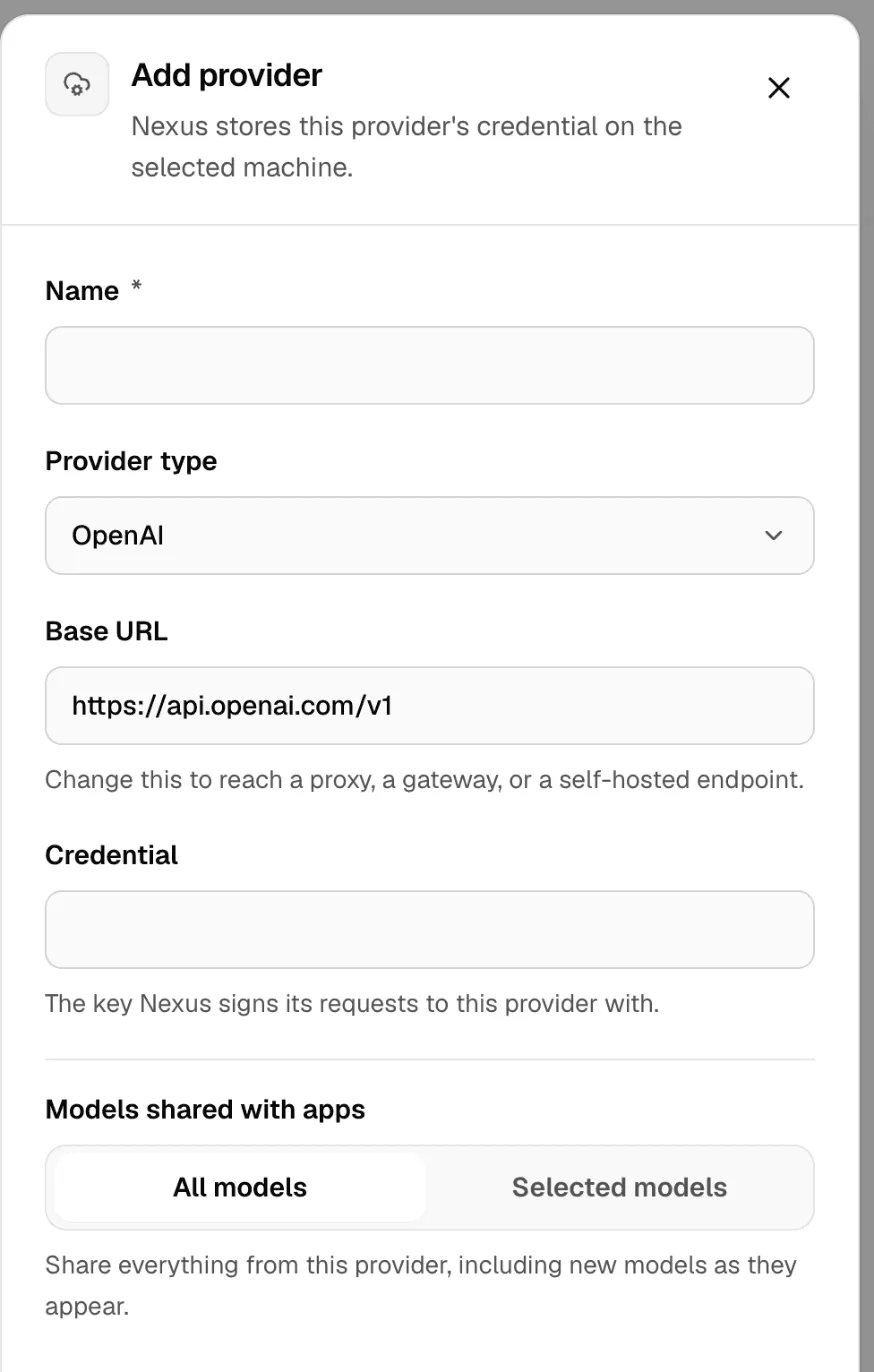
Section titled “Add an online provider”- Open Providers.
- Click Add provider.
- Pick the Provider type.
- Give it a Name. The Provider ID becomes the start of each model’s name. For example, the ID
openaigives models such asopenai/gpt-5. - Paste the API key under Credential. Change Base URL only if the provider tells you to.
- Click save.
- Click Check connection.
The models appear in Models after a short sync. You can follow the sync in Activity.
Choose which models apps see
Section titled “Choose which models apps see”By default, apps see every model the provider offers. To share only some:
- Edit the provider.
- Under Models shared with apps, pick Selected models.
- Tick the models you want, then save.
New models the provider adds later stay unticked until you pick them. To go back, pick All models.
This choice only hides models from the model list. To stop a key from calling a model, limit the key in Connections.
Discover provider models automatically lets models the provider adds show up without a sync. Turn it off if you want a fixed list.
Add a compatible server
Section titled “Add a compatible server”Use OpenAI-compatible when a server already speaks the OpenAI API: a vLLM box, LM Studio, or a company proxy.
- Click Add provider and pick OpenAI-compatible.
- Set Base URL to the API root, such as
http://192.168.1.40:8000/v1. - Add a key if the server needs one.
- Save, then click Check connection.
Pick a short, clear Provider ID. It becomes part of every model name from that server, so changing it later changes those names.
If the server runs on the same machine as Nexus, use 127.0.0.1 in the address.
Amazon Bedrock
Section titled “Amazon Bedrock”- Click Add provider and pick Amazon Bedrock.
- Pick the AWS region where you use Bedrock.
- Under Authentication, pick one:
- Bedrock API key.
- AWS credentials: an Access Key ID and Secret Access Key, plus a Session Token if the credentials are temporary.
- Save, then click Check connection.
Nexus lists the models your account can see in that region. Claude models work through both the OpenAI and the Anthropic style of API.
Nexus doesn’t support IAM roles, STS, or the older Converse and InvokeModel APIs.
Azure OpenAI
Section titled “Azure OpenAI”- Click Add provider and pick Azure OpenAI.
- Set Base URL to your resource address, such as
https://my-resource.openai.azure.com. - Paste the Azure API key.
- Under Deployment names, enter each deployment, one per line.
- Save, then click Check connection.
Apps send the deployment name as the model. Azure doesn’t report your deployments, so update the list when you add or remove one.
Connect a subscription
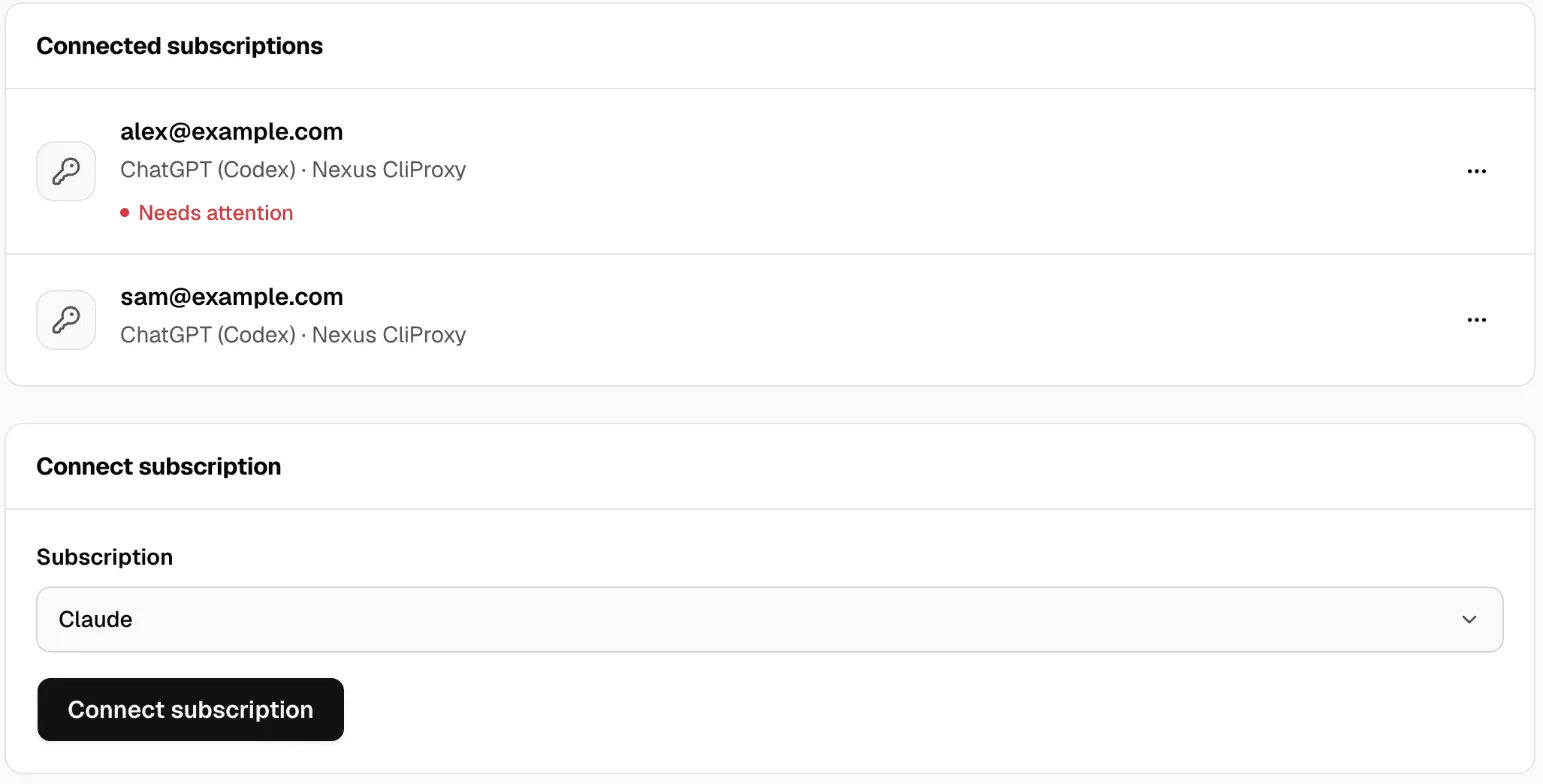
Section titled “Connect a subscription”The Subscriptions tab lets you use an AI subscription you already have, as models that apps can call through Nexus:
- Claude
- ChatGPT (Codex)
- Google Antigravity
Subscriptions run through the CliProxy runtime on this machine. If it isn’t installed, Nexus asks you to set it up in Local runtimes first.
- Open Providers → Subscriptions.
- Under Connect subscription, pick the Subscription, then click Connect subscription.
- Sign in in the browser window that opens. If it doesn’t open, click Open sign-in.
- If the browser ends on a page that doesn’t load, copy its full address, paste it into Address after sign-in, and click Finish sign-in. This happens when the browser runs on another computer.
- Wait for Subscription connected. Nexus then syncs the models.
Try a model in Chat Lab before you point an app at it.
- Disable stops the subscription’s models but keeps the sign-in.
- Re-authenticate signs in again when the sign-in expires.
- Paused until means the service hit its limit. Nexus tries again after that time.
Connected subscriptions also show in Gauge, with their limits and reset times.
Find servers already running
Section titled “Find servers already running”If you already run Ollama, LM Studio or another local model server, Nexus can find it.
- Open Providers → Discovery.
- Click Scan this machine.
- Next to a server marked Live, click Add to Nexus.
Other states: Already added, Unreachable (the server isn’t answering), and Needs authentication (add its key after you add it).
Turn off or delete a provider
Section titled “Turn off or delete a provider”- Turn off Enabled to hide the provider’s models from apps. Nothing is deleted, so you can turn it back on.
- Delete a provider only when no model, preset or Smart Route uses it. If Nexus says it’s still in use, change those first.
If something goes wrong
Section titled “If something goes wrong”Check connection tests the address, the key and the model list. It never sends a prompt.
| What you see | What to do |
|---|---|
| Connection rejected | The provider refused the key. Paste a new key and save. |
| Unreachable | Check the Base URL and that this machine can reach it. |
| Missing credential | Paste the API key, then save. |
| No models appear | Wait for the sync in Activity. If you use Selected models, tick some. |
| Bedrock access denied | Give the user the bedrock-mantle permissions. |
| Delete fails because the provider is in use | Move the models, presets or routes that use it to another provider. |