Image Lab
Pro
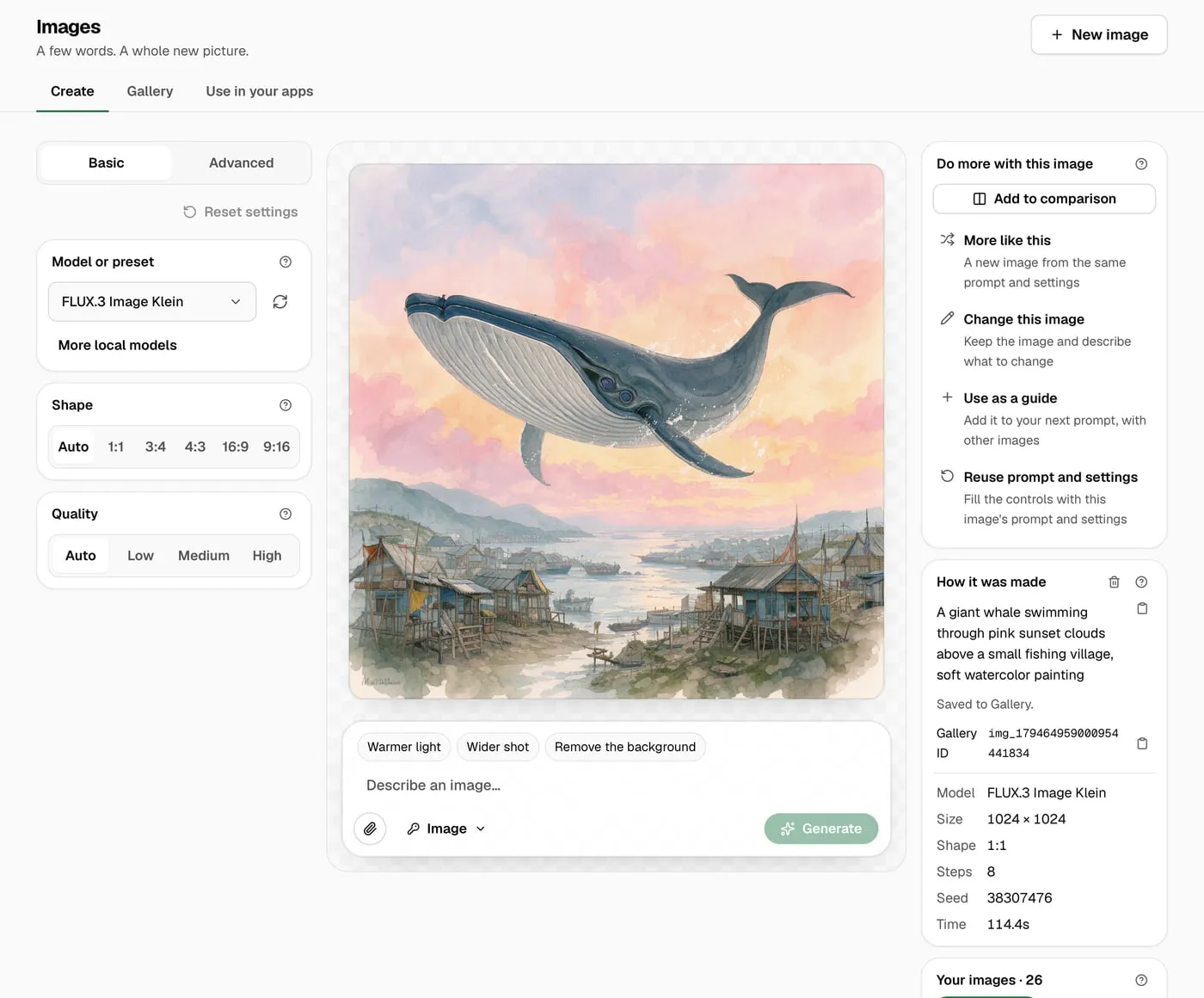
Image Lab makes pictures from a few words. It can also change a picture you already have: turn a sneaker teal, move it to a neon street at night, warm the light. Open it from Image Lab under Try.
Images are made one of two ways:
- On this Mac. A local image model runs on the machine. Prompts and images stay there. There’s no account and no charge per image.
- With a provider. An image model from a provider you connect, such as OpenAI. Prompts go to the provider, and the provider bills you.
Your apps can use the same models through the Nexus gateway, with a client API key. See Use images in your apps.
What you need
Section titled “What you need”-
A Pro or Enterprise plan. On Free, Image Lab opens as a locked page, and local image models refuse requests from every caller, apps included. See Plans.
Requests from your apps to a cloud provider’s image models work on every plan. See Use images in your apps.
For local images:
- A Mac with Apple Silicon and macOS 26 or later.
- Disk space for the model. The default model is a 6.3 GB download. The others are 7.5 to 11.1 GB.
- Time. On an M3 Max, a 1024 × 1024 image takes about 100 seconds and a 512 × 512 image about 25 seconds. The first image after you switch models is a little slower.
For a provider: an account and API key with a provider that has image models, such as OpenAI. Add it in Providers.
Set it up the first time
Section titled “Set it up the first time”The first time you open Image Lab, it asks where to make images: On this Mac or With a provider. You can add the other one later.
On this Mac shows the download size, what stays private, and the model’s license. To set it up:
- Under Model, pick the model to start with. FLUX.3 Image Klein is the default.
- Read the license. Click View license to open it.
- Click Set up local images.
Nexus installs local images, downloads the model and starts it. The steps show as Install, Download and Start. You can leave the page. Setup keeps going, and Activity shows the progress. Cancel setup stops it, and you can continue later.
With a provider has two buttons: Connect a provider opens Providers, and Add image model opens Models. Image models from the provider show up in Image Lab after the next sync. See Use a cloud image provider.
On a computer that can’t run local images, use a provider.
Local image models
Section titled “Local image models”| Model | What it does | Download | License |
|---|---|---|---|
| FLUX.3 Image Klein (default) | Creates and changes images. Has a Quality setting: Low, Medium or High. | 6.3 GB | Limited |
| ERNIE-Image Turbo | Creates images | 7.5 GB | Open (Apache 2.0) |
| Qwen-Image 2.1 Turbo | Creates and changes images | 11.1 GB | Limited |
| FLUX.2 klein 9B | Creates images. The fastest, with 4 steps. | 11.0 GB | Limited (non-commercial) |
To get more models, open the Model or preset card on the Create view and click More local models. Each model shows its size, what it does, its license and Ready or Download. Click Download to add one.
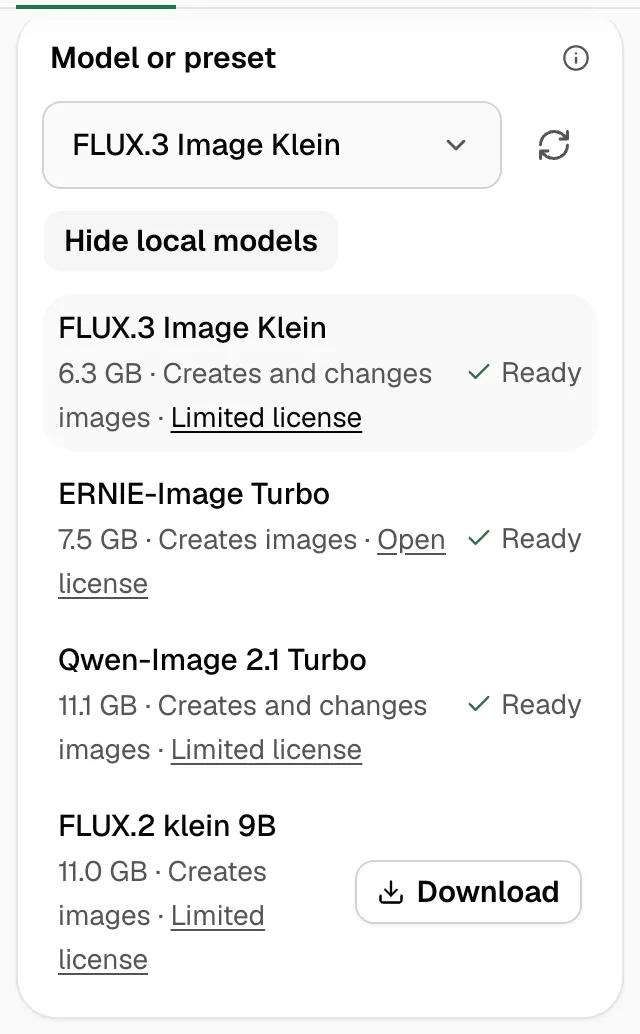
The Mac holds one image model in memory at a time. When you pick another model, Nexus switches to it before the next image. See Add a second local model.
The three views
Section titled “The three views”- Create: write a prompt, pick settings and make images. Change them with Change this image and Use as a guide.
- Gallery: saved images on this machine, by day, with prompt search, recorded settings and image comparison.
- Use in your apps: the addresses, model names and examples for your own code.
Good to know
Section titled “Good to know”- One image at a time on a Mac. While a local model makes an image, a request for a different local model gets a “busy” answer. Image Lab shows “Local images are busy. Try again shortly.” Apps get an error with a time to retry.
- Images from apps aren’t saved by default. Image Lab saves every image it makes. An app’s image is saved to the gallery only when the app asks. See Use images in your apps.
- Data Protection doesn’t scan image prompts. A prompt describes a picture, and changing the words would change the picture. Image requests pass through Data Protection unchanged.
- Image Lab uses a client API key. The key picker in the prompt box sets which key Image Lab uses, like in Chat Lab. That key’s model access and limits apply.
- No masks. You can’t mark one area of a picture to change. Describe the change in words instead.
Recipes
Section titled “Recipes”- Create your first image on your Mac
- Make a product photo, then change its color or background
- Keep a look with a seed and More like this
- Combine two images
- Save a look as a preset and call it from an app
- Make images from a script
- Show live previews in your own app
- Find an old image and continue from it
- Add a second local model and switch between them
- Use a cloud image provider