
Image gallery
Pro
Every image Image Lab makes is saved on the machine that made it. Gallery shows them all, newest first, grouped by day. There’s no limit on how many it keeps. The count and total size show next to the search box, such as 19 images · 14 MB.
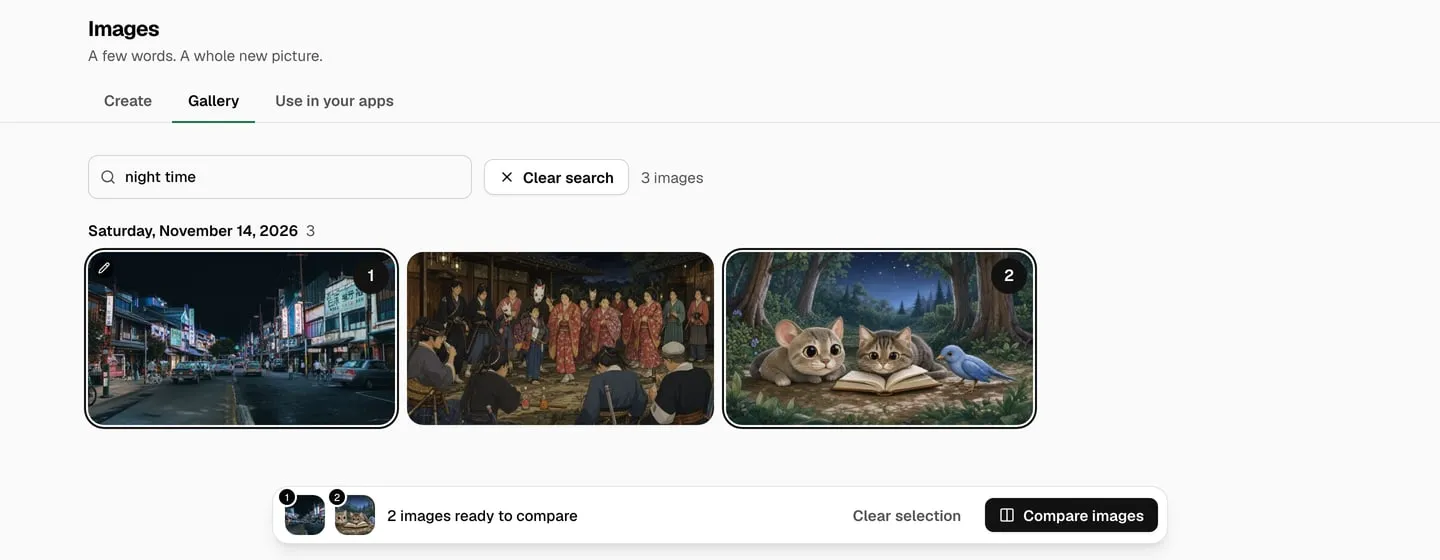
A pencil badge marks an image that was changed from another one.
Find an image
Section titled “Find an image”Type words from the prompt in Search prompts. For example, sneaker finds every image whose prompt has that word. Search looks at prompts only, not at what’s in the picture.
The query stays when you go to Create and return to Gallery. Click Clear search next to the search box to show all images again.
While a search loads, the previous results stay visible with a loading message. Wait for the message to clear before picking from the new results. A failed search shows an error; a search with no matches shows No image matches this search.
Open an image
Section titled “Open an image”Click an image to see it large, with its prompt and details: Gallery ID, Model, Size, Time and Made. Seed and Steps appear when recorded. Use the arrows, or the arrow keys, to move to the previous or next image. Long prompts scroll inside their panel so the picture stays in view.
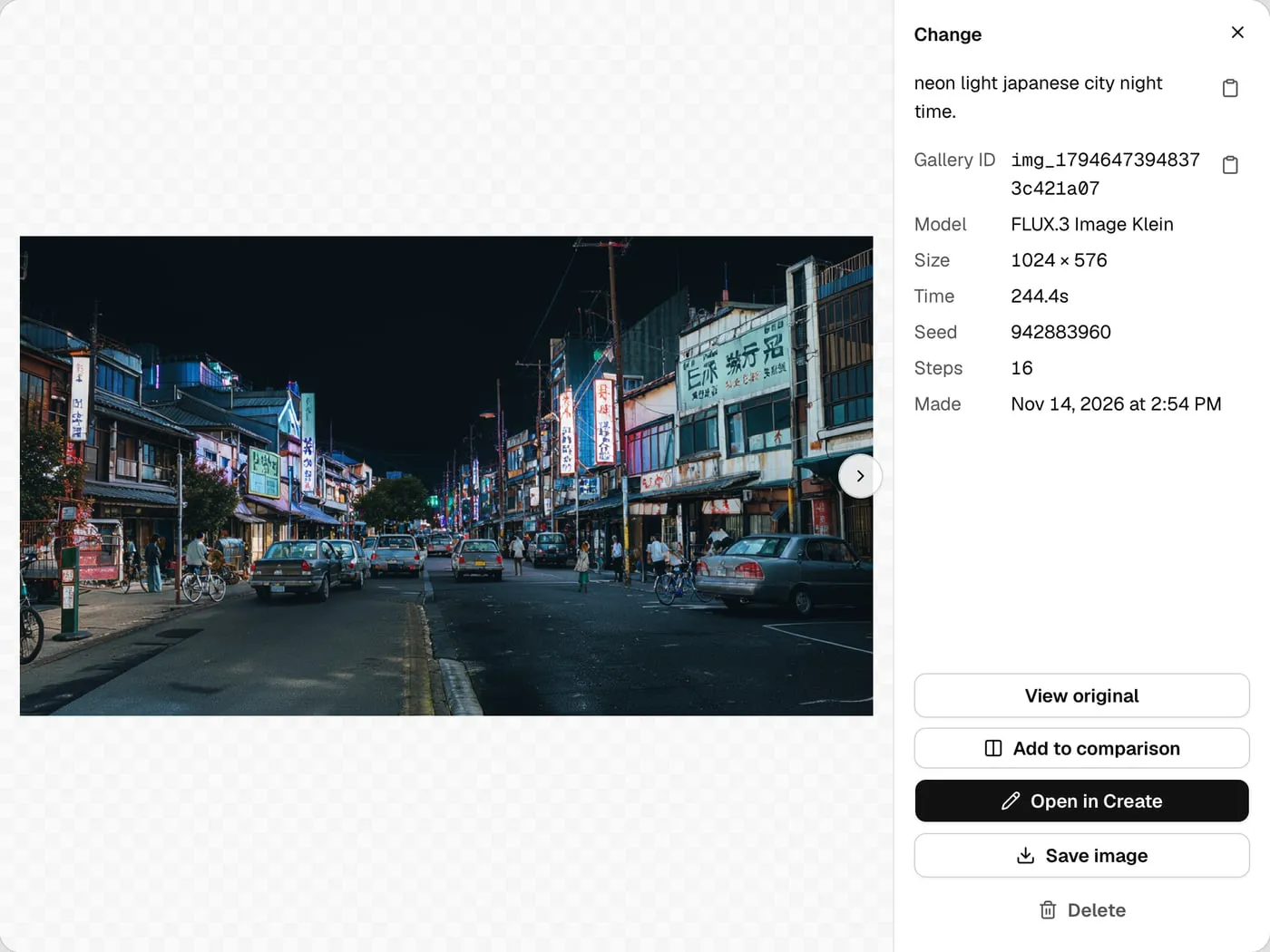
- Open in Create puts the image on the Create canvas, so you can change it or make more like it. See Find an old image and continue from it.
- Save image saves a copy to your computer.
- Delete removes the image from this machine. You can’t undo this.
- The copy button next to the prompt copies the prompt.
- Copy Gallery ID copies the image’s ID, useful when reporting a problem or finding a record through the API.
- View original opens the image this result came from, when that link was saved. For a chain of changes, it opens the previous image. If that image is unavailable or deleted, an error appears and the current image stays open.
Compare two images
Section titled “Compare two images”Compare 2 results to decide which one to continue from. Pick images from Gallery, Create, or one from each.
- In Gallery, point at a thumbnail and click its Add to comparison icon. Pick 2 images. You can also add an image from its details or under Do more with this image in Create.
- In Gallery, click Compare images in the bar at the bottom.
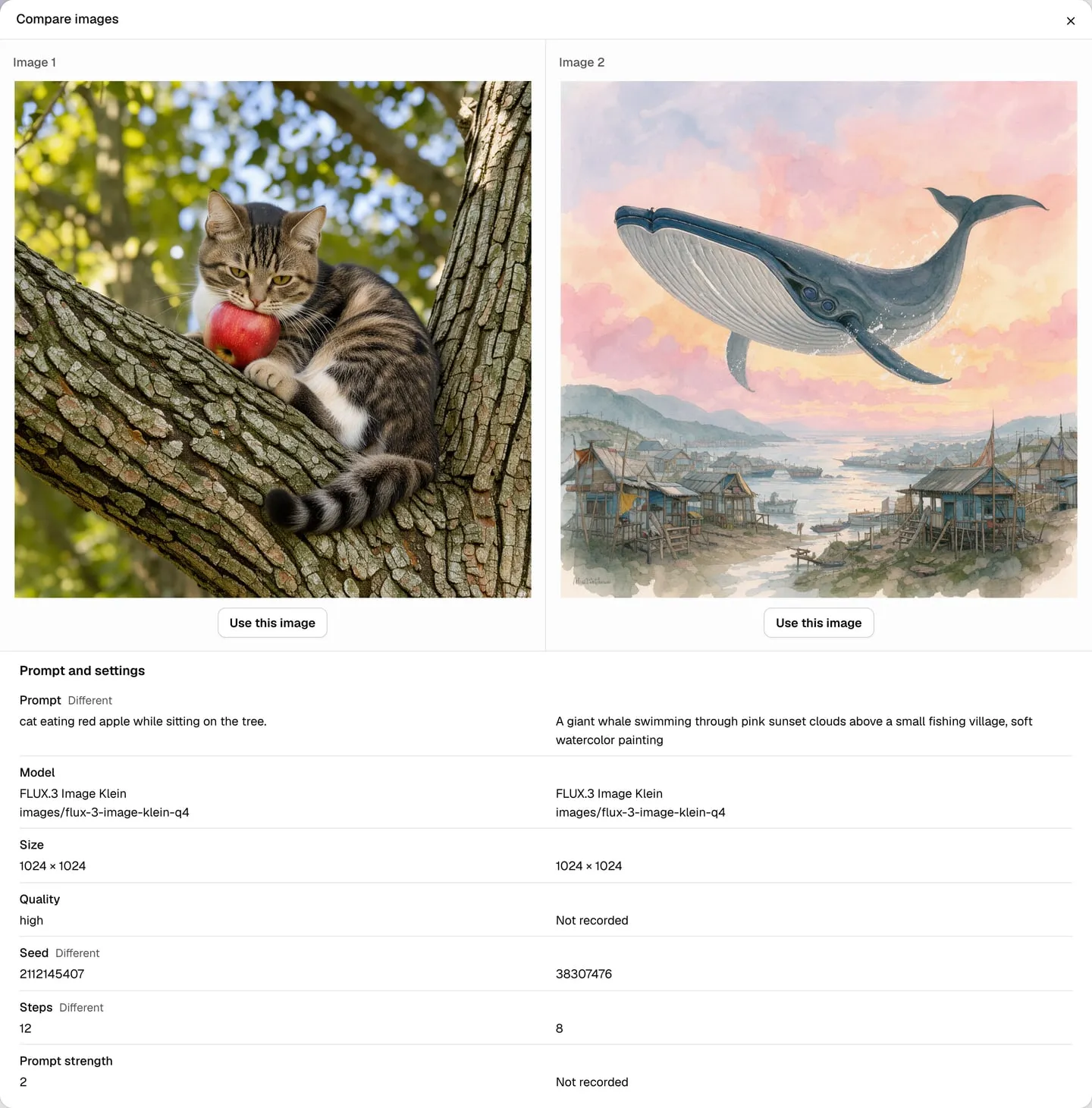
- Look at both images and their recorded settings. Each image fits inside its panel without cropping or stretching.
- Click Use this image under the result you prefer. It opens on the Create canvas.
Selected images have a border and a numbered comparison icon. The bar shows their thumbnails and stays at the bottom while you scroll. It appears only in Gallery. Your picks stay when you switch to Create and return.
Scroll down to Prompt and settings to compare the prompt, model, dimensions and generation settings when recorded. Long prompts scroll inside their columns. Different marks fields with different recorded values. Not recorded means a value is missing; missing values are not compared. Comparison does not score the pictures or pick a winner.
To refine the chosen image, use Change this image or Reuse prompt and settings in Create. Comparison itself does not generate another image.
Click a selected thumbnail in the bar, or its comparison icon in Gallery, to free a slot. Click Clear selection to remove all picks. This does not delete the images. You can compare at most 2 images at once.
Press Esc to close the comparison, or use Tab and Enter to reach and activate its actions. If an image cannot load, use Try again or Remove from comparison to pick another image.
What gets saved
Section titled “What gets saved”- Every image made in Image Lab.
- An image made by an app, only when the app asks for it with a header. See Use images in your apps.
Images stay on the machine that made them. They don’t move to other machines in a fleet.
Who can see the gallery
Section titled “Who can see the gallery”Anyone who can manage the machine can see, open and delete its saved images. A client API key can make images and ask to save them, but it can’t list or delete the gallery.
Deleting an image writes an entry in the audit log. The entry names the image by its ID only, not its prompt.