
Find an old image and continue from it
Pro
You’ll get: last week’s image back on the canvas, ready to change again or to vary. You don’t need to remember its prompt or settings.
You need: an image saved on this machine. Every image made in Image Lab is saved.
Find it
Section titled “Find it”- Open Image Lab → Gallery.
- Type a word from the prompt in Search prompts, such as
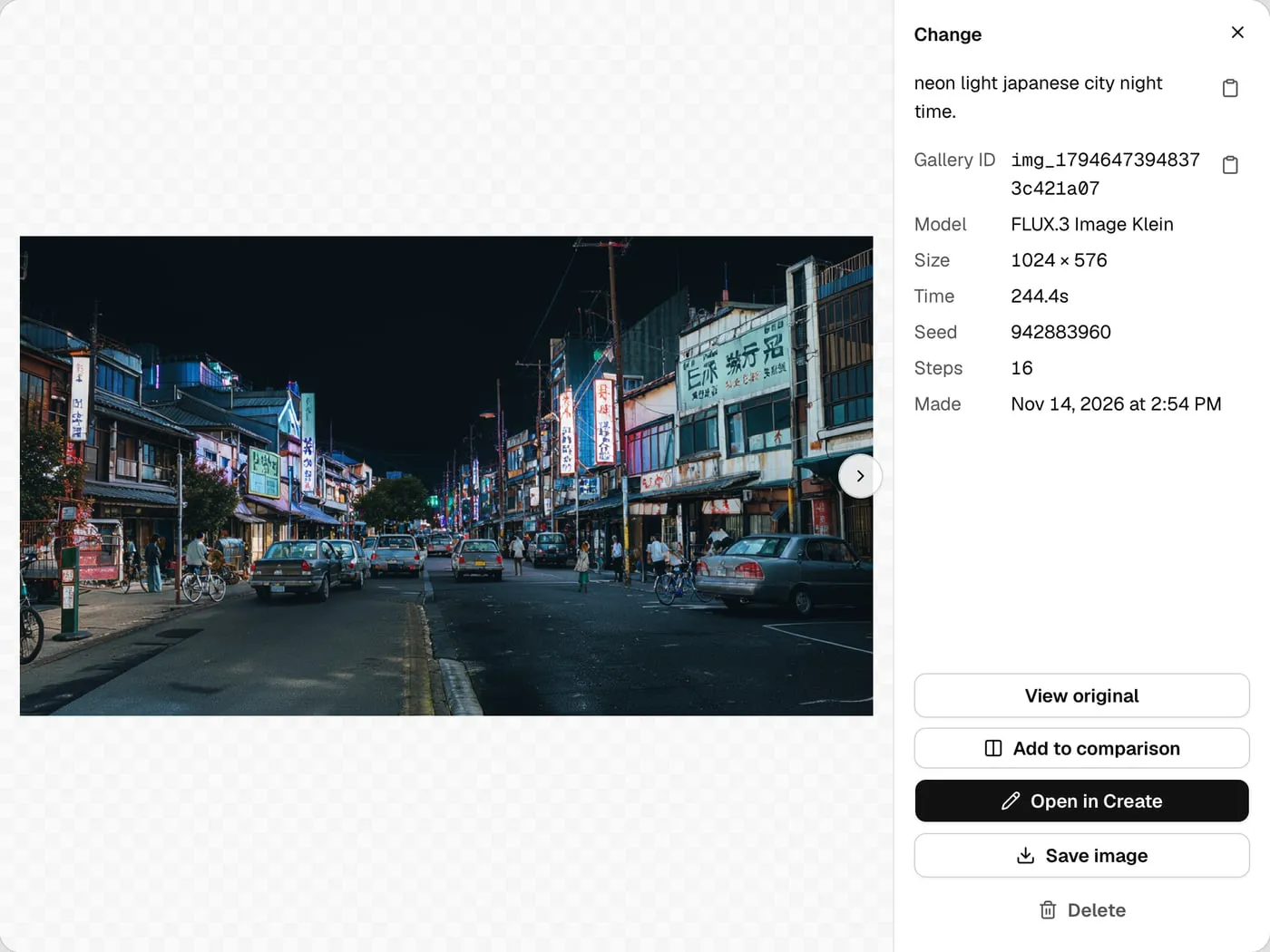
sneaker. - Images are grouped by day, newest first. Click the one you want.
Continue from it
Section titled “Continue from it”- Click Open in Create. The image goes on the Create canvas.
- Pick what to do under Do more with this image:
- Change this image to change it with words.
- More like this for a new image from the same prompt and settings.
- Reuse prompt and settings to fill the prompt and settings, seed included, and adjust them yourself.
To change it, the model must be one that changes images, such as FLUX.3 Image Klein.
Check it worked
Section titled “Check it worked”The image is on the canvas, and How it was made shows its prompt and settings. If it was a change, Steps to this image shows how you got there.
- Search looks at prompts only. For a change, the prompt is the change, such as “Make the sneaker deep teal with silver laces”.
- The prompt’s copy button in the gallery copies it, to use in a script.
- Search prompts keeps your query when you return from Create. Click Clear search to show all images again.
- View original opens the image a change came from, if it is still available. The details also show a copyable Gallery ID, plus Seed and Steps when recorded.
- Use Add to comparison on 2 images, then Compare images, to compare their pictures and settings.
- Images stay on the machine that made them. To find an image from another machine, open Image Lab on that machine.
More in Image gallery.