Create your first image on your Mac
Pro
You’ll get: a picture made on your own Mac, from a sentence. The prompt and the image stay on the machine. There’s no account and no charge per image.
You need:
- A Pro or Enterprise plan. On Free, Image Lab is locked. See Plans.
- A Mac with Apple Silicon and macOS 26 or later.
- About 7 GB of free disk space for the default model, FLUX.3 Image Klein (6.3 GB).
- A client API key. Image Lab uses it like an app would. Make one in API keys.
Set up local images
Section titled “Set up local images”- Open Image Lab under Try.
- Under On this Mac, leave Model on FLUX.3 Image Klein.
- Check the license. FLUX.3 Image Klein has a limited license: click View license if you plan to use images commercially.
- Click Set up local images.
Nexus shows Install, Download and Start as it goes. The download takes a few minutes on a fast connection. You can leave the page: setup keeps going, and Activity shows the progress.
When it’s done, the Create view opens.
Make the image
Section titled “Make the image”- Check the key picker in the prompt box shows your API key.
- Type a prompt in What do you imagine?, such as
A chunky retro sneaker in cream suede with tangerine laces and a translucent sole, floating above a pastel pink studio backdrop, soft shadow, studio product photo. Or click an idea under Try an idea, such as Paper fox. - For a quick first try, click Advanced and set Custom size to
512x512. - Click Generate, or press ⌘ ↵.
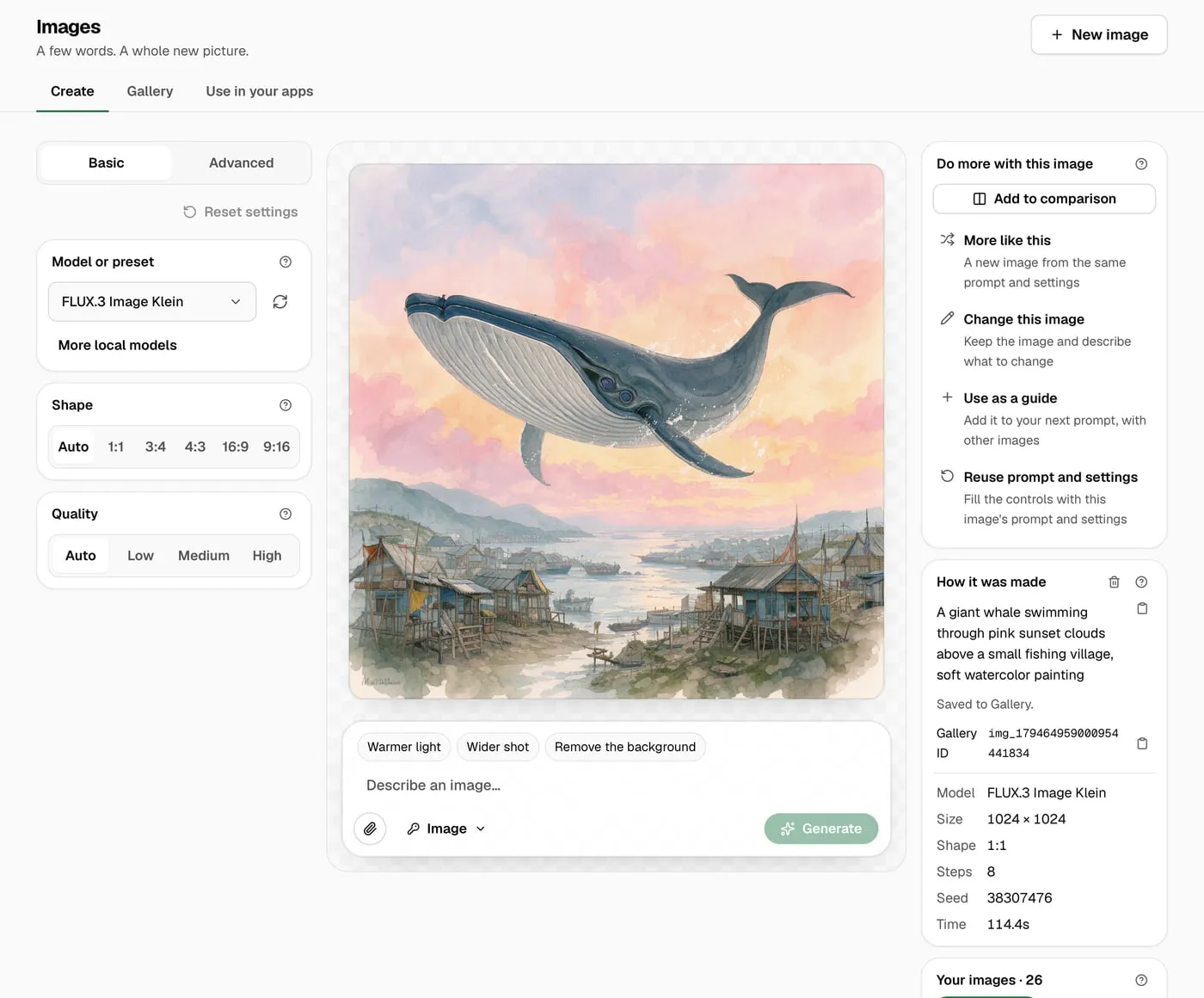
A soft preview appears and sharpens, with the step it’s on, such as Step 4 of 8. A 512 × 512 image takes about 25 seconds on an M3 Max. 1024 × 1024 takes about 100.
Check it worked
Section titled “Check it worked”- The image is on the canvas, and How it was made shows Model FLUX.3 Image Klein and the Time it took.
- It’s in Your images on the right, and in Gallery.
- Click the image to see it large. Use ← and → to move to your other images. Click the picture again, or press Esc, to close it. Save image saves a copy to your computer.
To try another idea, click New image at the top right of the page. It clears the canvas and the prompt, and keeps your model and settings.
- Change it: Make a product photo, then change its color or background.
- All the settings: Create images.
- Use it from code: Make images from a script.