
Add a second local model and switch between them
Pro
You’ll get: a second local image model, for a different job. For example, the open-licensed ERNIE-Image Turbo for work you sell, or FLUX.2 klein 9B for quick drafts.
You need: local images set up with one model. See Create your first image. Plus the free disk space for the new model: 7.5 to 11.1 GB.
Pick a model
Section titled “Pick a model”| Model | Good for | Download | License |
|---|---|---|---|
| FLUX.3 Image Klein | Most work. Creates and changes images. | 6.3 GB | Limited |
| ERNIE-Image Turbo | Images you’ll use commercially | 7.5 GB | Open (Apache 2.0) |
| Qwen-Image 2.1 Turbo | A second model that changes images | 11.1 GB | Limited |
| FLUX.2 klein 9B | Fast drafts, with 4 steps | 11.0 GB | Limited (non-commercial) |
Read the license before you use images commercially. Limited license in Image Lab links to it.
Download it
Section titled “Download it”- Open Image Lab. In the Model or preset card, click More local models.
- Find the model and click Download.
- Wait until it shows Ready. Working… shows while it downloads. Click the cancel button next to it to stop.
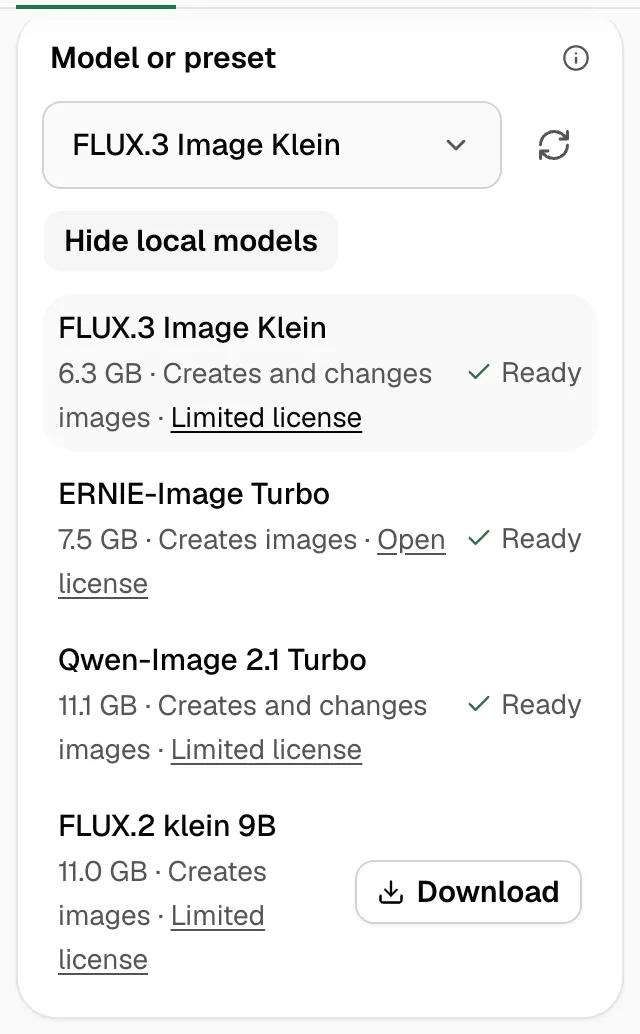
Click Hide local models to close the list.
Switch between them
Section titled “Switch between them”Pick the model under Model or preset, then click Generate. That’s all.
The Mac holds one image model in memory at a time. When you pick another, Nexus loads it before the image starts, so the first image after a switch takes a little longer.
Check it worked
Section titled “Check it worked”How it was made shows the new model’s name under Model.
Good to know
Section titled “Good to know”- Some settings depend on the model. Quality and Steps are for FLUX.3 Image Klein. The others use a fixed number of steps.
- Change this image and Use as a guide show only for FLUX.3 Image Klein and Qwen-Image 2.1 Turbo.
- While one model makes an image, a request for another local model gets “Local images are busy. Try again shortly.” Wait for the first image to finish.
- Apps pick the model by name, such as
images/ernie-image-turbo-q4. See Use images in your apps.