
Combine two images with Use as a guide
Pro
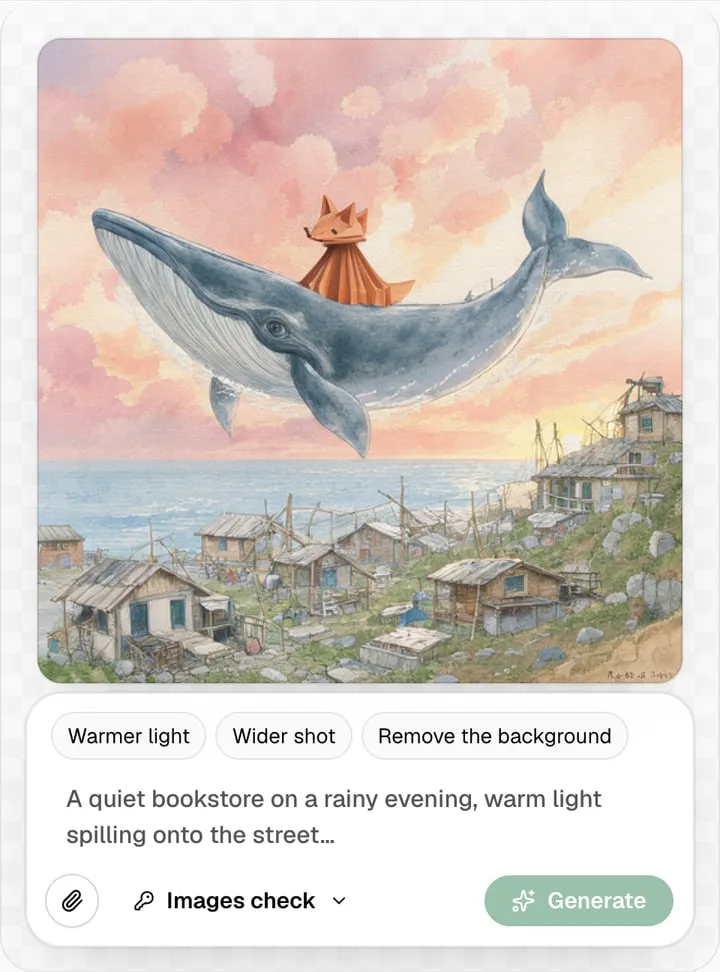
You’ll get: one picture made from two, such as a paper fox from one picture riding the whale from another. The same steps work to copy a style or an object from one image into a new scene.
You need:
- FLUX.3 Image Klein (up to 10 images) or Qwen-Image 2.1 Turbo (up to 3). The other local models can’t take input images. See Add a second local model.
- Two images in Your images or the Gallery, or files on your computer. To follow along, make two from Try an idea on an empty canvas: Paper fox and Sky whale.
Add both images
Section titled “Add both images”- Open Image Lab and pick FLUX.3 Image Klein under Model or preset.
- Click the first image under Your images, such as the paper fox. Under Do more with this image, click Use as a guide.
- Click the second image, such as the sky whale, and click Use as a guide again.
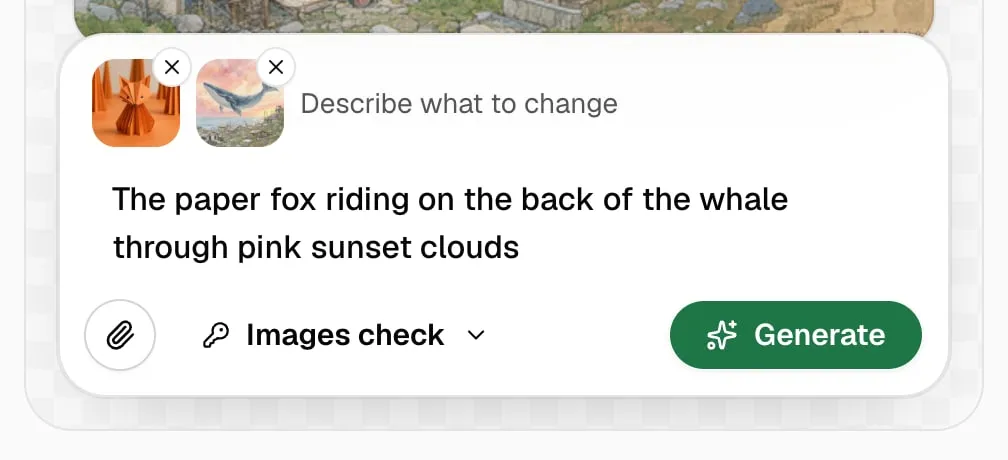
Both show as small pictures in the prompt box. To add a picture from your computer, click the paperclip (Add an image to change).
Describe the result
Section titled “Describe the result”- Say what goes where, and keep words from both pictures:
The paper fox riding on the back of the whale through pink sunset clouds. - Click Generate.
The result shows on the canvas. Both pictures leave the prompt box, and the prompt empties. To try other words, add the two pictures again with Use as a guide. If the request fails, your words and both pictures go back into the box, so you can try again.
Check it worked
Section titled “Check it worked”How it was made shows Input images 2. A 512 × 512 result with two guides took about 70 seconds on an M3 Max.
- Name each picture by what’s in it (“the fox”, “the whale”), not “image 1”.
- Say which picture sets the scene: “through pink sunset clouds” keeps the whale’s sky.
- Each extra image adds time. Use only the ones you need.
- To clear the pictures and the prompt before you generate, click New image at the top right of the page.
More in Change images.