
Make a product photo, then change its color or background
Pro
You’ll get: a clean product shot, then versions in another color and on another background. Each version keeps the product and changes only what you ask for.
You need:
- Local images set up with FLUX.3 Image Klein or Qwen-Image 2.1 Turbo. These two can change images. See Create your first image.
Make the first shot
Section titled “Make the first shot”- Open Image Lab. Under Model or preset, pick FLUX.3 Image Klein.
- Type a prompt that names the product, the surface and the light. For example:
A chunky retro sneaker in cream suede with tangerine laces and a translucent sole, floating above a pastel pink studio backdrop, soft shadow, studio product photo. - Optional: click Advanced and set Leave out to
text, logos. - Click Generate.
Not happy? Click More like this for another try with the same prompt.
Change the color
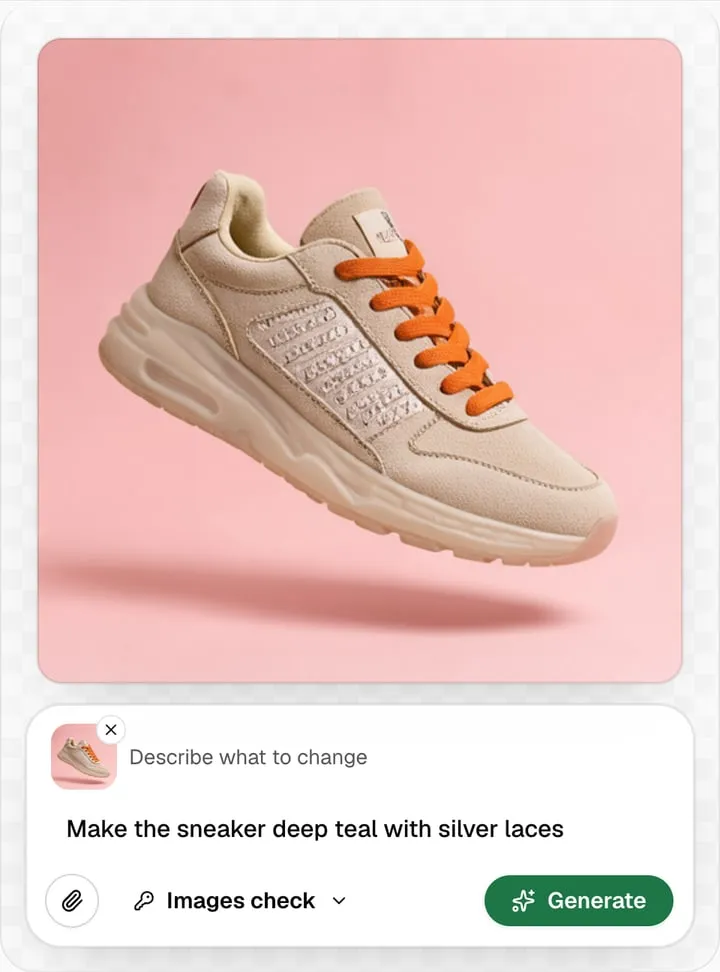
Section titled “Change the color”- With the sneaker on the canvas, click Change this image. The sneaker moves into the prompt box.
- Type
Make the sneaker deep teal with silver laces. - Click Generate.
Change the background
Section titled “Change the background”- The teal sneaker is already on the canvas: each finished image becomes the one shown.
- Click Change this image. The teal sneaker goes into the prompt box.
- Type
Put the sneaker on a rain-wet city street at night, neon signs reflecting in the puddles. - Click Generate.
Each change clears the prompt box when it starts, so click Change this image again for each new step.
For a plain cut-out instead, click the quick change Remove the background. Warmer light and Wider shot work the same way: one click, no typing.
Check it worked
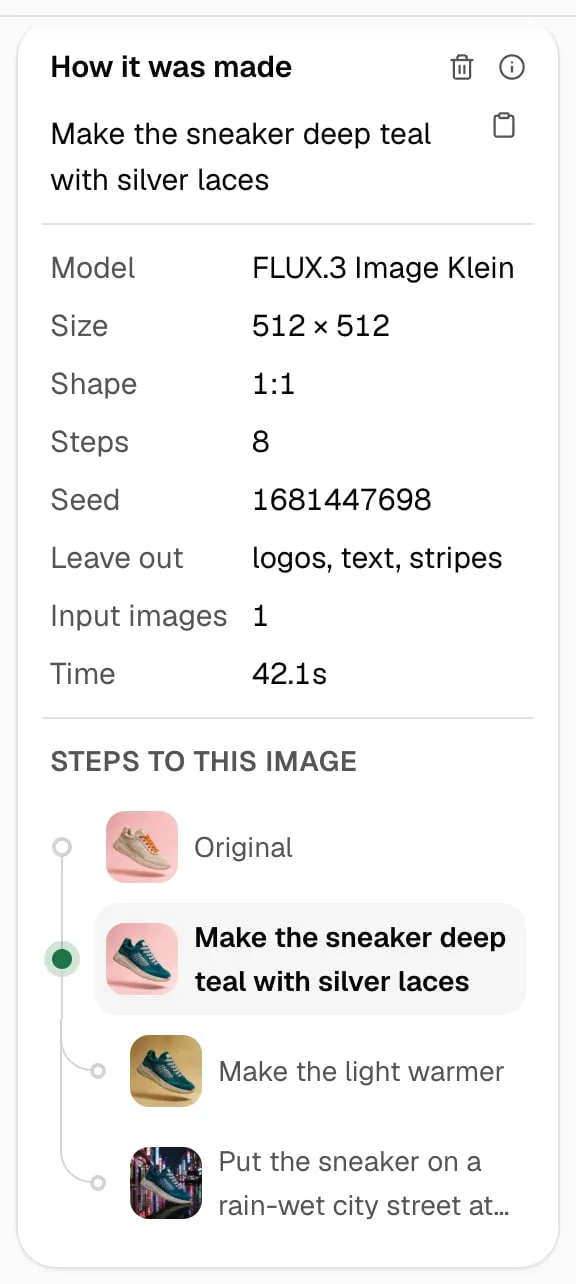
Section titled “Check it worked”Click the teal sneaker. How it was made shows Input images 1, and Steps to this image shows the cream Original, the teal sneaker, and both changes made from it. Click any step to go back to it.
- Change one thing at a time. “Make it blue and put it in a kitchen” in one step changes more of the product than two steps do.
- Say what to keep when the model drifts:
Make the sneaker deep teal, keep the same shape and sole. - A change takes longer than a new image: about 45 seconds at 512 × 512 on an M3 Max.
When you’re done with the sneaker, click New image at the top right of the page to start the next product from words alone.
More in Change images.