
Save a look as a preset and call it from an app
Pro
You’ll get: one model name for your house style. Your apps send a prompt, and each image uses the saved model, size and quality. Change the preset later, and every app gets the change.
You need:
- A local image model, or a provider’s image model. See Create your first image.
- A client API key for your app. Make one in API keys.
Save the preset
Section titled “Save the preset”- Open Image Lab and pick the model under Model or preset, such as FLUX.3 Image Klein.
- Click Advanced and set what every image should share. For example:
- Custom size:
1024x1024 - Quality: Medium
- Custom size:
- Under Save as preset, type
Product shotin Preset name. - Click Save as preset.
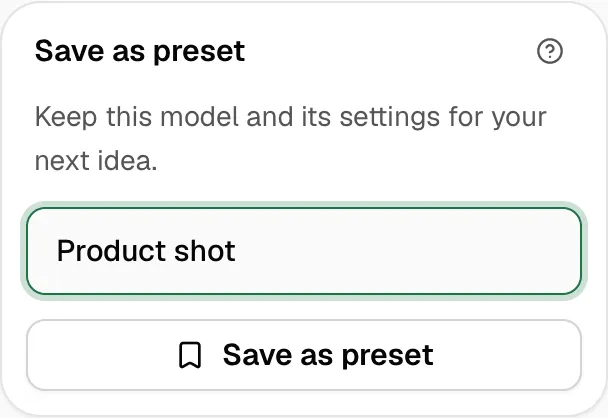
Image Lab says “Preset saved. It’s ready to use in your apps.” Pick Product shot under Model or preset to try it in Image Lab.
Get its model name
Section titled “Get its model name”- Open Use in your apps.
- Under Example, pick Product shot.
- Copy Model name to send. It’s the preset name with a short code that makes it unique, such as
@preset/product-shot-a04e3c.
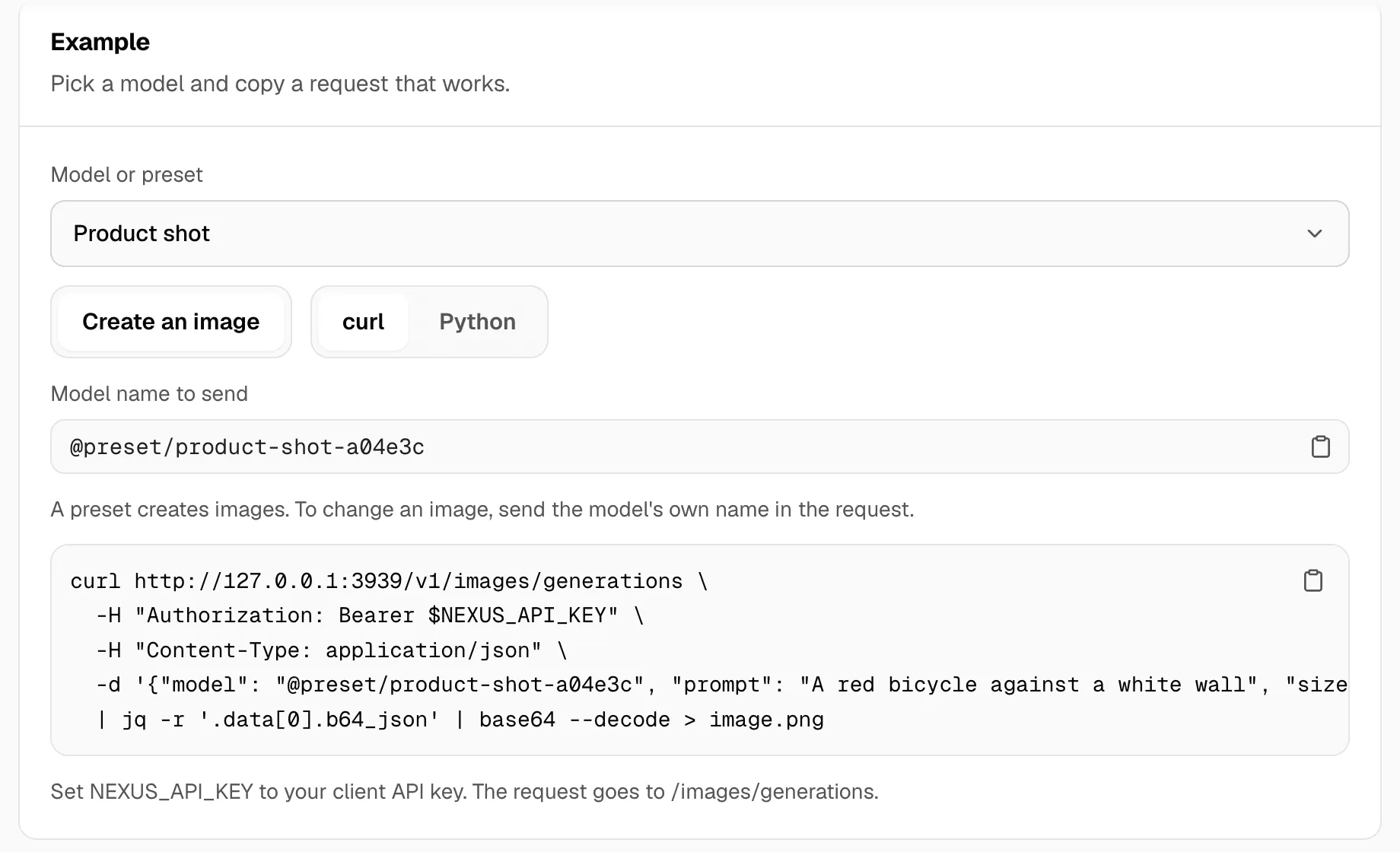
Call it from your app
Section titled “Call it from your app”curl http://127.0.0.1:3939/v1/images/generations \ -H "Authorization: Bearer $NEXUS_API_KEY" \ -H "Content-Type: application/json" \ -d '{"model": "@preset/product-shot-a04e3c", "prompt": "A walnut cutting board"}' \ | jq -r '.data[0].b64_json' | base64 --decode > image.pngUse your preset’s name in place of @preset/product-shot-a04e3c. The request needs only a prompt: the size and quality come from the preset. A field the app does send, such as size, wins over the preset.
Check it worked
Section titled “Check it worked”The image comes back at 1024 × 1024. In Image Lab, the preset is listed under Model or preset, and in Presets.
When the app gets an error
Section titled “When the app gets an error”- Not allowed: the app’s key can’t use the preset. Give it access in API keys.
- Unknown model: check the name, including the code after
product-shot-.
A seed you type in Seed before saving is kept in the preset, and every image starts from it. Leave Seed blank for a new image each time.
The preset creates images. To change an image from an app, send the model’s own name, such as images/flux-3-image-klein-q4. In Image Lab, Change this image works with the preset selected, if your key can also use its model.
Use Image Lab’s Save as preset for image settings. The Describe it and Pick a goal paths in the general preset creator are for language models.
To change the look later, edit the preset in Presets. Apps keep the same name.