What is Msty Nexus?
Msty Nexus is an AI gateway that runs on your own machines. Your apps send every AI request to Nexus, at one address. Nexus sends each request to the right model: one running on your computer, or one from an online provider such as OpenAI or Anthropic.
Your apps never hold provider keys. They use a Nexus key instead, and the provider keys stay inside Nexus, on your machine.
Why use it:
- One place for every model. Connect local models and online providers once. Every app gets them through the same address.
- Keys stay safe. Apps get their own Nexus key, which you can limit or revoke without touching your provider accounts.
- The right model for each job. Send routine work to fast local models and hard work to the best online ones, without changing your apps.
- See what’s used. Requests, tokens, speed and estimated cost, per app and per model. Nexus never stores prompts or replies for this.
Apps connect the way they already know: Nexus speaks the OpenAI and Anthropic APIs.
How it fits together
Section titled “How it fits together”- Nexus Runtime does the work. It runs in the background on each machine, serves the gateway, starts local model engines, and keeps provider keys.
- The Nexus app is how you manage it. The menu bar (or system tray) shows status and quick controls. The Console is the full window, where you set up providers, models and routes.
- The web Console Pro is the same Console in your browser, for all your machines, from anywhere.
Find your way around
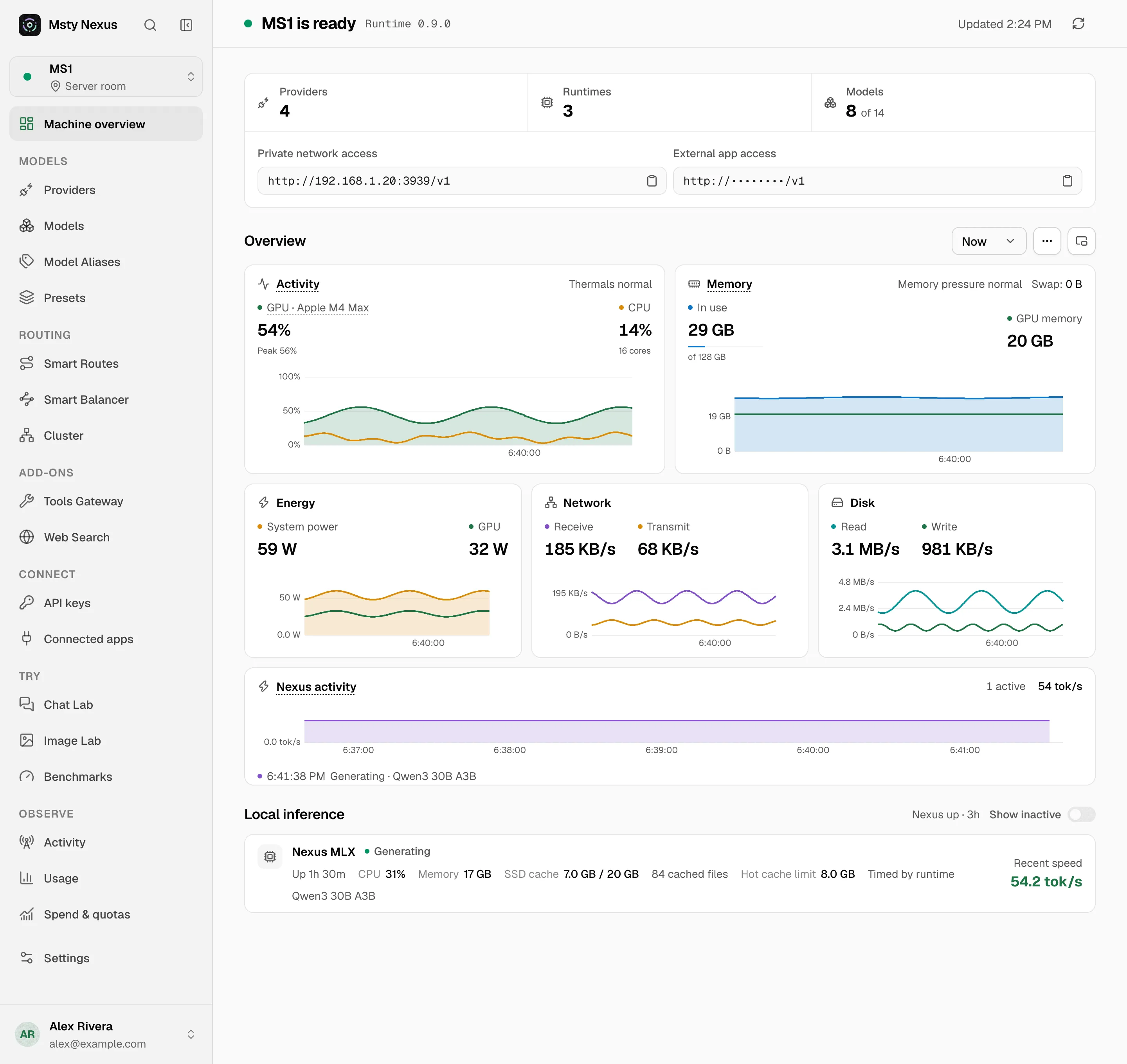
Section titled “Find your way around”The Console’s left side lists everything for the machine you picked. These docs follow the same groups:
Machine overview sits at the top, with the machine’s health and addresses at a glance.
- Models: what the machine can run. Providers, Models, Model Aliases and Presets.
- Routing: where requests go. Smart Routes, Smart Balancer and Cluster.
- Add-ons: what else a request can use. Tools Gateway, Web Search and Data Protection.
- Connect: how apps reach the machine. API keys and Connected apps.
- Try: test a model or check its speed. Chat Lab, Image Lab and Benchmarks.
- Observe: what happened and what it cost. Activity, Usage and Spend & quotas.
Settings sits below these groups.
With more than one machine, the switcher at the top of the sidebar picks which machine you’re working on. Owners and admins also see Fleet, for all machines at once. See Fleet.
Some pages need a paid plan. On the desktop app they show a lock and what unlocks them. See Plans.
Start here
Section titled “Start here”Four short guides take you from download to a working app.